

Samurai AI Operation Check
Let’s verify that SamuraiAI works correctly in your environment. Follow the steps below.
What this check covers
Section titled “What this check covers”- Browser automation: SamuraiAI’s browser launches and opens the Kiva Inc. website. It reads company information (company name, address, postal code, phone number) from the bottom of the page.
- Connector integration: The retrieved information is written to a Google Spreadsheet (or Excel) file named “Samurai AI動作チェック”.
1. Connector Setup
Section titled “1. Connector Setup”For Google Workspace users
Section titled “For Google Workspace users”-
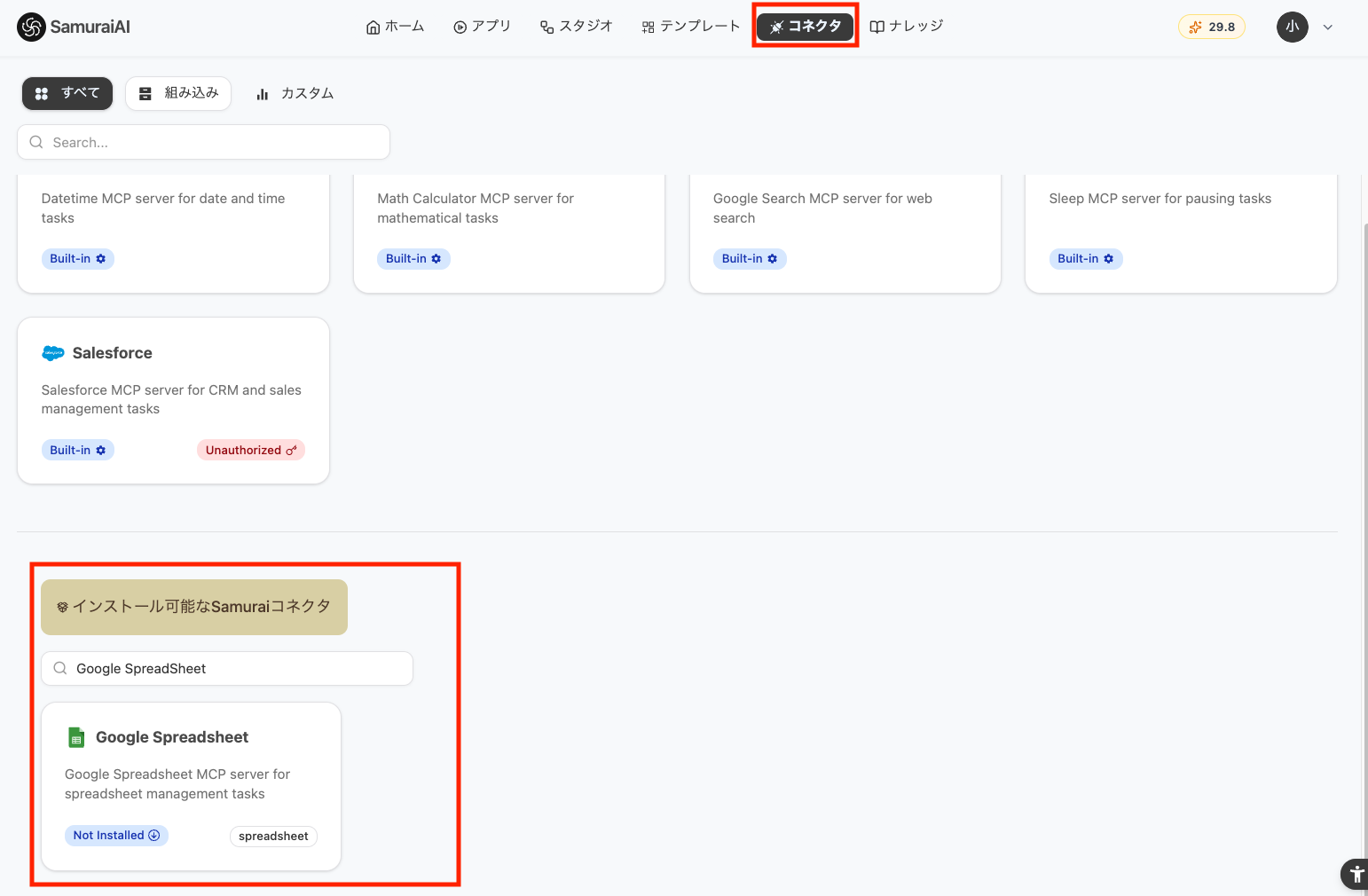
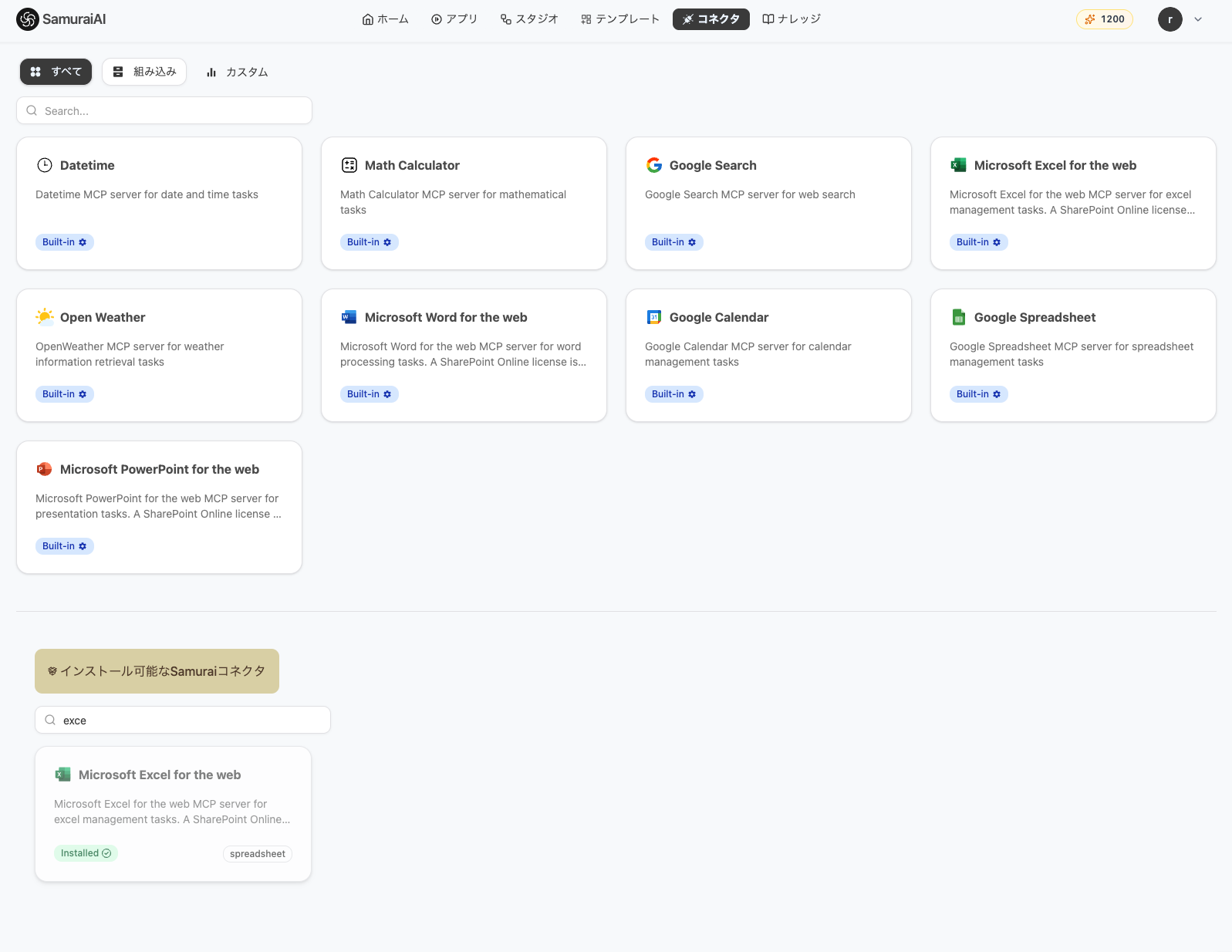
Select the “Connector” tab at the top. Scroll down and select “Google Spreadsheet”.
-
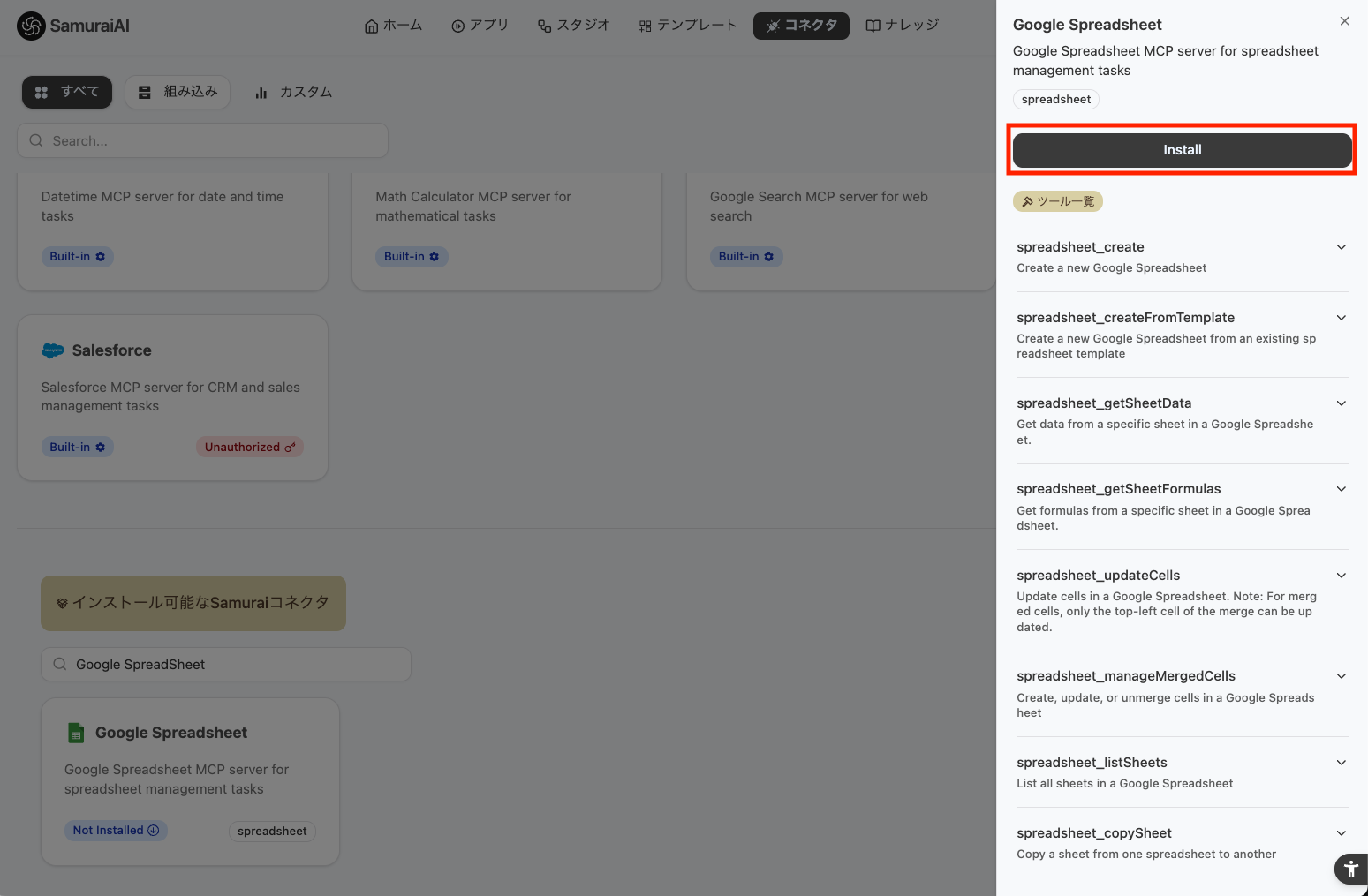
Click “Install” on the right.
-
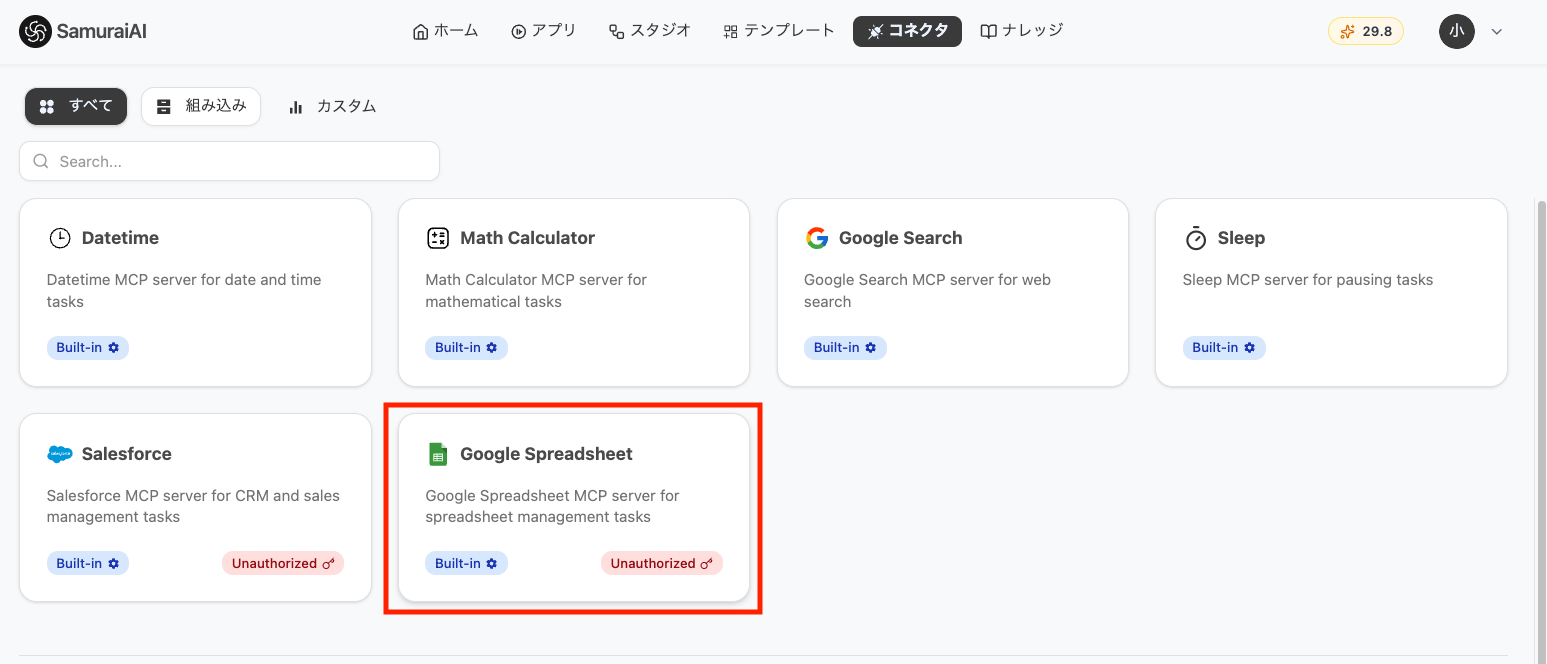
Go back to the top of the page and select “Google Spreadsheet” from the installed connectors.
-
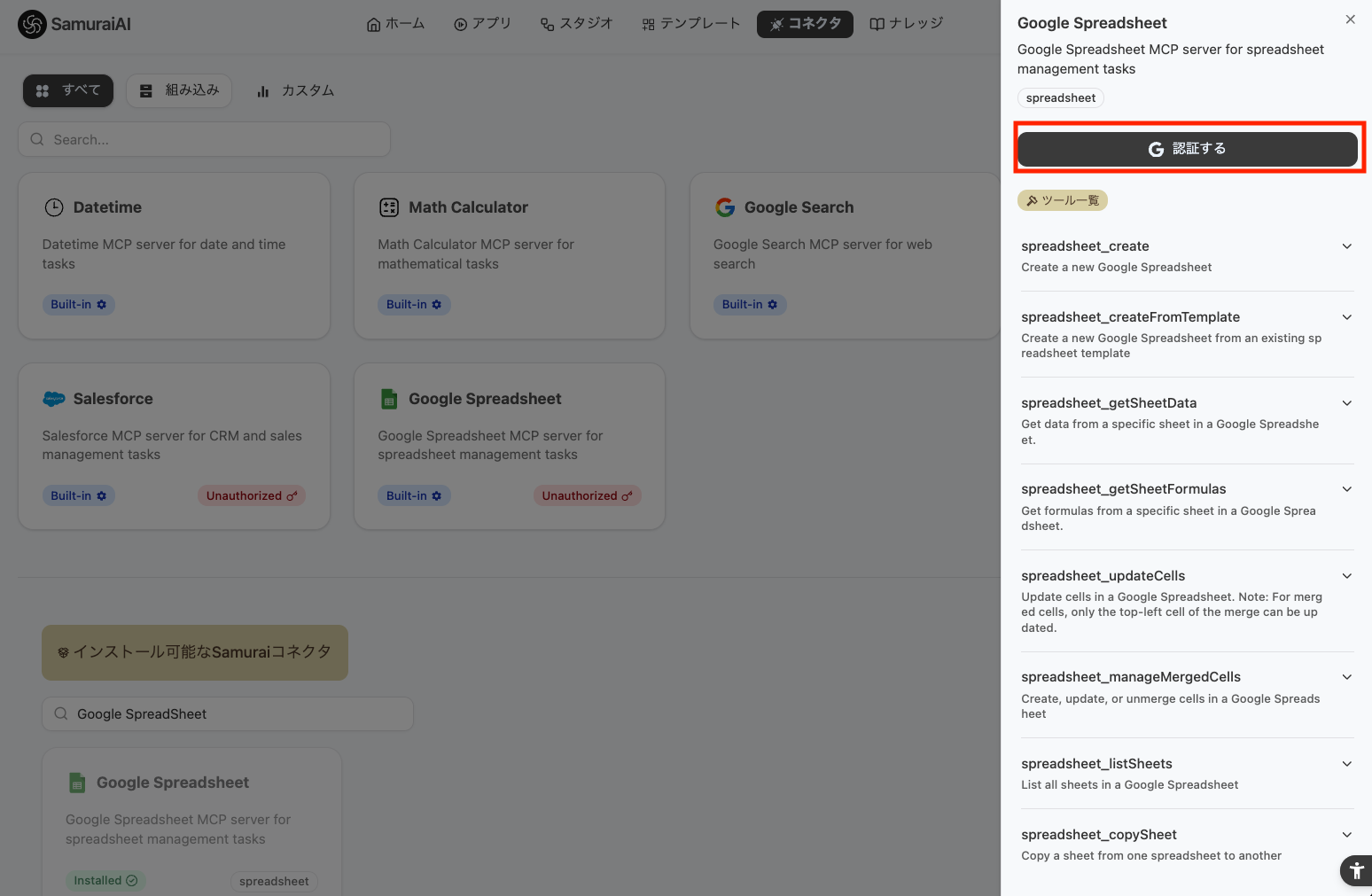
Click “Authorize” on the right.
-
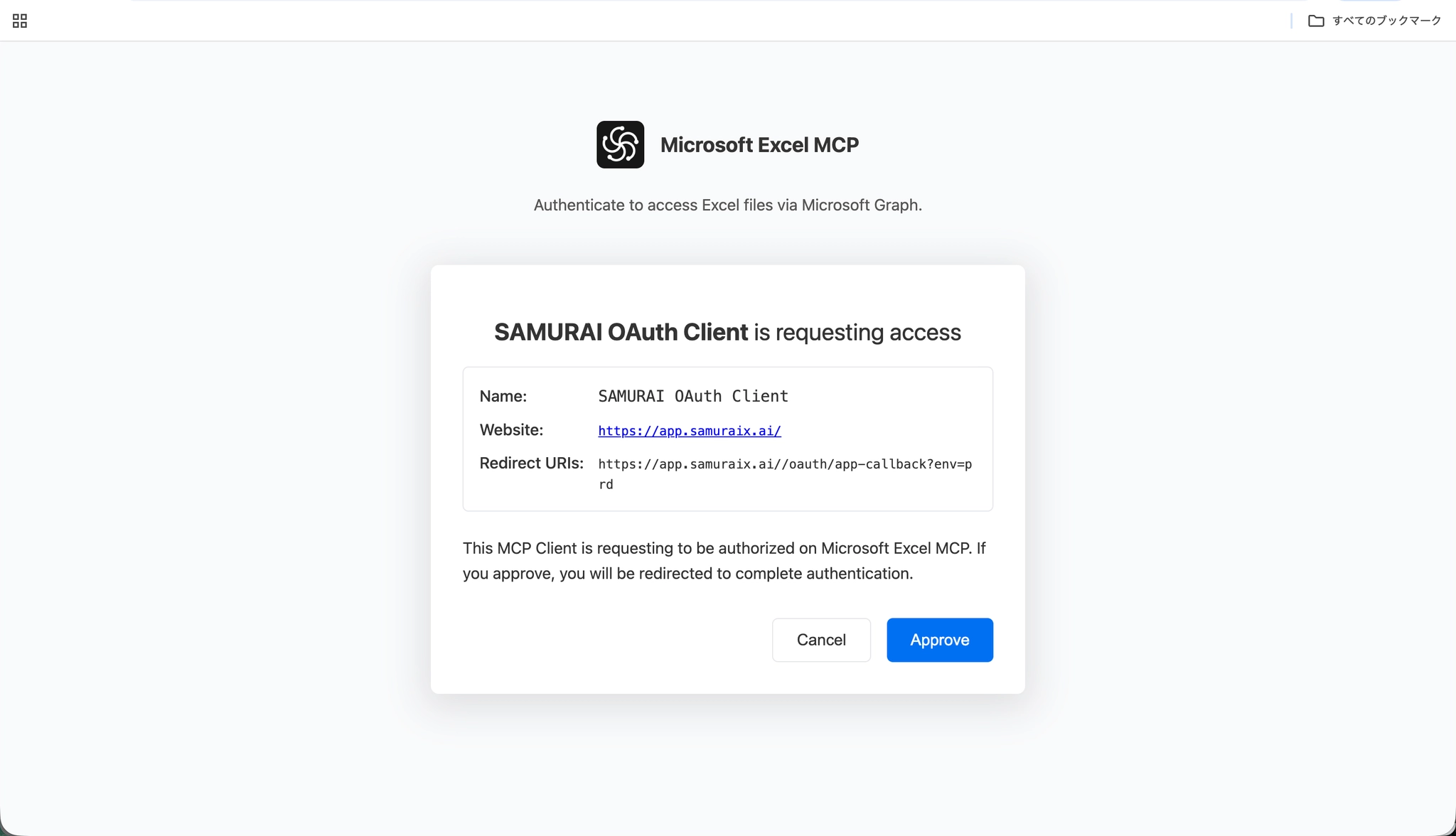
Click “Approve” on the page that opens.
For Microsoft 365 users
Section titled “For Microsoft 365 users”Select “Excel for the web” and follow the same authorization steps as for Google Workspace above.
2. Add Template
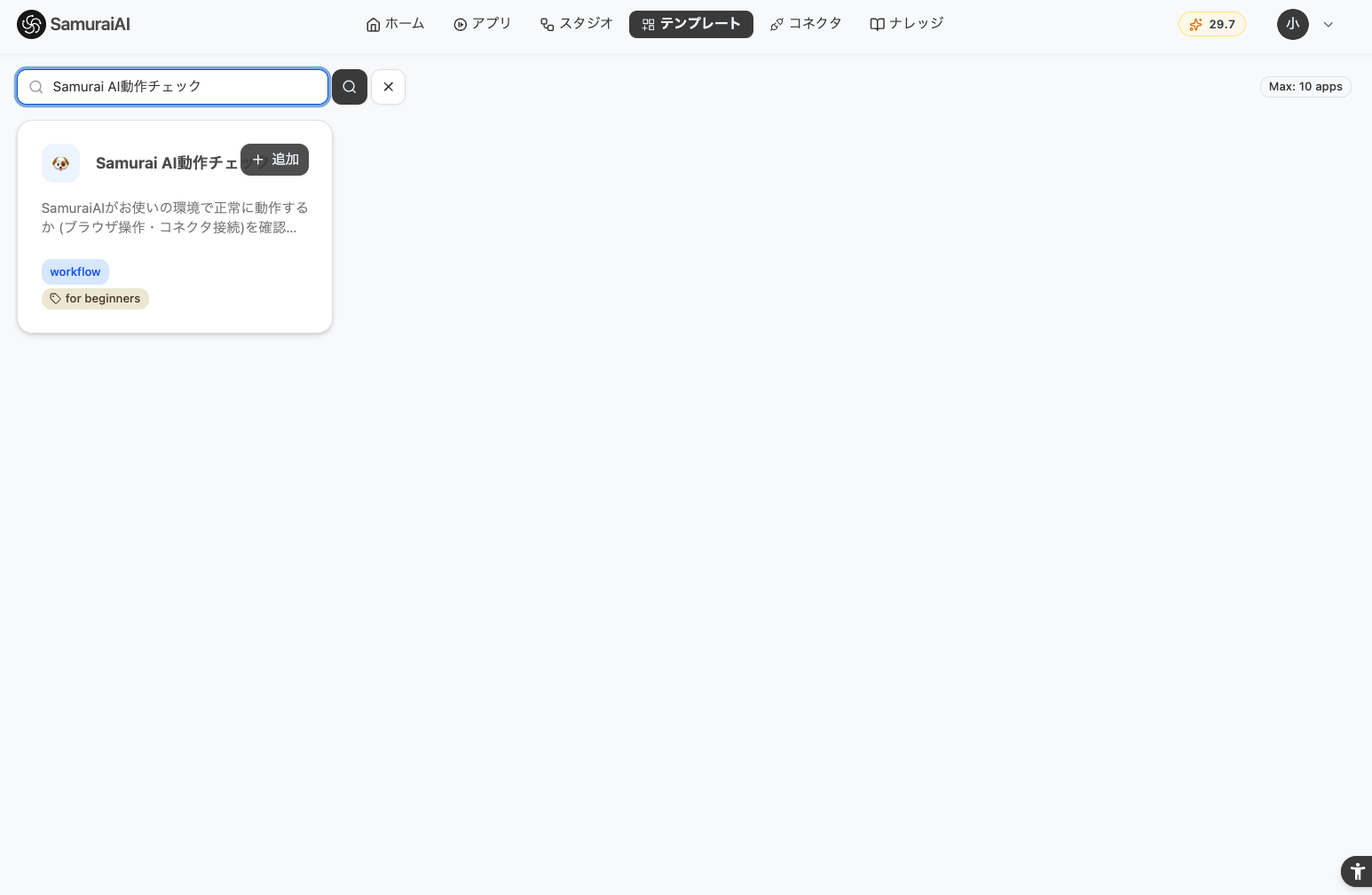
Section titled “2. Add Template”- Select the “Template” tab at the top.
- Hover over “Samurai AI動作チェック”.
- Click “Add” that appears in the upper right.
3. Run Workflow
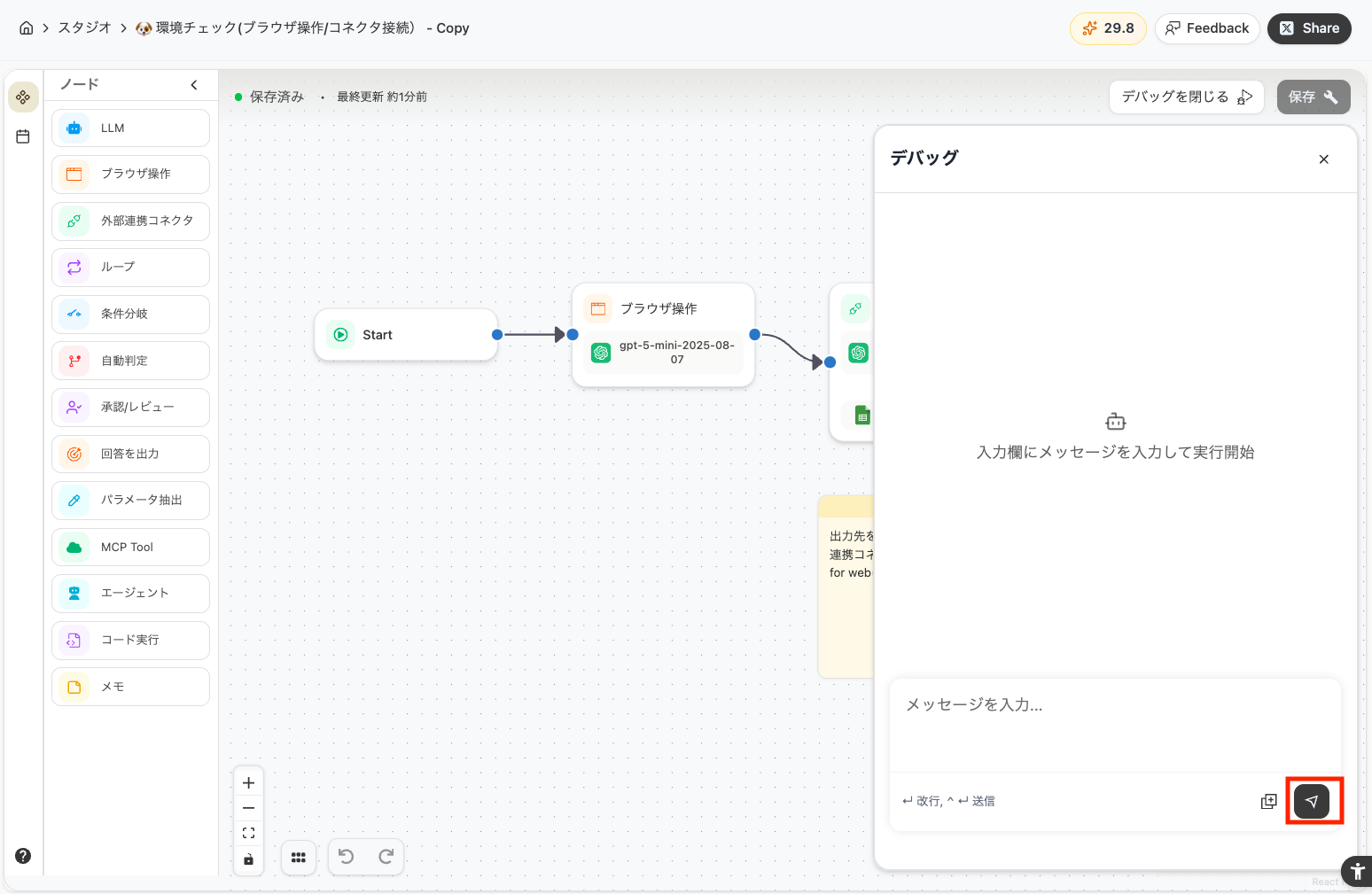
Section titled “3. Run Workflow”- After clicking the add button, you will be taken to the workflow editor.
- Click “Debug” in the upper right of the page.
- Click “実行してください” at the bottom right.
4. Completion Check
Section titled “4. Completion Check”Once the workflow runs successfully, the following actions are performed automatically. Please verify all items.
- SamuraiAI’s browser launched and the Kiva website was displayed
- A “Samurai AI動作チェック” file was created in Google Spreadsheet (or Excel) with the company information written in it
Last updated: