

Member Management
In SamuraiAX, you can manage your team members. By inviting members, you can work together on features such as creating and running apps.
Adding a Member
Section titled “Adding a Member”Open Settings from the account menu in the top-right corner, then select the Members tab in the sidebar. Your current members are shown in a list.
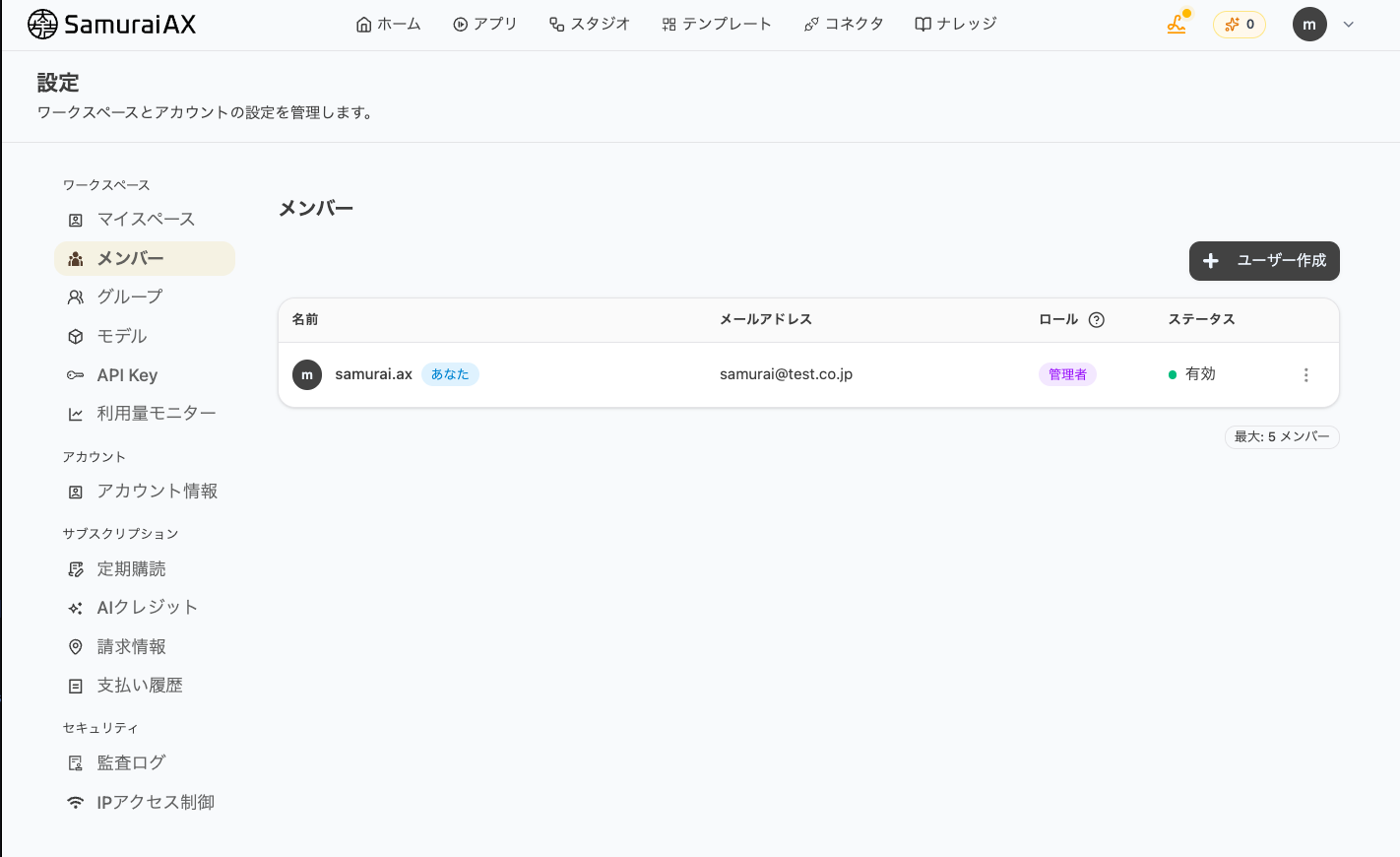
Click the Create User button in the top-right corner to open the Invite User dialog. Enter the email address of the person you want to add, choose the role (permission) to grant, and click the Invite button.
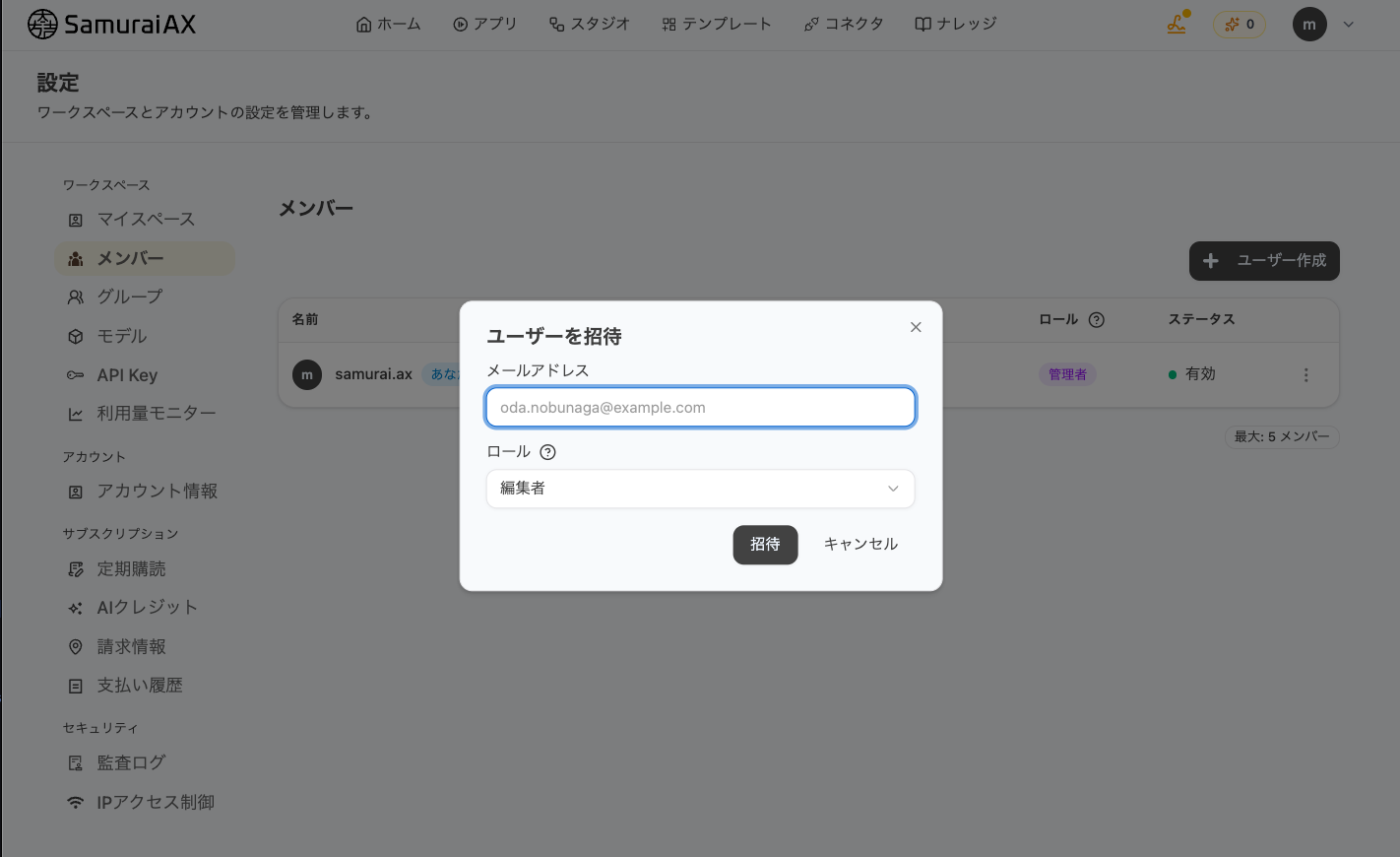
Once the invitation is sent, an invitation email is delivered to the address you entered. The invited member is added to the list right away, with their status set to Active.
About Roles (Permissions)
Section titled “About Roles (Permissions)”The following five roles can be selected when inviting or editing a member. Choose the appropriate one based on the permissions you want to grant.
| Permission | Description |
|---|---|
| Administrator | All operations are allowed |
| Manager | Subscription management is allowed |
| Leader | Member management is allowed |
| Editor | App editing and execution are allowed |
| Viewer | App viewing and execution are allowed |
Note that higher-level permissions include lower-level permissions. For example, a Manager includes Leader, Editor, and Viewer permissions.
Last updated: