

Knowledge Base Search Node
The Knowledge Base Search node retrieves information relevant to a search query from documents registered in a knowledge base. By passing the retrieved information to an LLM node, you can generate accurate answers grounded in your internal documents and manuals.
In this tutorial, we’ll build a workflow that answers employee questions based on an internal expense reimbursement manual.
Tutorial
Section titled “Tutorial”Add an Input Variable to the Start Node
Section titled “Add an Input Variable to the Start Node”Create a new workflow in Studio. Select the Start node and add one input variable:
- Variable name:
question - Type: Text
This will be the input field that receives the user’s question.
Add a Knowledge Base Search Node
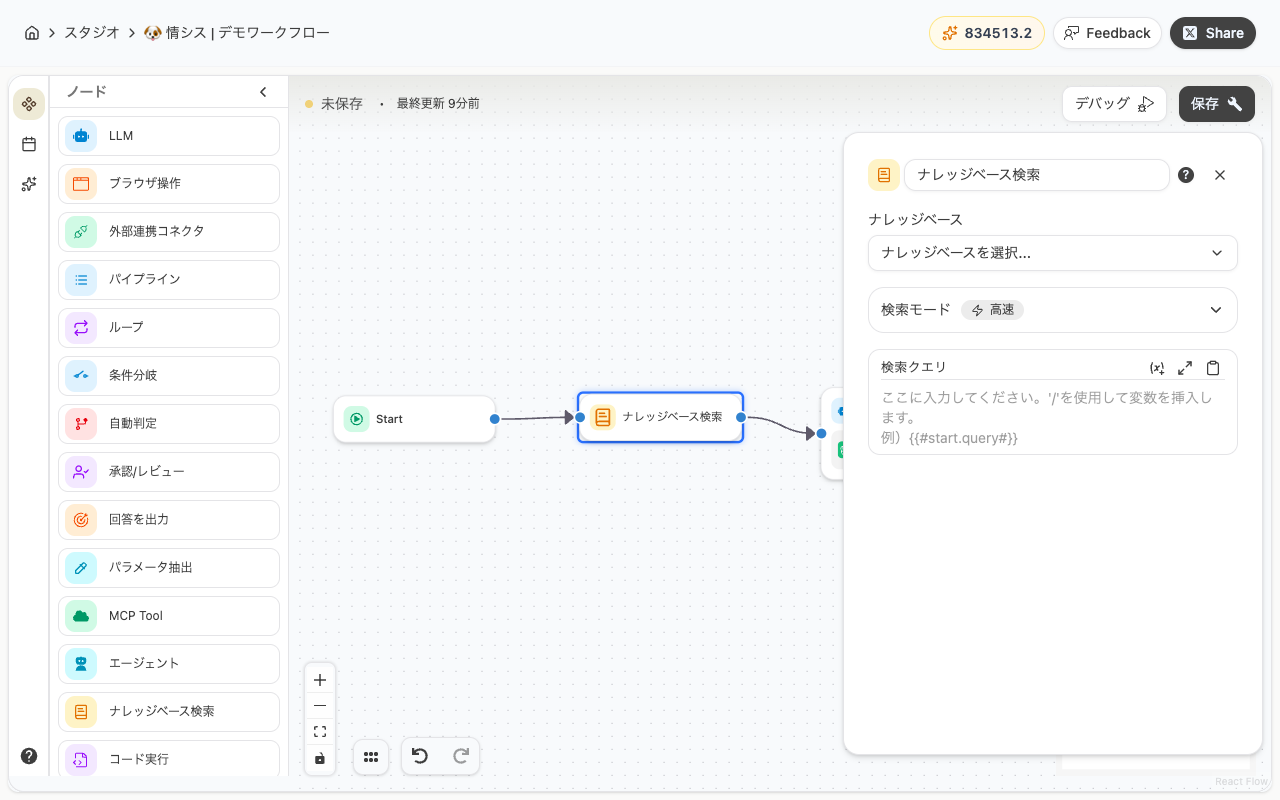
Section titled “Add a Knowledge Base Search Node”Add a Knowledge Base Search node after the Start node and configure it as follows:
- Knowledge Base: Select the knowledge base containing your expense reimbursement manual (you can select multiple)
- Search Mode: Leave it on “Fast”
- Search Query: Enter the following
{{#start.question#}}Generate Answers with an LLM Node
Section titled “Generate Answers with an LLM Node”Add an LLM node after the Knowledge Base Search node. Copy and paste the following into the prompt field:
You are an internal helpdesk assistant.Answer the employee's question based on the company manual excerpts below.
Rules:- Only answer based on what is written in the manual- If the manual does not cover the topic, reply: "This topic is not covered in the manual. Please contact the HR department for assistance."- When possible, mention which section of the manual the answer is based on
## Company Manual{{#knowledgeBase-1.context#}}
## Employee's Question{{#start.question#}}
Overall Workflow
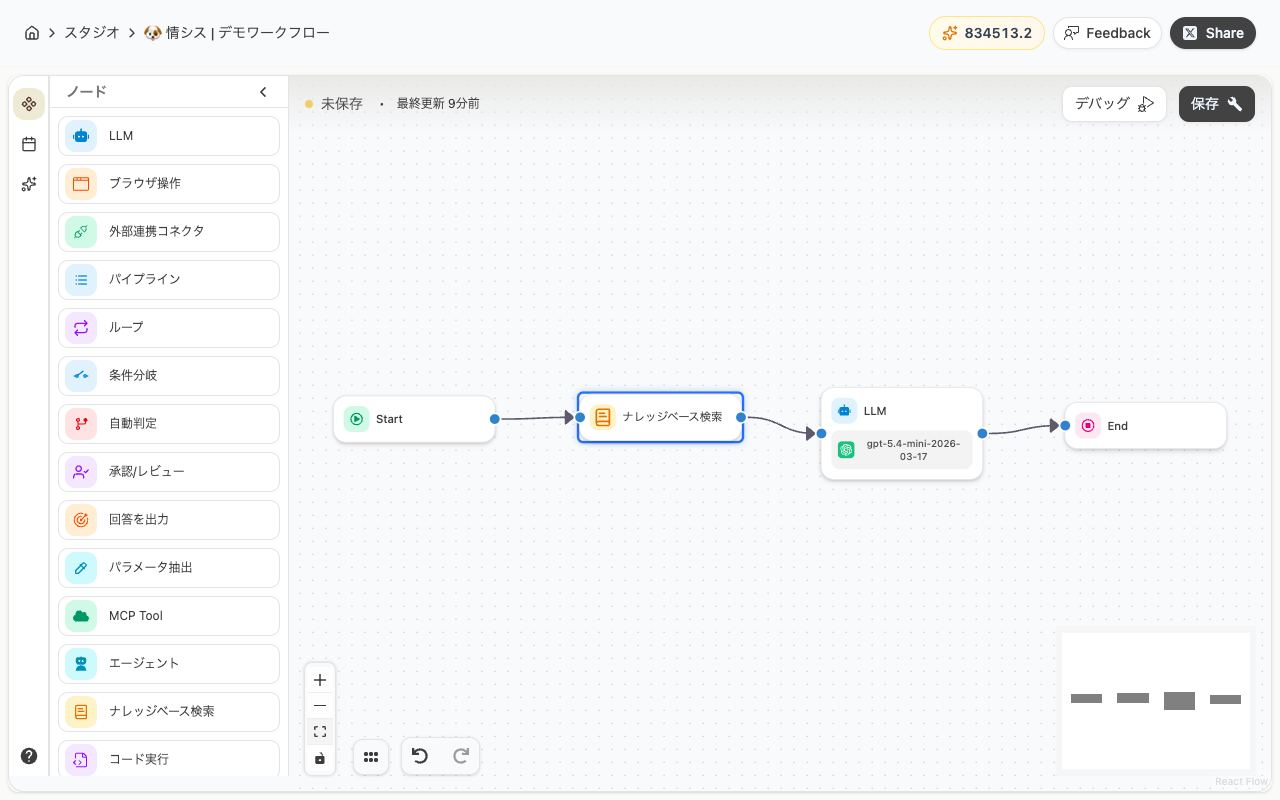
Section titled “Overall Workflow”The final workflow looks like this:
Start → Knowledge Base Search → LLM → End
Running the Workflow
Section titled “Running the Workflow”Now you’re ready! Click the debug button to run the workflow.
Example questions to try:
- “How do I submit a travel expense claim?”
- “Do I need pre-approval for client entertainment expenses?”
- “What should I do if I lost a receipt?”
Additional Information
Section titled “Additional Information”Search Modes
Section titled “Search Modes”You can choose a search mode depending on your needs.
| Mode | Description |
|---|---|
| Fast | Returns quick answers with fewer search results. This is the default setting |
| Custom | Allows fine-tuning of parameters like the number of results and similarity threshold |
In Custom mode, the following settings are available:
- Top K: Number of documents to retrieve (1–10)
- Min Similarity: Similarity threshold for filtering results (0.0–1.0). Higher values return only more relevant results
- Search Type: Similarity search or hybrid search
Output Variables
Section titled “Output Variables”The Knowledge Base Search node has the following output variables. You can reference them in subsequent nodes using the format {{#knowledgeBase-1.variableName#}}.
| Variable | Description |
|---|---|
| context | Text containing the content of retrieved documents |
| sources | Metadata about source documents (file name, similarity score, etc.) |
| query | The actual query used for the search |
Last updated: