

How to Configure a Custom Client
This page explains how to use connectors with a client application that you prepare yourself.
For Google Connectors
Section titled “For Google Connectors”Open the settings screen for an installed Google connector. Click the key icon in the header to open the OAuth client settings screen.
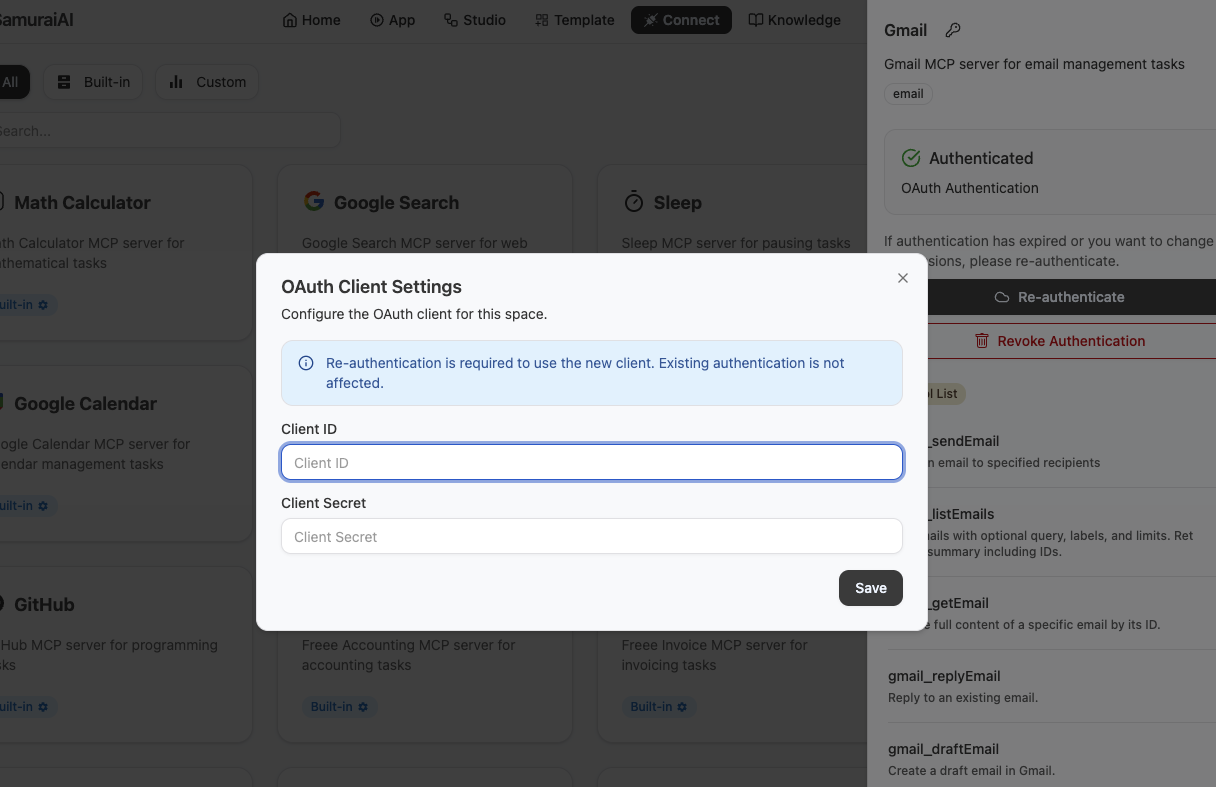
You need the following information:
- Client ID
- Client Secret
For instructions on setting up an OAuth client, refer to Google’s official documentation:
Use the following values for Authorized JavaScript origins and Authorized redirect URIs:
| Connector Name | Authorized JavaScript Origins | Authorized Redirect URIs |
|---|---|---|
| Gmail | https://gmail.mcp.samuraix.ai | https://gmail.mcp.samuraix.ai/callback |
| Google Calendar | https://google-calendar.mcp.samuraix.ai | https://google-calendar.mcp.samuraix.ai/callback |
| Google Tasks | https://google-tasks.mcp.samuraix.ai | https://google-tasks.mcp.samuraix.ai/callback |
| Google Contacts | https://google-contacts.mcp.samuraix.ai | https://google-contacts.mcp.samuraix.ai/callback |
| Google Drive | https://google-drive.mcp.samuraix.ai | https://google-drive.mcp.samuraix.ai/callback |
| Google Docs | https://google-docs.mcp.samuraix.ai | https://google-docs.mcp.samuraix.ai/callback |
| Google SpreadSheets | https://google-spreadsheet.mcp.samuraix.ai | https://google-spreadsheet.mcp.samuraix.ai/callback |
| Google Slides | https://google-slide.mcp.samuraix.ai | https://google-slide.mcp.samuraix.ai/callback |
Last updated: