
First Steps
This is a tutorial for getting started with SamuraiAI. Follow along to learn the basics of using the app.
Using Templates
Section titled “Using Templates”In SamuraiAI, you can easily create apps using predefined templates. This allows you to quickly build common workflows and chatbots.
01. Run a Template
Section titled “01. Run a Template”First, let’s copy a template and run the app.
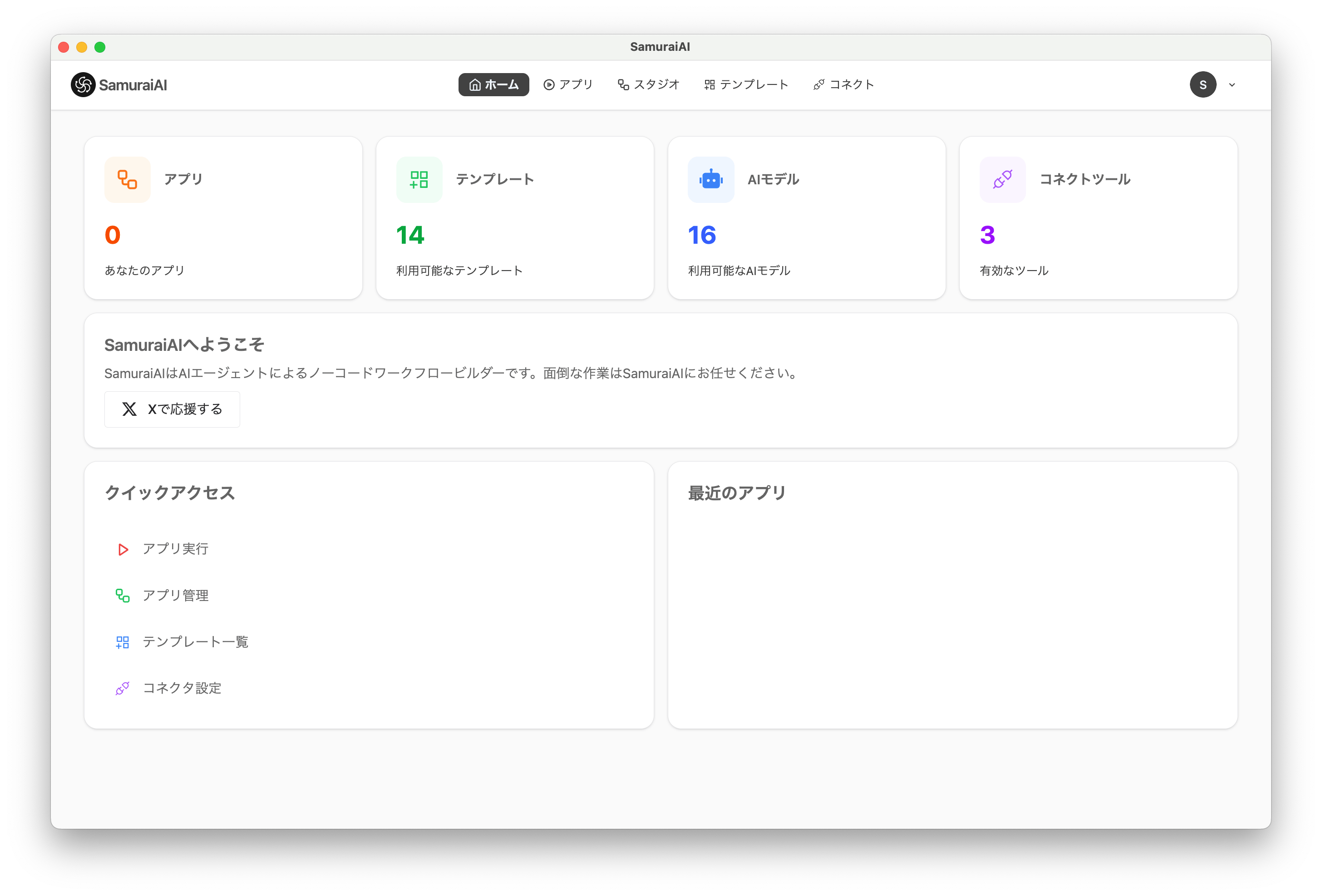
Select “Templates” from the navigation bar and choose “Multiple Translations”. “Multiple Translations” is a template for translating input text into multiple languages.
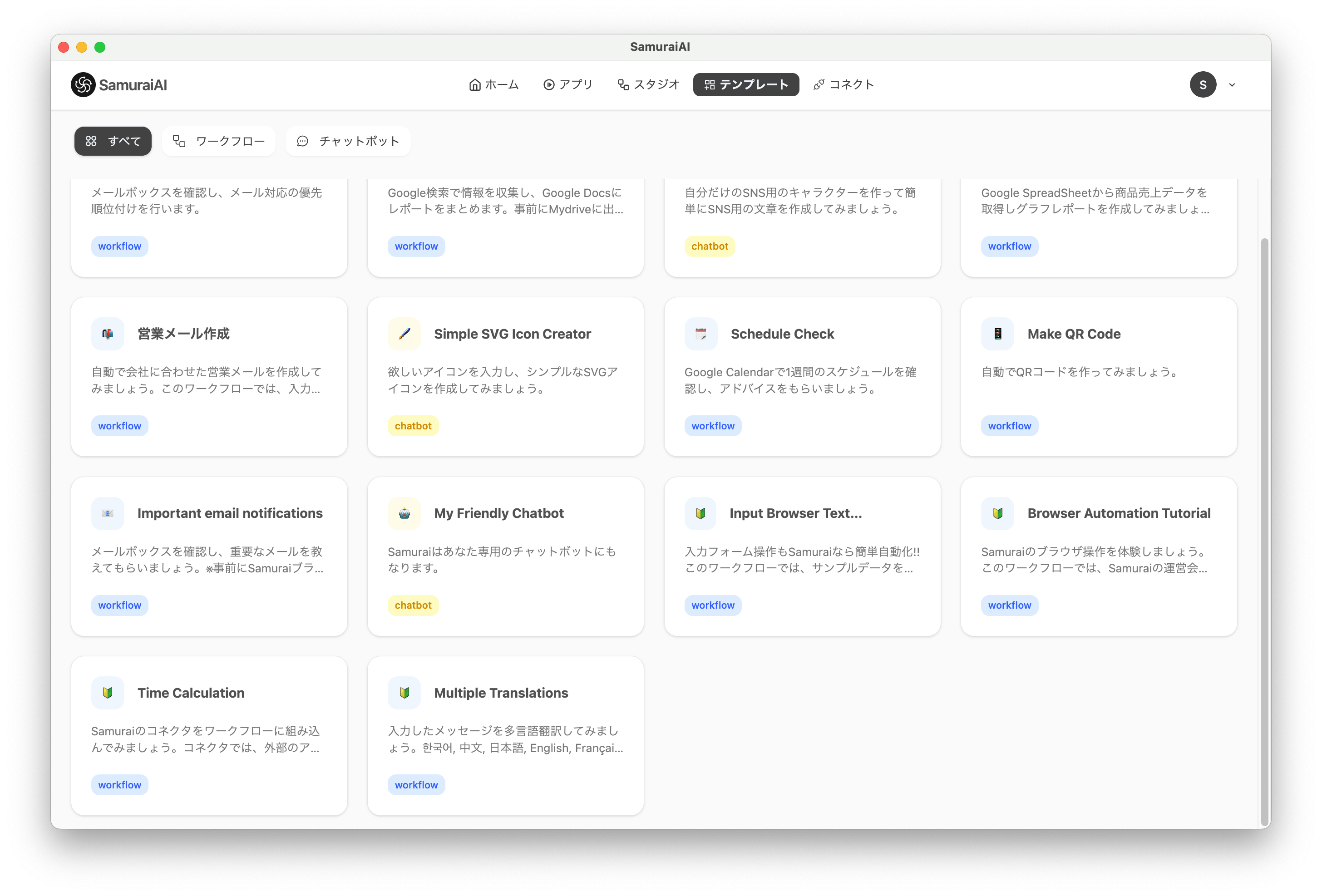
When the copy is successful, “Studio” for creating apps will be displayed, showing the copied workflow.
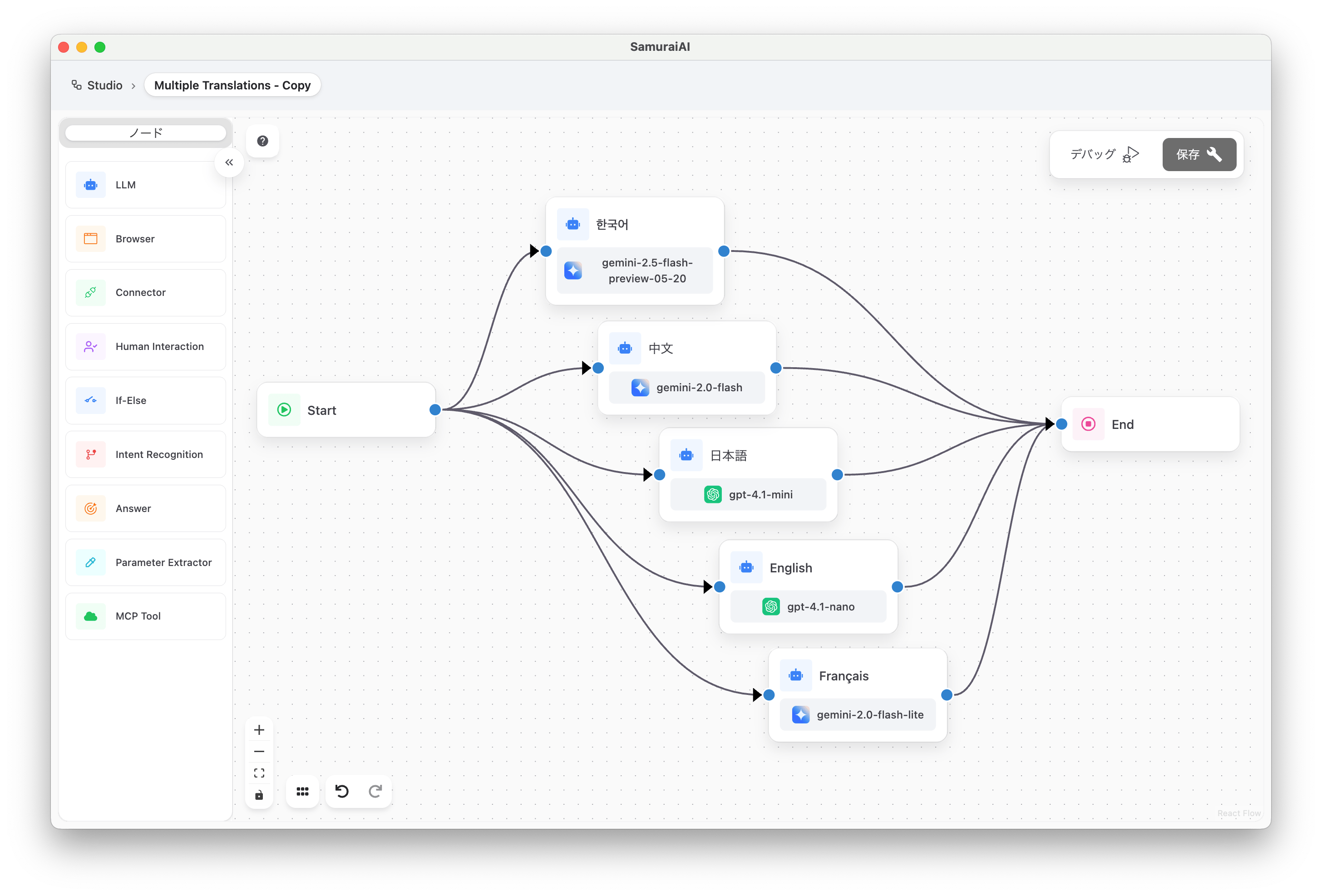
Click “Debug” to verify the operation. Enter the text you want to translate in the input field and click “Execute”. Try entering “The capital of Japan is Tokyo.” and executing it.
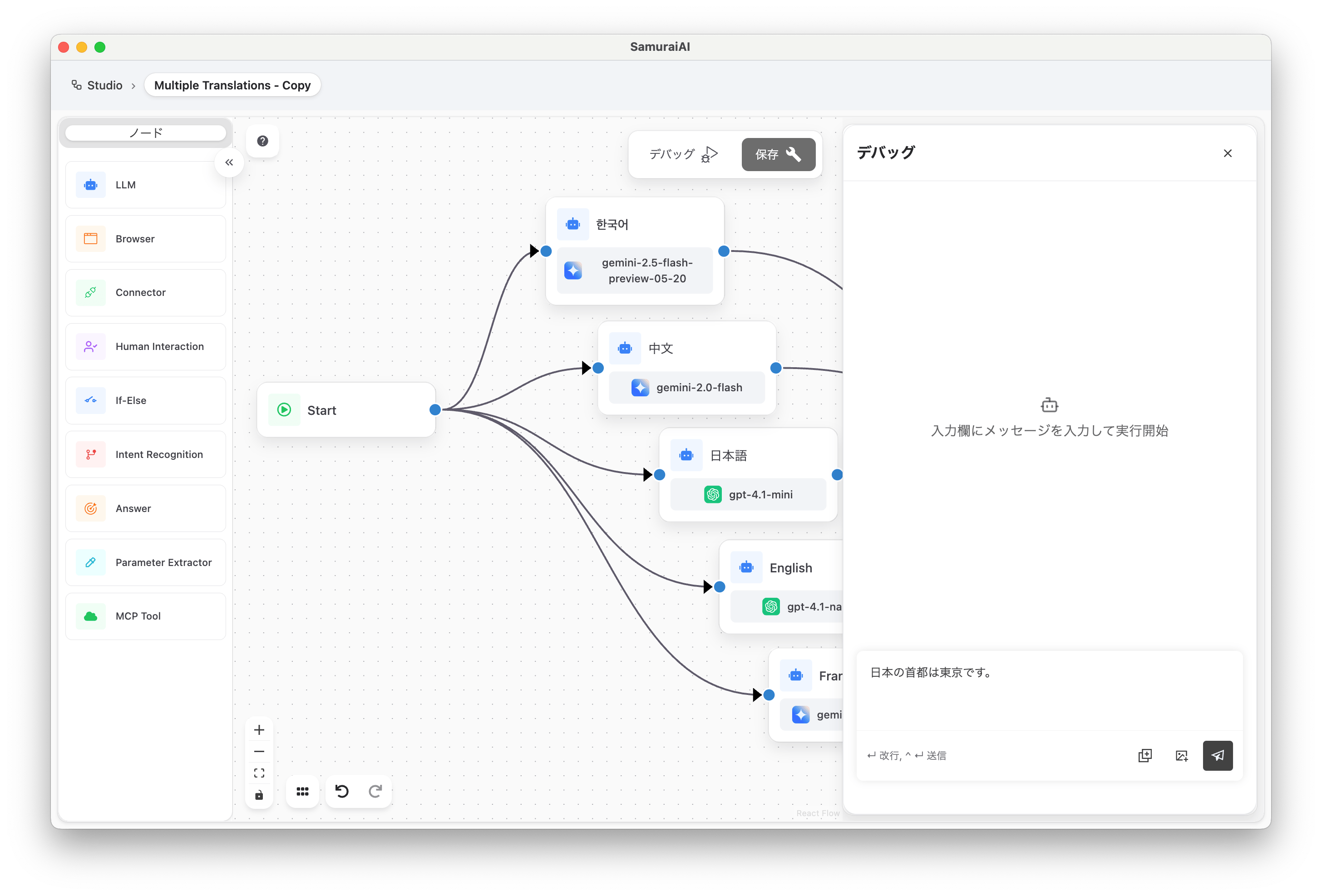
You can see that the input message has been translated into multiple languages.
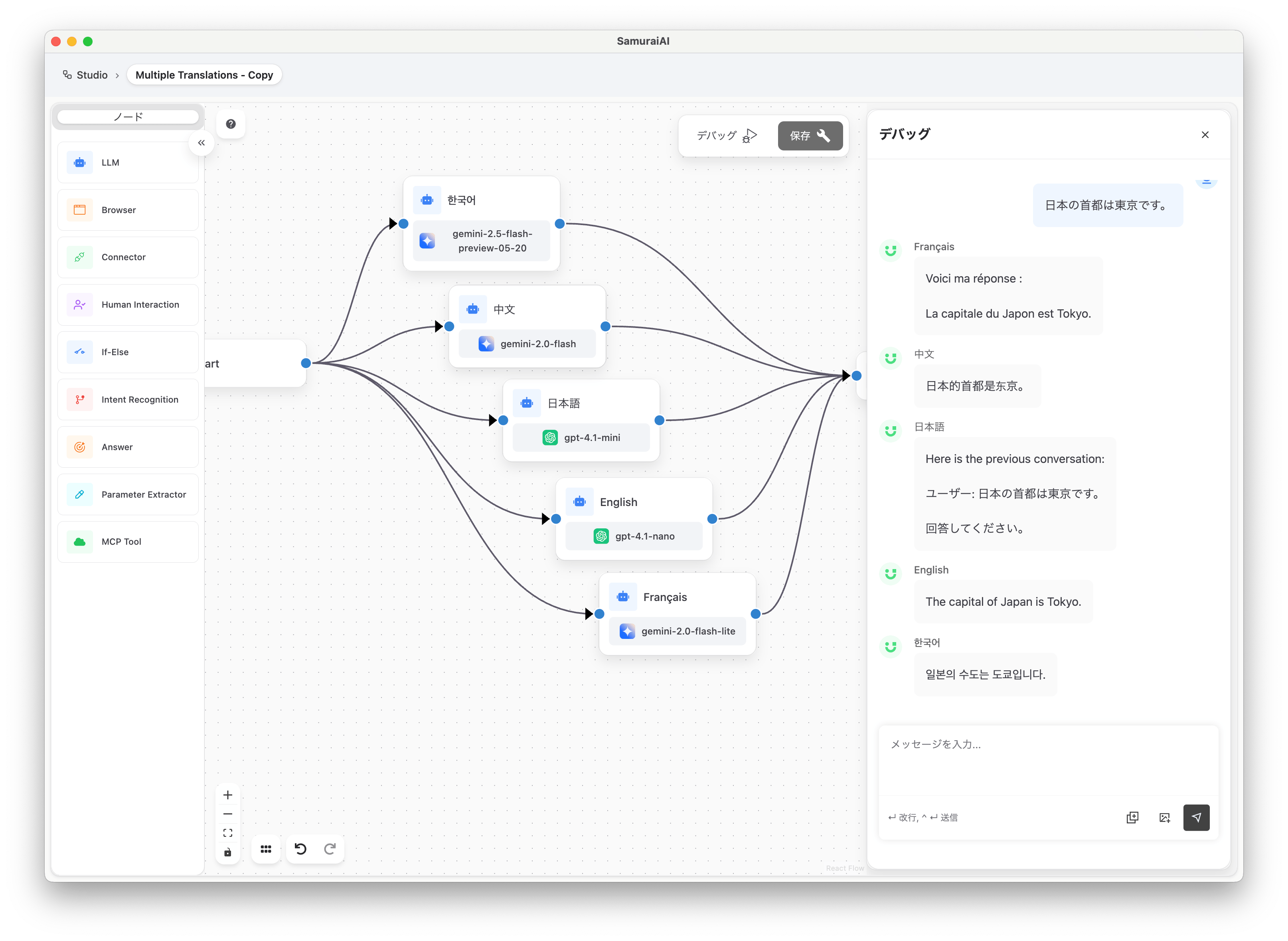
02. Customize the Template
Section titled “02. Customize the Template”Once you can run the template, let’s customize it. For example, you can change the languages for translation or add additional processing. Here, let’s change the “Japanese” translation block to “Spanish” translation processing.
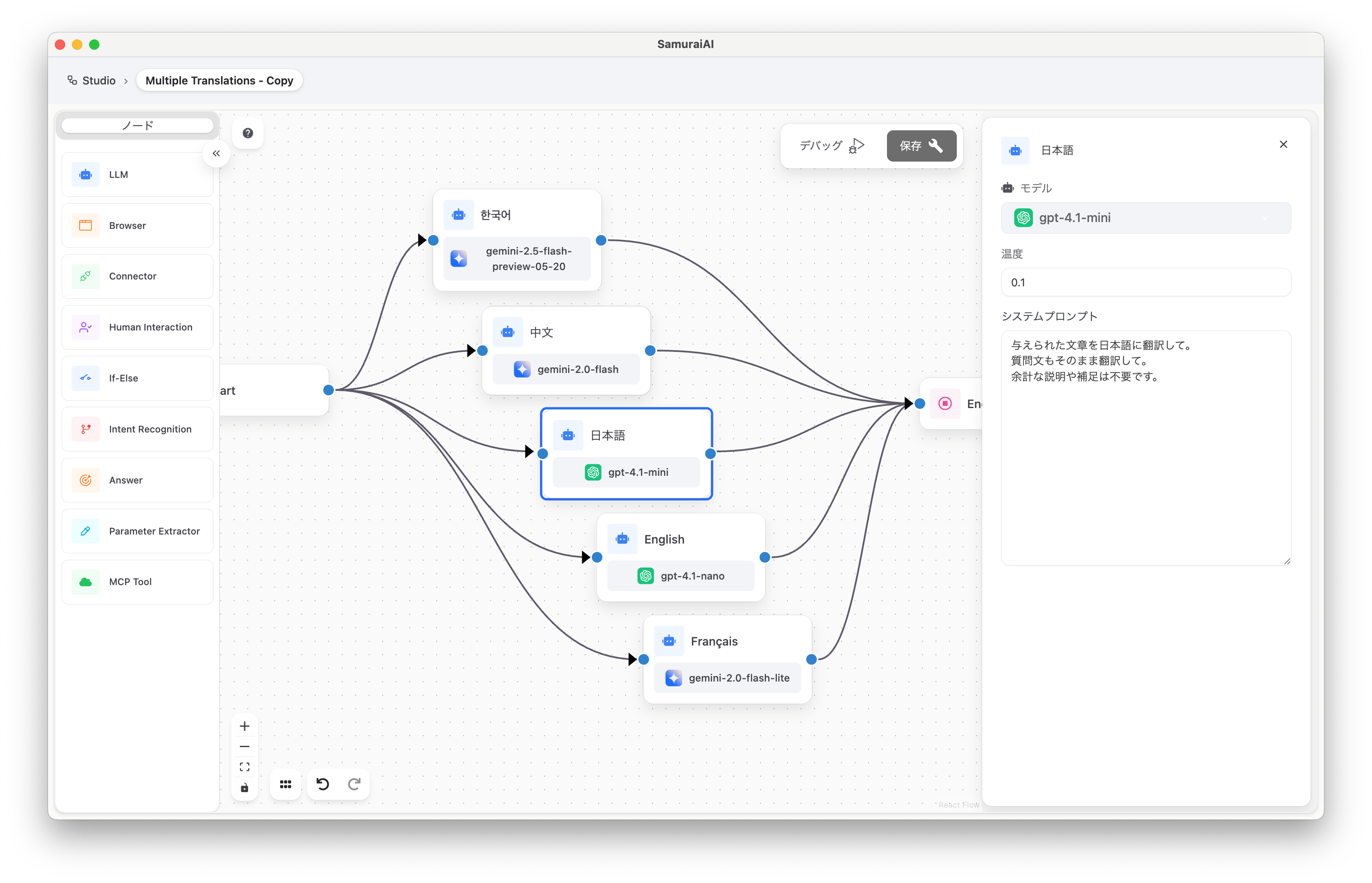
Click the “Japanese” translation block and change the prompt content to Spanish.
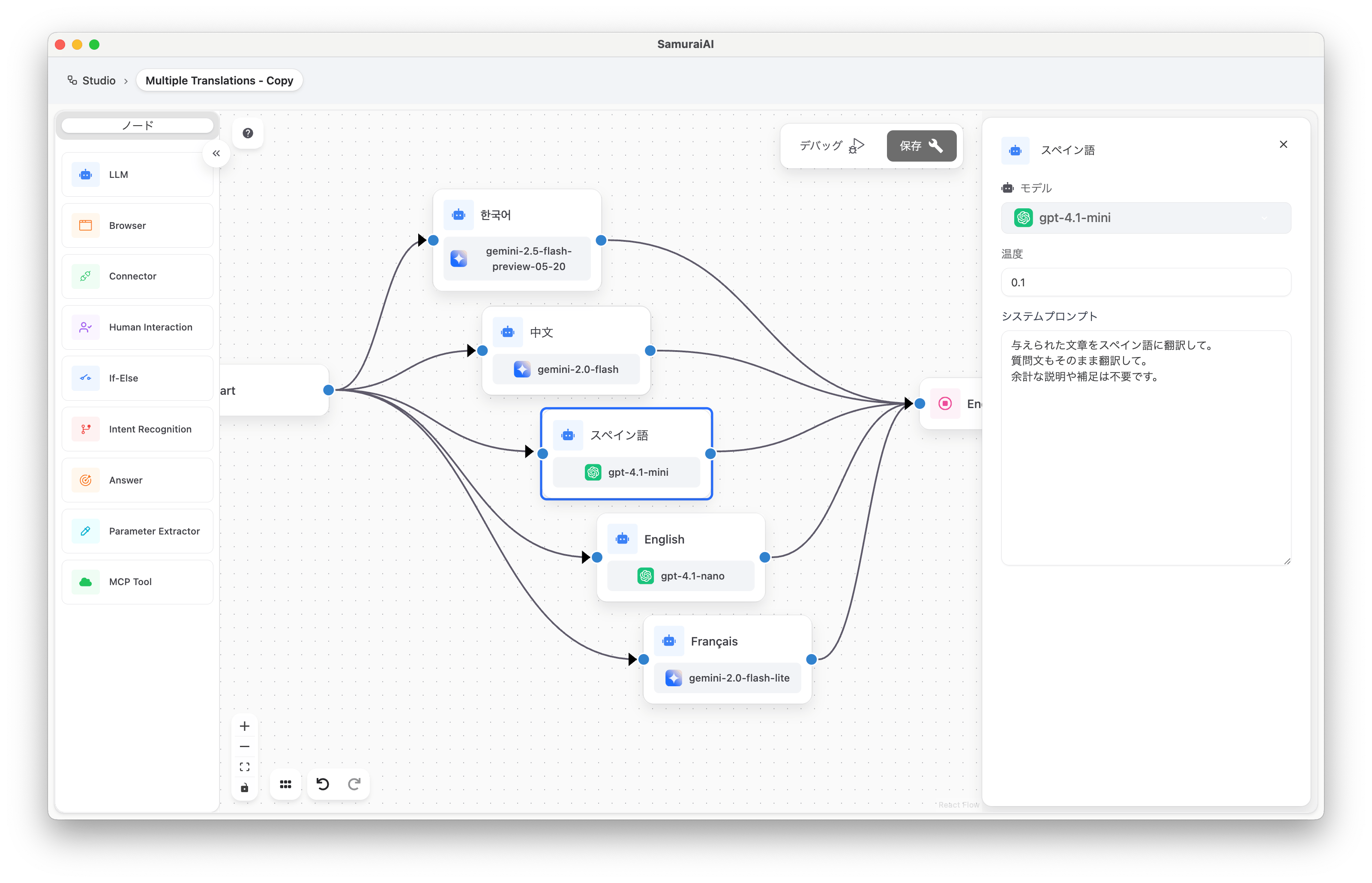
Now, let’s click “Debug” again, enter “The capital of Japan is Tokyo.” in the input field, and execute.
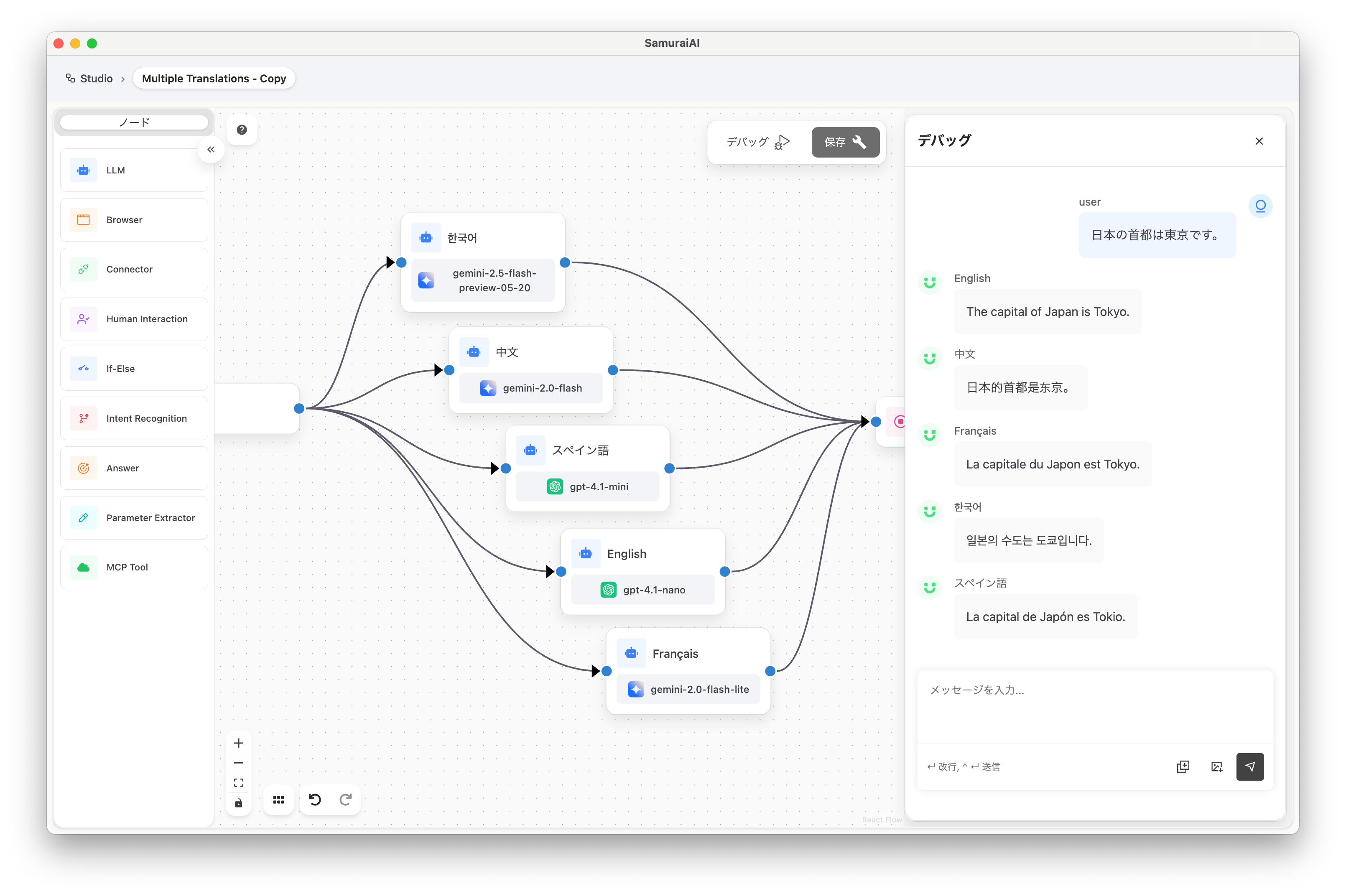
The input text has been translated into Spanish.
03. Run the App
Section titled “03. Run the App”Once you’ve customized the template, let’s run the app. Return to the menu screen from “Studio” and select “Apps” from the navigation bar.
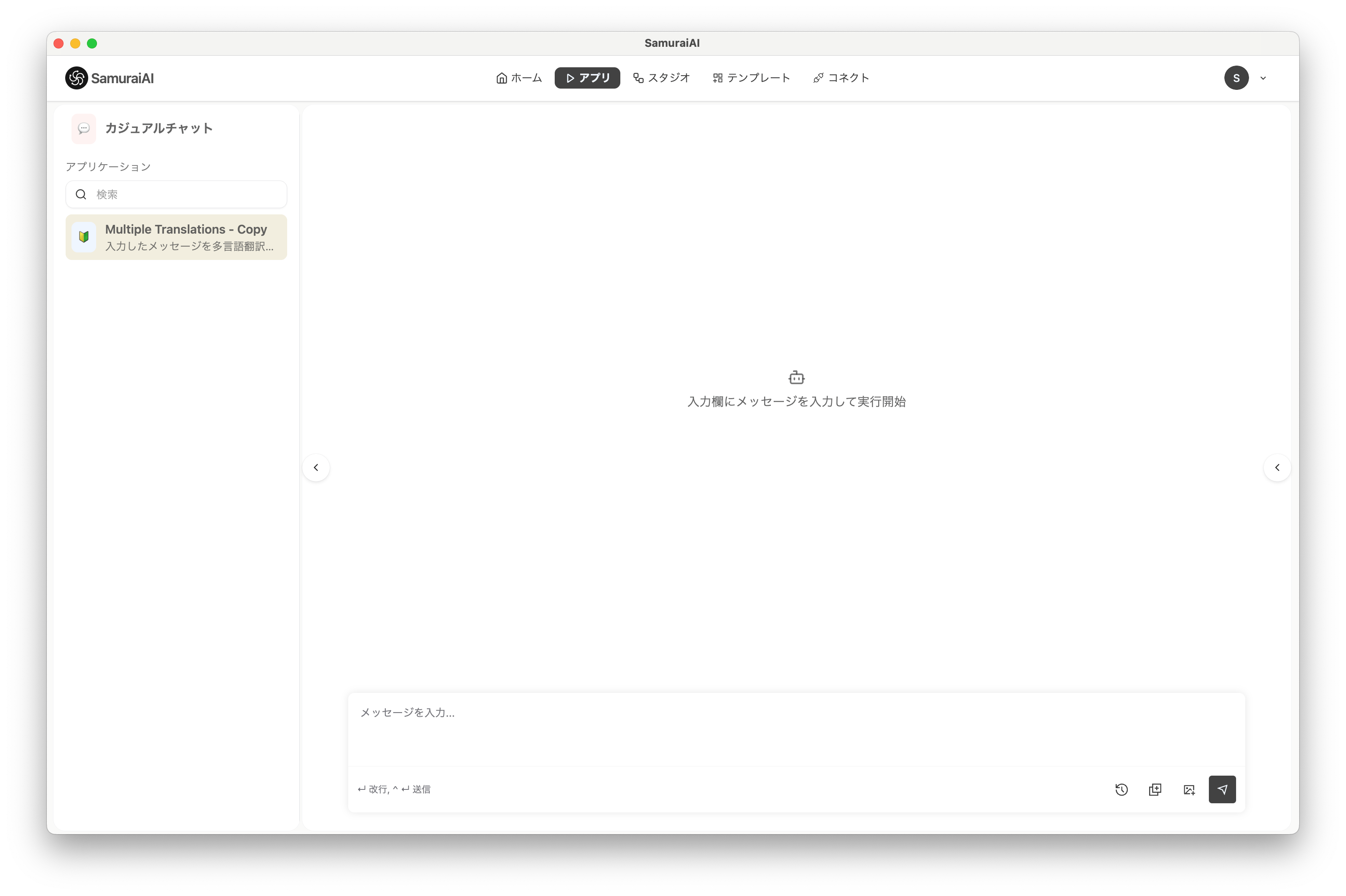
As before, enter “The capital of Japan is Tokyo.” and execute.
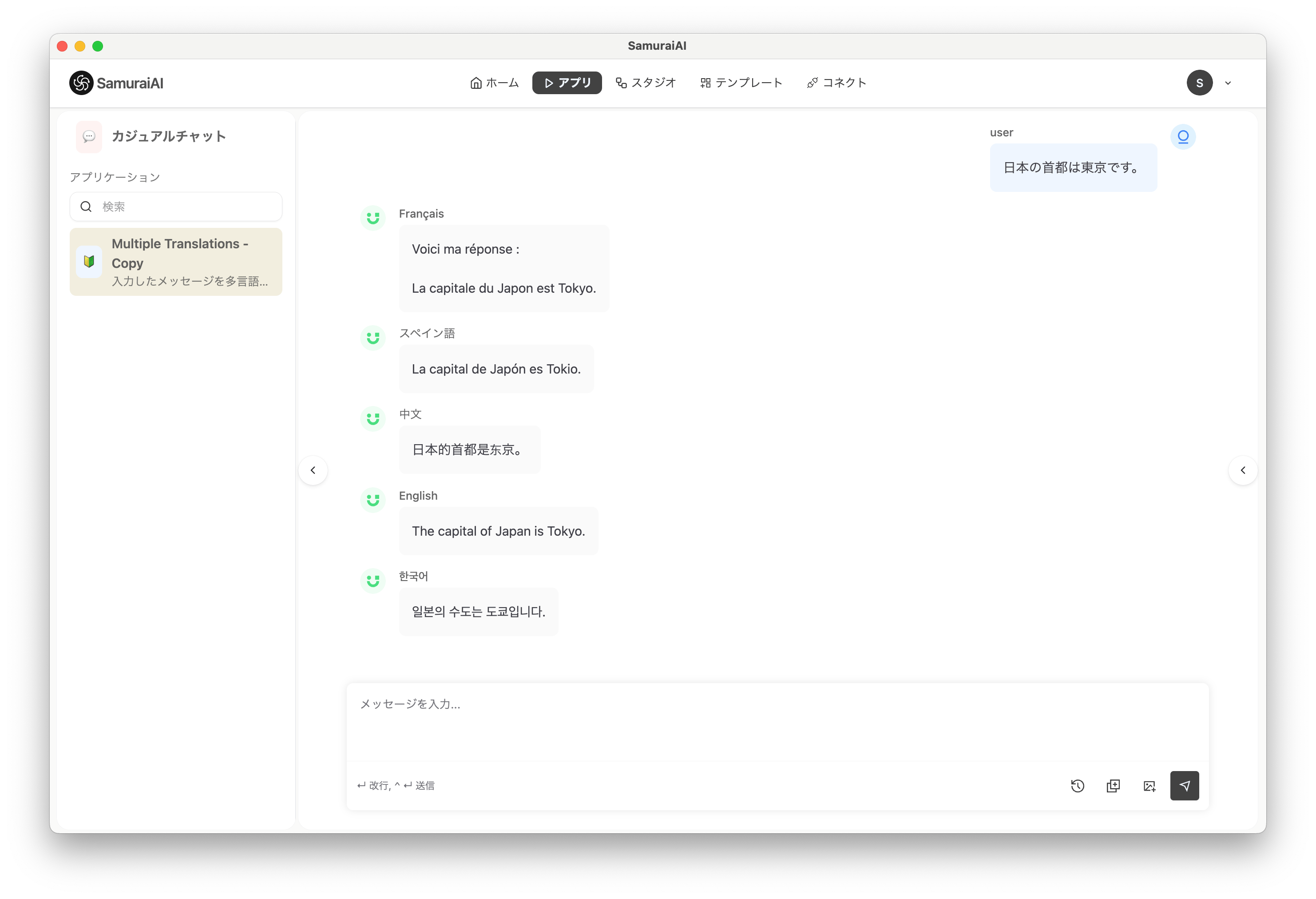
The reflected content is shown in the app, displaying the result translated into multiple languages.
As in the above steps, you can build apps in “Studio” and execute them from “Apps”.
Last updated: