

Integrate with Printer
Samurai AI can integrate with connected printers to print files.
01. Select External Connector on Workflow Screen
Section titled “01. Select External Connector on Workflow Screen”Create a workflow app in Studio and add an external connector.
After placing the external connector, click the node to open the prompt settings screen.
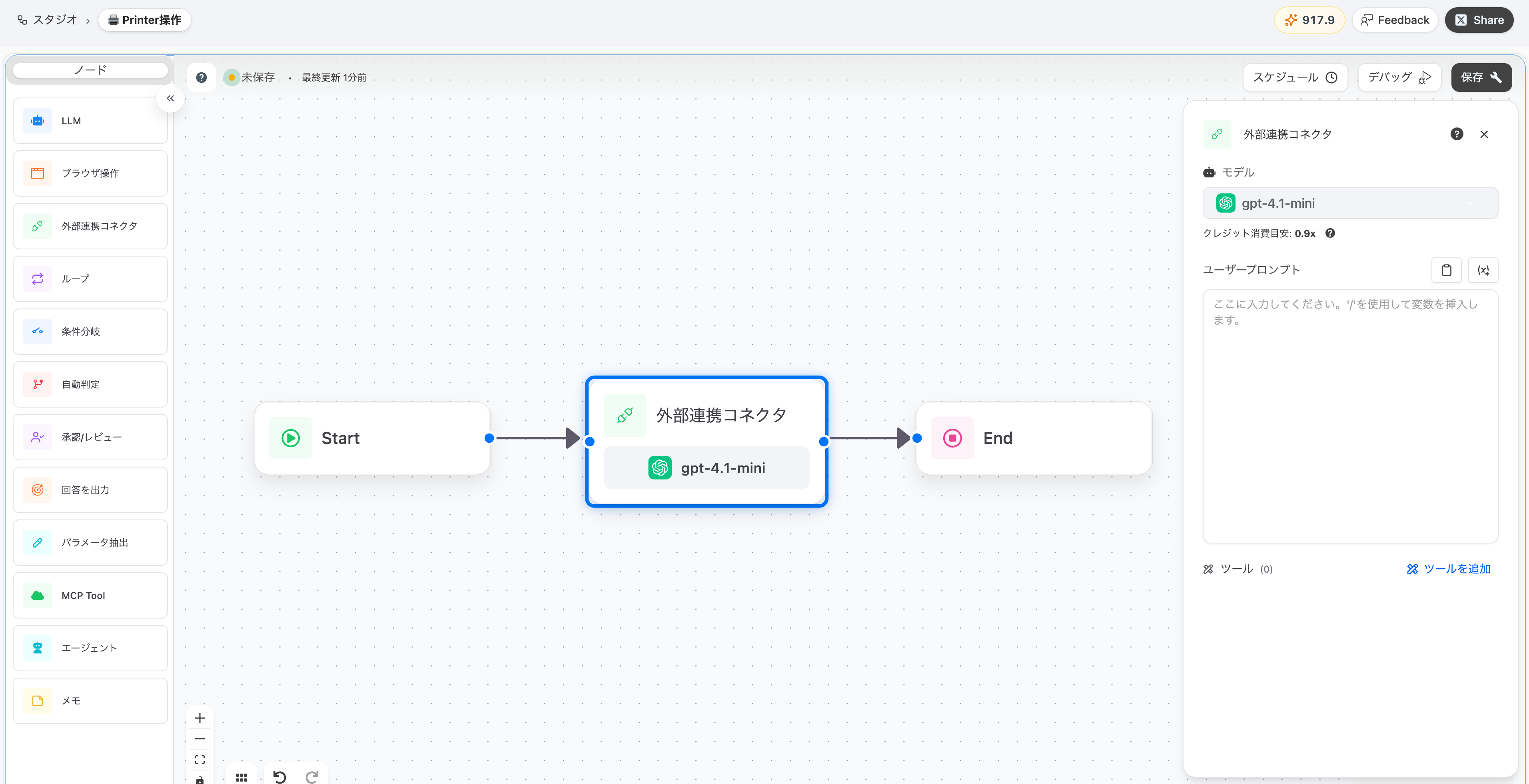
02. Enable Printer Function
Section titled “02. Enable Printer Function”Select “Printer” from “Add Tool” at the bottom right of the external connector panel.
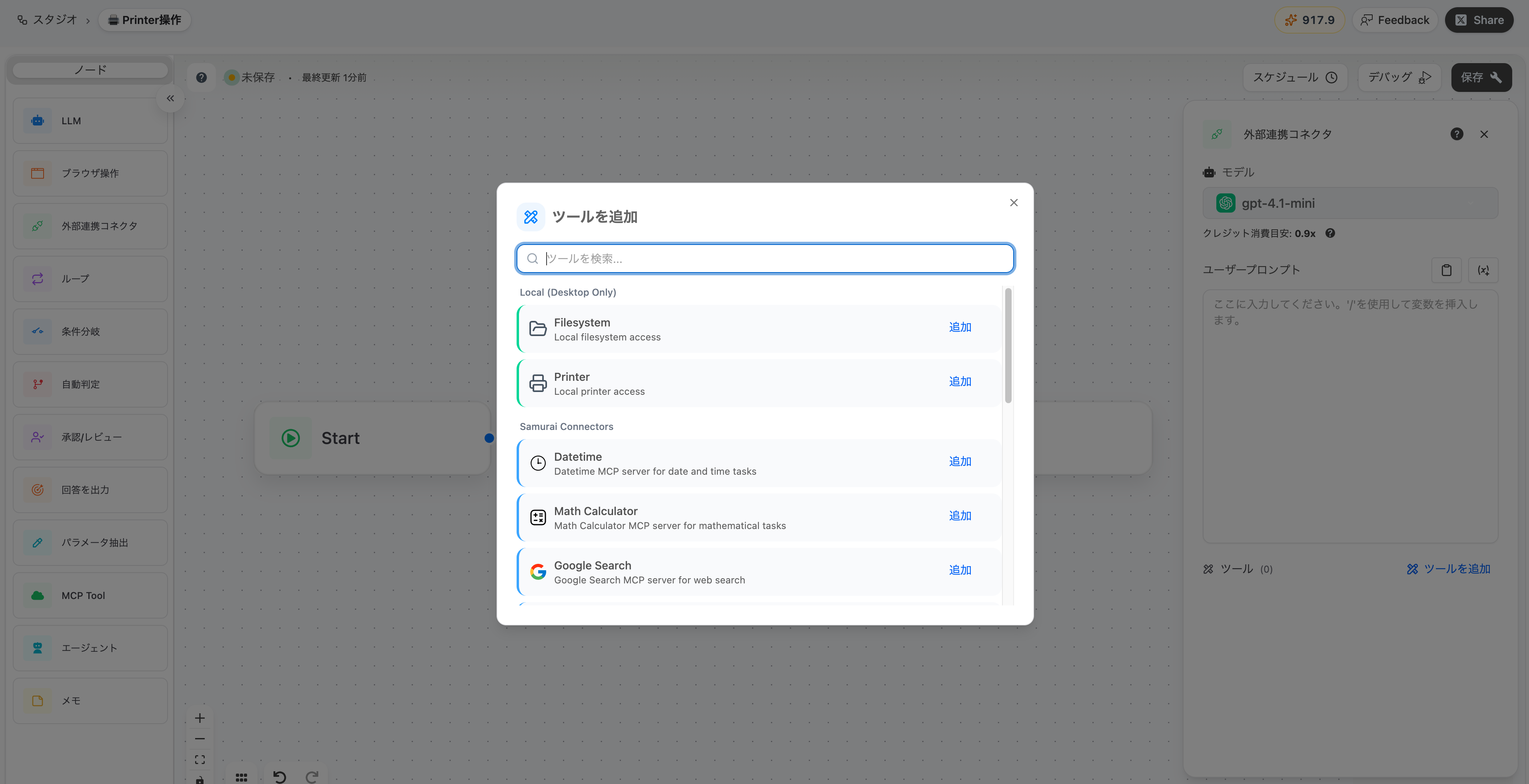
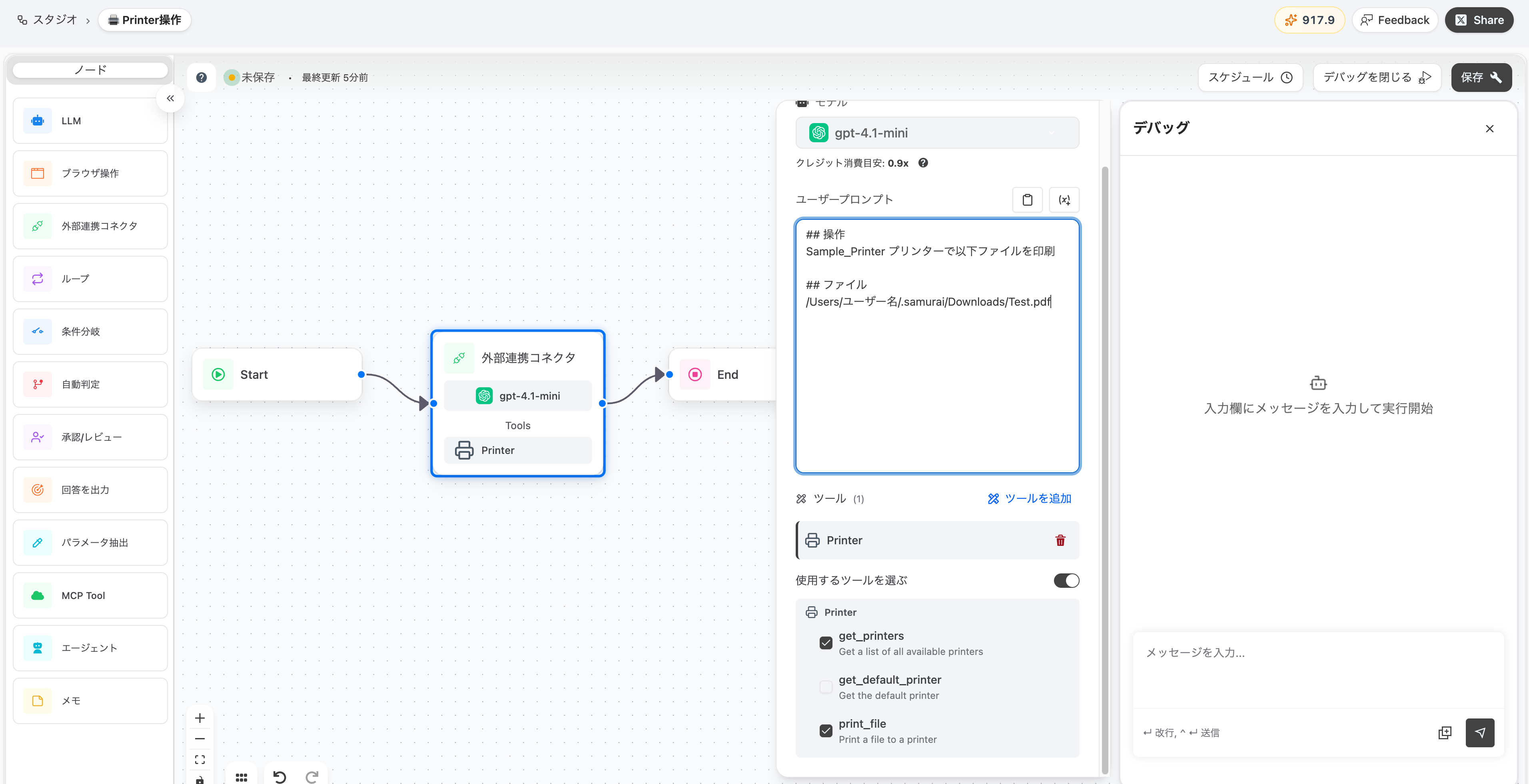
When you turn on “Select tools to use”, you can specify only the functions you want to use. If off, all functions will be available.
03. What You Can Do with Printer Functions
Section titled “03. What You Can Do with Printer Functions”Just by giving instructions in natural language in prompts, AI will execute the following operations:
- Get printer list: Display a list of printers connected to the PC
- Check default printer: Check the current default printer
- Print files: Print PDF, PNG, JPEG format files
- Can specify copies, page range, paper size, paper orientation, black and white printing, duplex printing, etc.