

Integrate with Google Spreadsheet
Samurai AI can integrate with Google Spreadsheets to read and write data. This makes it possible to streamline data management and analysis. Follow these steps to learn how to integrate with spreadsheets.
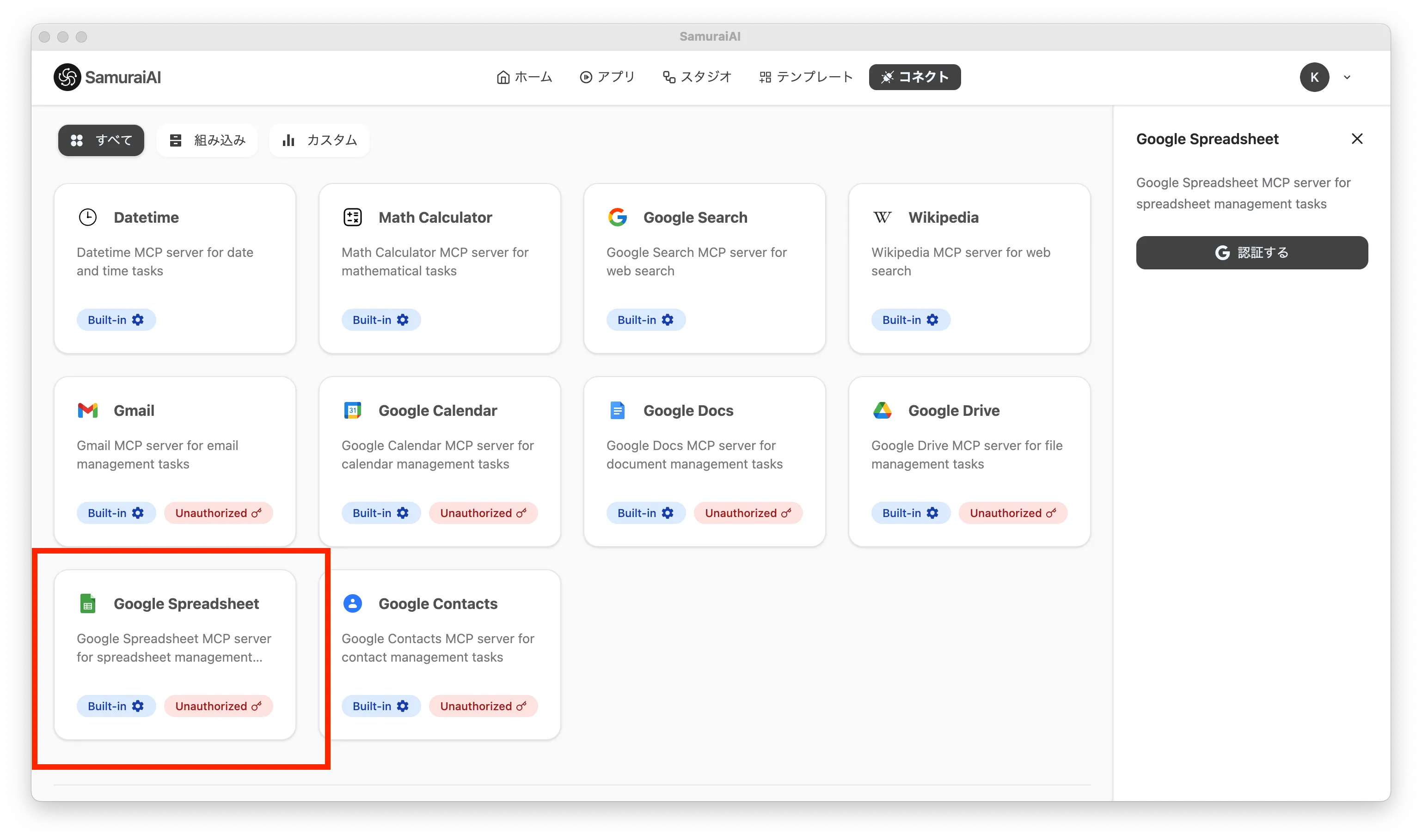
First, select “Google Spreadsheet” on the Connect screen and authorize the necessary permissions. If not installed in the app, install it from the uninstalled list at the bottom of the screen.
If it remains in an “unauthorized” state, you cannot access the spreadsheet, so click “Authenticate” and perform authentication. Authentication is done via browser, so enter the necessary information.
01. Prepare a Test Spreadsheet
Section titled “01. Prepare a Test Spreadsheet”First, prepare a spreadsheet to integrate with Samurai AI. Copy the sample spreadsheet from the link below.
Since the sample spreadsheet is a file under our authority, please copy and save it to your own Google Drive.
02. Create an App in Studio
Section titled “02. Create an App in Studio”Next, create a new app in Samurai AI’s Studio. Select “Studio” from the navigation bar and click “Create App” in the upper right.
Enter a name and click Save.
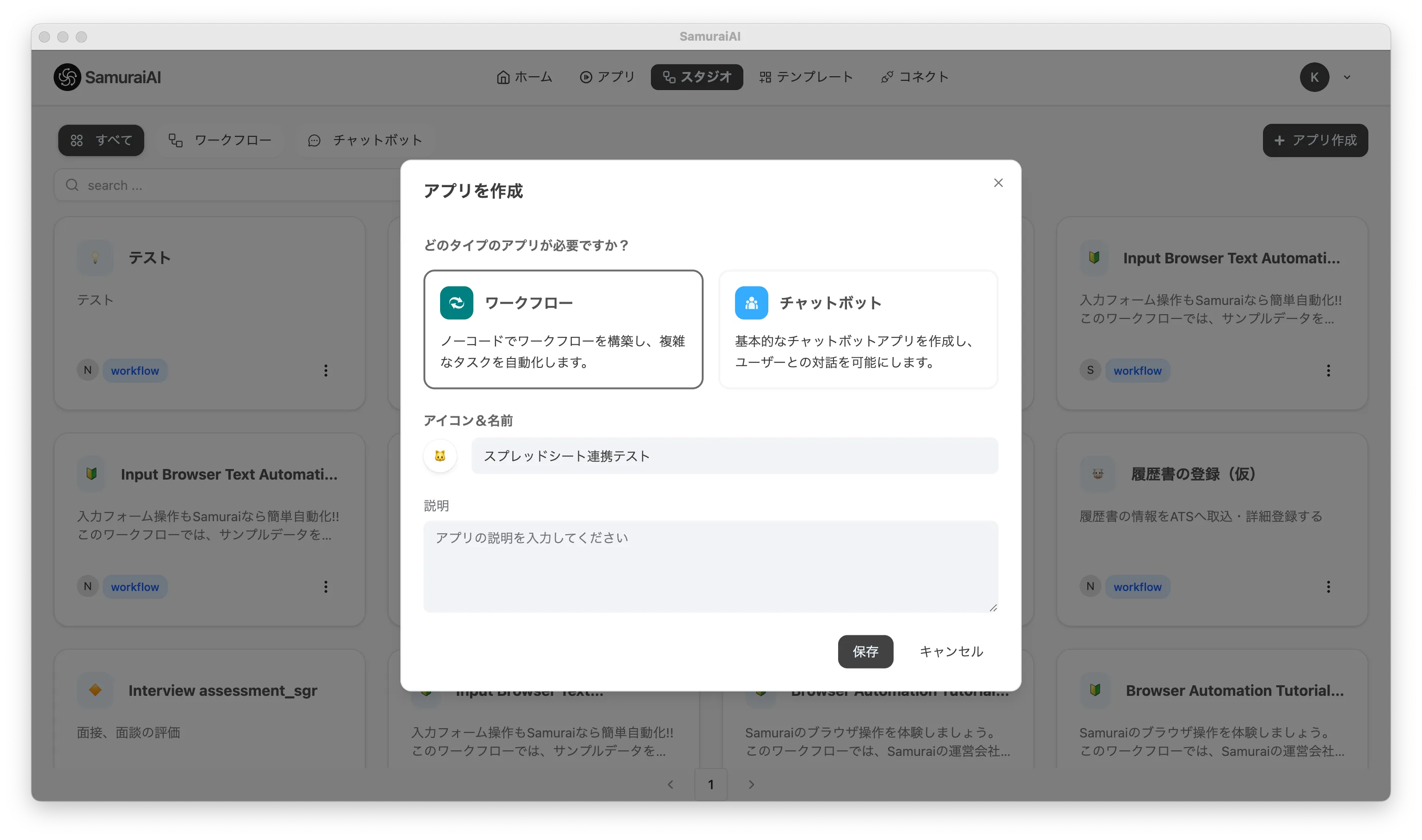
After creation, opening the app will display the following screen.
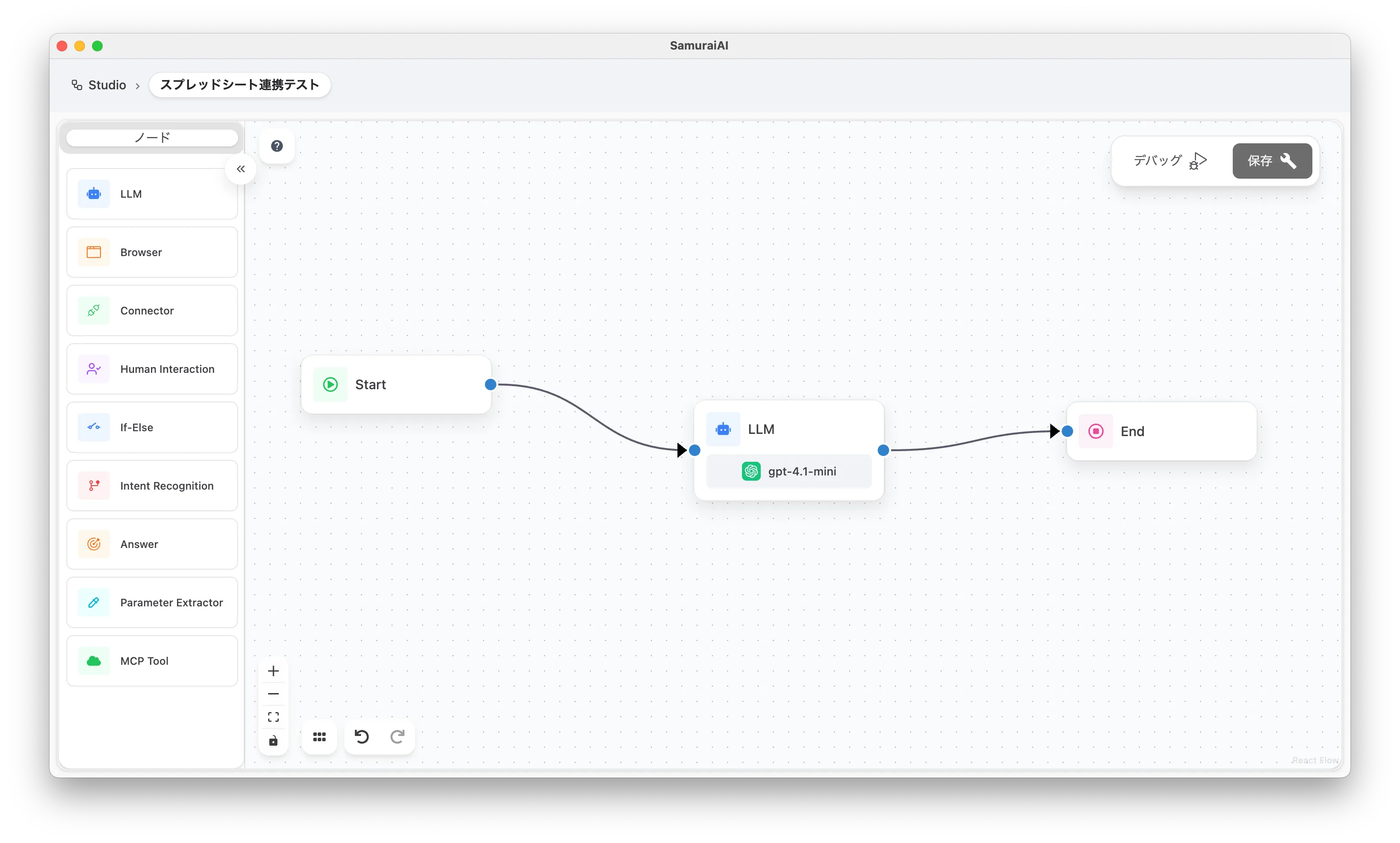
By default, one LLM node is placed. This time we will use an external connector instead of the LLM node, so let’s delete the LLM node.
To delete, use either of the following methods:
・Right-click the LLM node and execute delete ・Select the LLM node and press the Delete or Backspace key on the keyboard
03. Add External Connector
Section titled “03. Add External Connector”Next, add an external connector.
Click the arrow between the Start and End nodes to display the ➕ mark, and add an external connector from there.
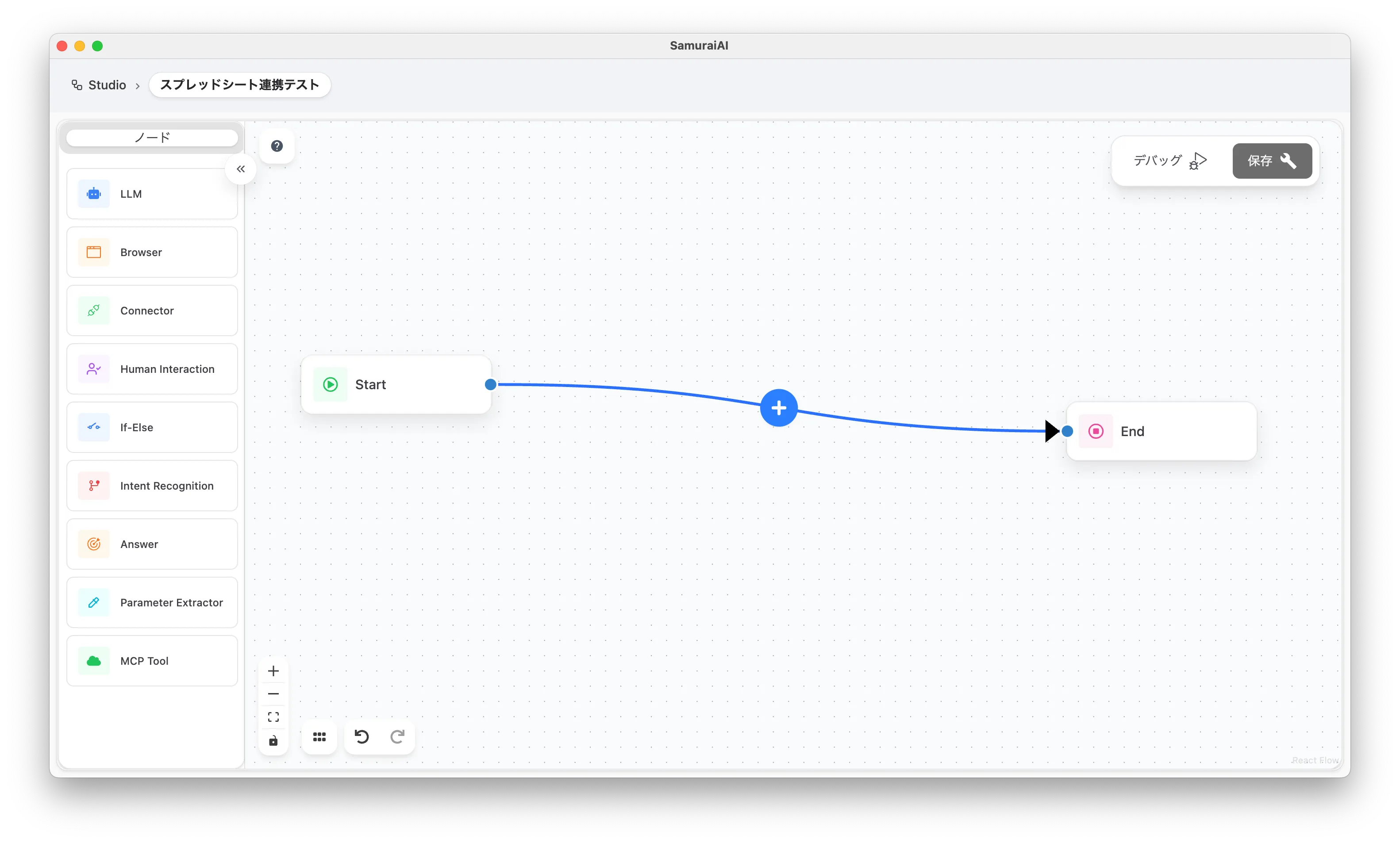
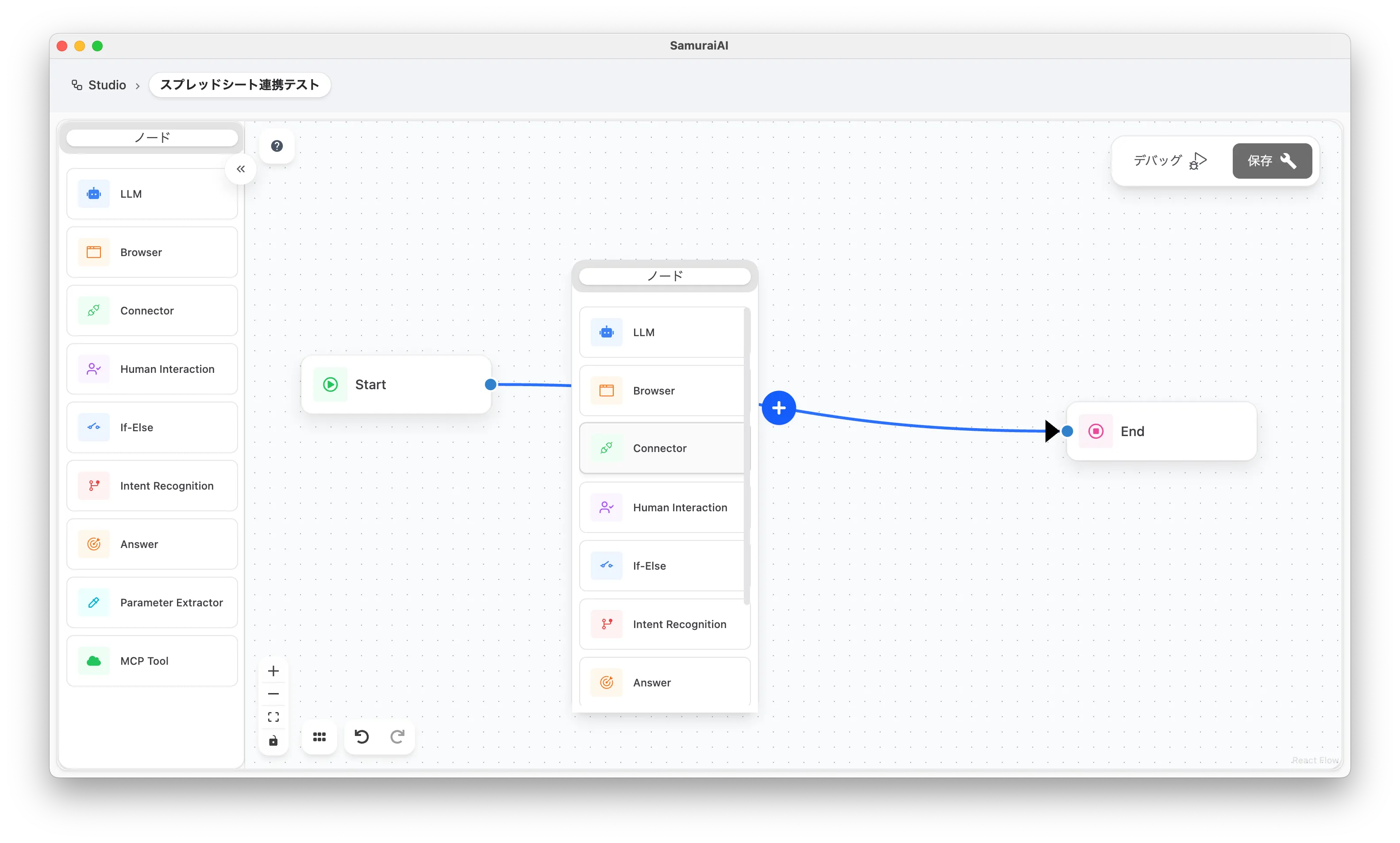
Alternatively, you can add nodes by drag and drop. Select “External Connector” from the node list on the left and place it on the screen. Then connect the arrow from the Start node to the external connector, and connect the arrow from the external connector to the End node.
04. Configure External Connector
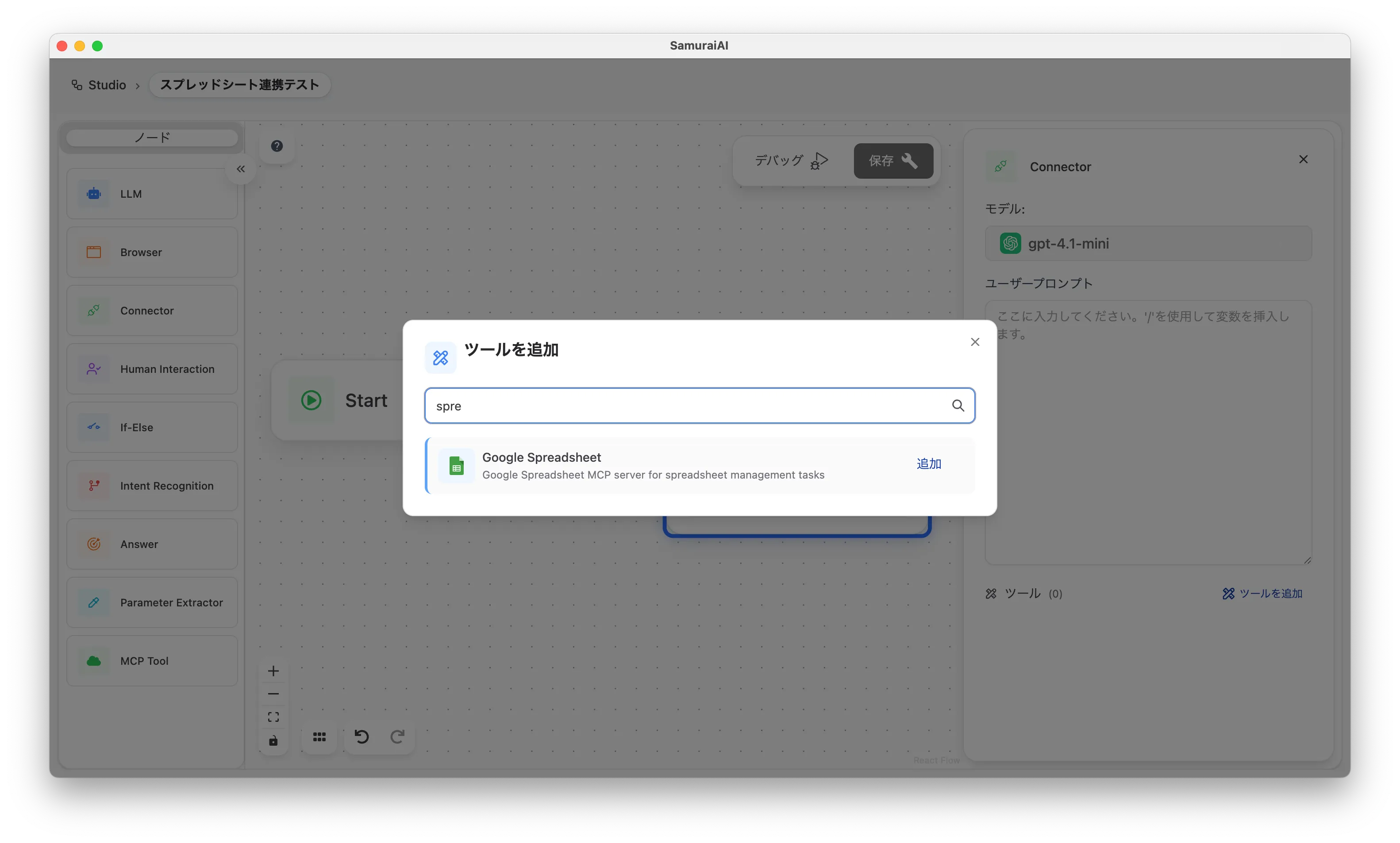
Section titled “04. Configure External Connector”After placing the external connector, click the node to open the prompt settings screen.
Next, click “Add Tool” and select Google Spreadsheet from the list.
05. Edit Prompt to Output Sheet Data
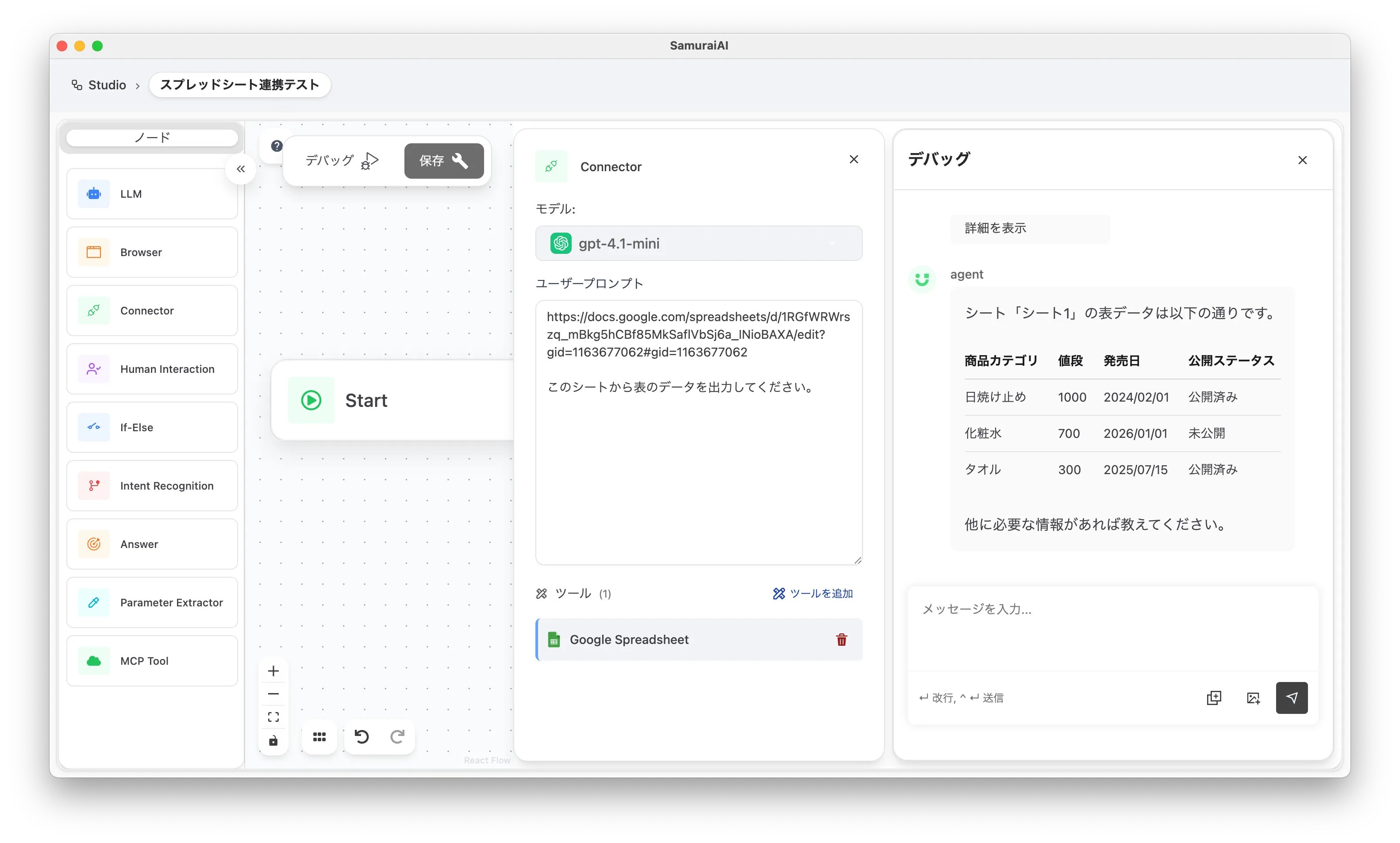
Section titled “05. Edit Prompt to Output Sheet Data”Next, edit the prompt to output sheet data. Enter as follows:
Enter the URL of the spreadsheet you created earlier in [Sheet URL]. You can easily operate it just by entering the spreadsheet URL.
[Sheet URL]
Output the table data from this sheet.
After entering, save and execute with Debug.
When execution is complete, the spreadsheet data will be output. If the sheet data is displayed as shown below, it’s successful.
06. Update Data
Section titled “06. Update Data”Next, let’s try updating the spreadsheet data. Change the external connector prompt as follows:
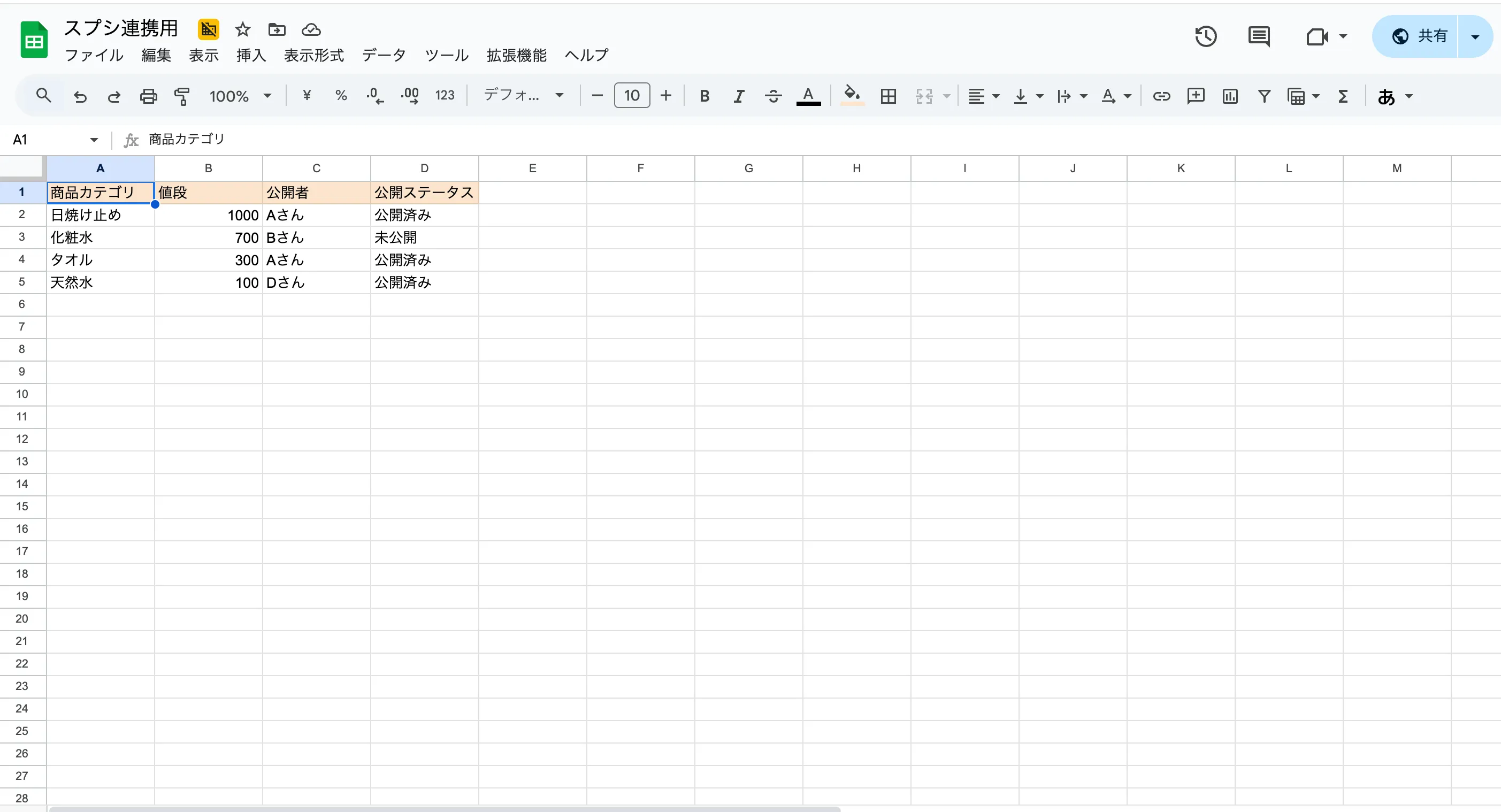
[Sheet URL]Add the following to the last row of this sheet. Do not update other cells when adding

Product Category: Mineral WaterPrice: 100Publisher: D-sanPublication Status: Published
Save and execute again. After execution is complete, check the spreadsheet and you’ll see new data has been added to the last row.
This way, you can easily read and write Google Spreadsheet data using Samurai AI. Please take advantage of this to streamline data management and analysis.
Last updated: