

Schedule Feature
In SamuraiAI, you can use the schedule feature to automatically execute workflows on a regular basis. This allows you to automate time-dependent tasks such as morning report sending and routine work.
Feature Overview
Section titled “Feature Overview”Using the schedule feature, you can automatically start workflows at specified dates and times. You can execute tasks in the background without waiting for manual workflow execution.
Main features include:
- Automatic execution at specified dates/times or periodic times
- Configuration per workflow
- Selection of execution style (regular interval execution / repeated execution / one-time execution)
- Ability to check execution logs and history
How to Use
Section titled “How to Use”0. Create a Workflow (Preparation Before Schedule Settings)
Section titled “0. Create a Workflow (Preparation Before Schedule Settings)”To use the schedule feature, you must first create the workflow you want to automate. Create a workflow in Studio and set the necessary nodes and prompts.
You can automatically execute the created workflow by specifying it in schedule settings.
1. Open Schedule Settings
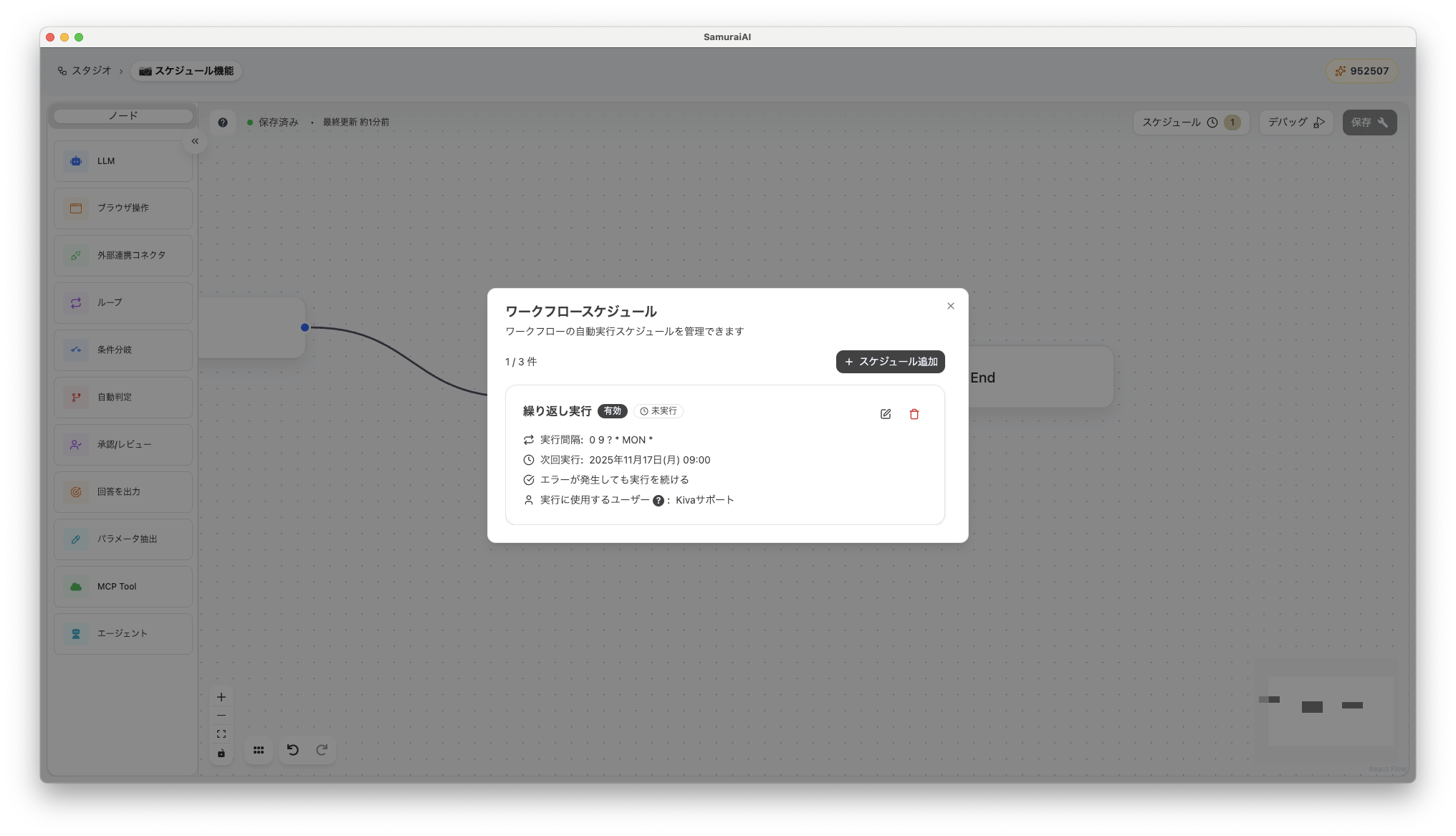
Section titled “1. Open Schedule Settings”Open the target workflow and select “Schedule” from the menu in the upper right. The settings screen will be displayed, and you can check the current schedule settings.
If there are already settings, they will be displayed on this screen. (Example below)
2. Add a New Schedule
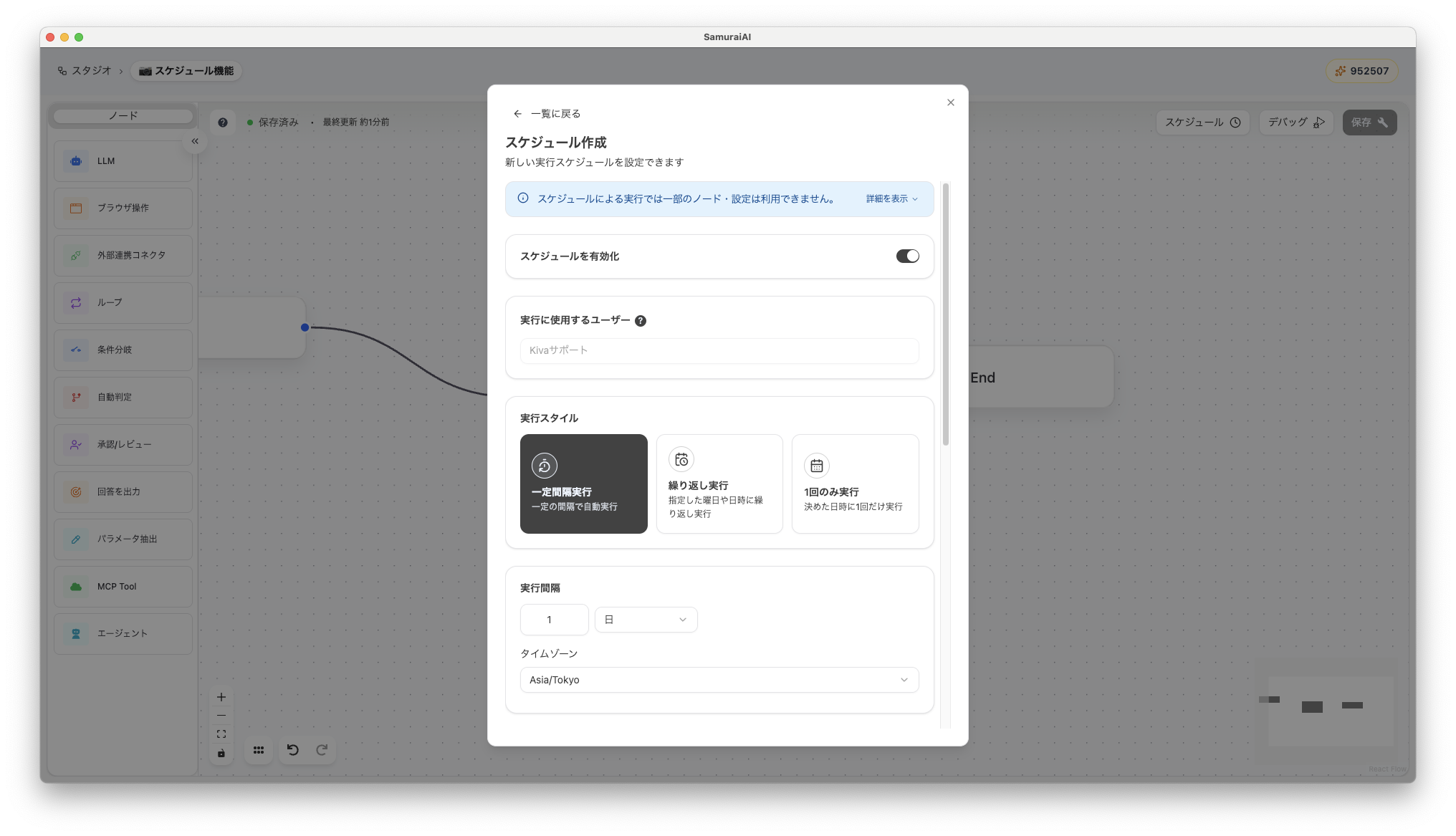
Section titled “2. Add a New Schedule”Click ”+ Add Schedule” and set the execution style, dates and times, etc.
You can select from the following 3 types of execution styles depending on your needs.
Regular Interval Execution
Section titled “Regular Interval Execution”- Automatically executes the workflow at regular intervals.
- Example: Every hour, every 6 hours, every day, etc.
Repeated Execution
Section titled “Repeated Execution”- Repeatedly executes at specified days of the week or dates and times.
- Example: Every Monday at 10:00, 1st of every month at 9:00, etc.
One-Time Execution
Section titled “One-Time Execution”- Executes only once at a specified date and time.
- Example: When you want to execute once on December 1, 2025 at 10:00, etc.
3. Save and Enable Schedule
Section titled “3. Save and Enable Schedule”After confirming the settings, click “Save”. When the schedule is enabled, the next execution date and time will be displayed on the schedule screen.
4. Check History After Scheduled Execution
Section titled “4. Check History After Scheduled Execution”History after scheduled execution can be checked from the history tab on the “App” screen. You can view in list form which schedule was executed when and what the result was.

Common Use Cases
Section titled “Common Use Cases”| Use Case | Details |
|---|---|
| Every morning at 9:00 | Automatically generate sales report and send to Slack |
| Every Monday at 10:00 | Automatically execute spreadsheet data update |
| 1st of every month at 9:00 | Automatically create invoices and send emails |
Now you can automatically execute workflows according to time. Leave routine work to SamuraiAI and focus on more creative work.
Last updated: