
Browser Node
The Browser node is a powerful tool that enables browser automation. It can handle various tasks such as gathering information from websites, data entry, and downloading.
This tutorial introduces a “workflow for researching the company that operates SamuraiAI.”
Tutorial
Section titled “Tutorial”Browser Node
Section titled “Browser Node”First, create a new workflow in Studio.
Add a Browser node and copy and paste the following content into the node’s prompt:
1. go to https://samuraix.ai/2. Find the link to the operating company and navigate to the page3. Search for detailed information about the operating company and output it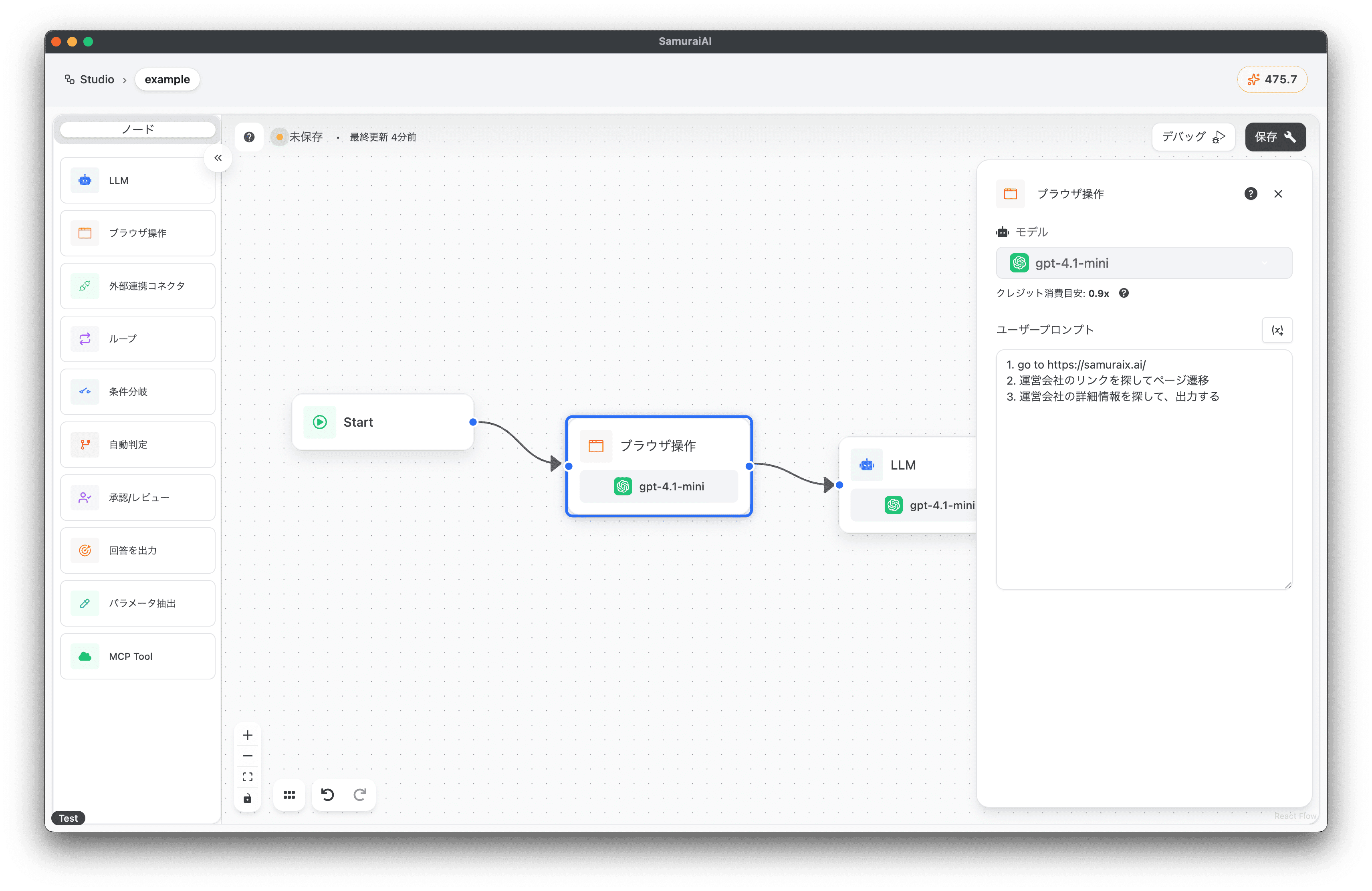
Data Extraction
Section titled “Data Extraction”Next, add a new LLM node to the right of the Browser node and copy and paste the following content:
Output only the company address from the following message.
{browser-1.response}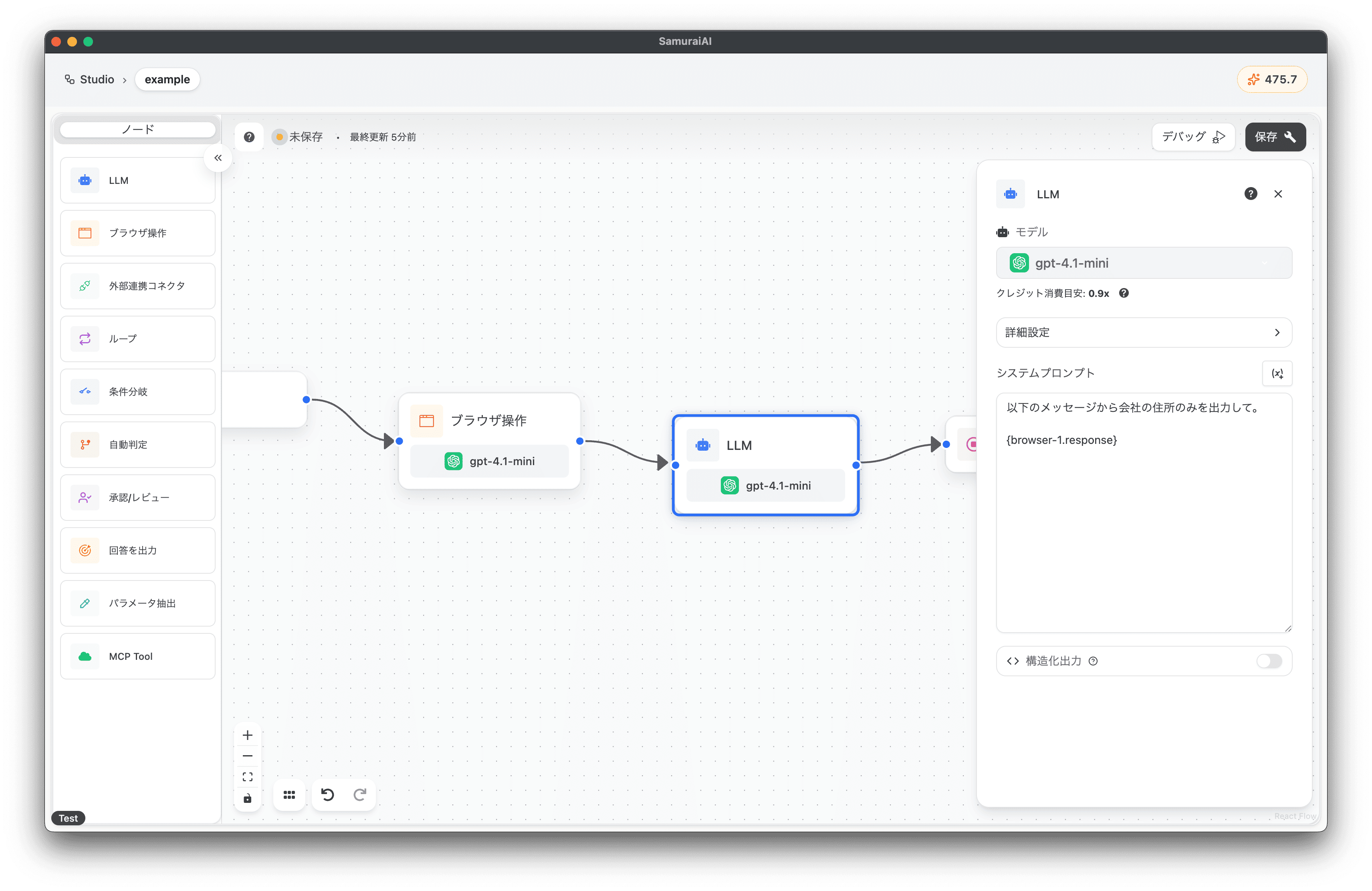
Overall Workflow
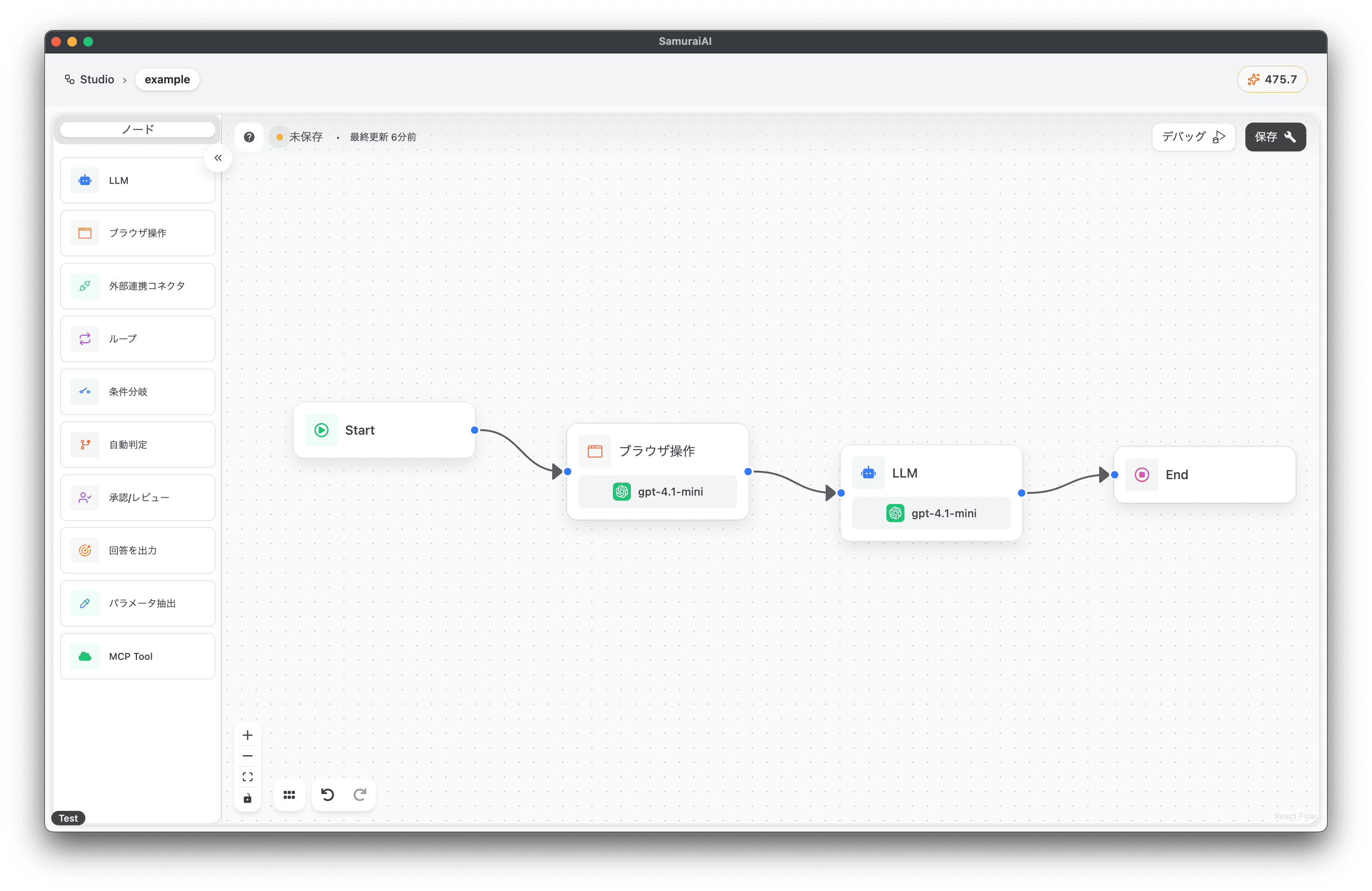
Section titled “Overall Workflow”The final workflow looks like this:
Running the Workflow
Section titled “Running the Workflow”Now you’re ready! Click the debug button to run the workflow.
When executed, the browser will automatically open and collect company information from the specified website. Finally, the address information of SamuraiAI’s operating company was output 🚀
Browser operations are designed to work at high speed, and you can see that they operate the browser at the same speed as or faster than a human (video playback speed: 1.0x).
Interestingly, the AI automatically extracts the operating company’s URL from just the service site URL provided and navigates further to the corporate information page. There’s no need for humans to specify which HTML elements are needed.
Customizing the Process
Section titled “Customizing the Process”Let’s now customize the workflow. This time, we’ll change the service URL from “https://samuraix.ai/” to “https://slack.com/intl/ja-jp/”.
After making the change, click “Save” and run it again.
With just one line change, we were able to retrieve Slack’s operating company. Since SamuraiAI automatically operates the browser, humans can immediately check the output data and perform additional searches if needed.
Learn More
Section titled “Learn More”Recommended Environment
Section titled “Recommended Environment”- The Browser node is only available in the desktop version of SamuraiAI. It is not available in the web version.
- A stable network connection is recommended. If the network is unstable, browser operations may fail midway.
- The higher the PC specifications, the smoother the browser operations. Memory and CPU performance are particularly important.
Browser Node Features
Section titled “Browser Node Features”The Browser node launches a browser dedicated to SamuraiAI on your local device and performs operations. This provides the following features:
- Secure Authentication: Website login information is stored within your PC and is never sent externally.
- Integration with Local Data: You can upload files from your PC or check downloaded files on your PC.
- High-Speed Operation: Automation processing optimized for browser operations enables high-speed performance.
- Easy User Intervention: Users can intervene during browser operations to assist manually.
Recommended Authentication Method
Section titled “Recommended Authentication Method”When automating login operations with the Browser node in SamuraiAI, we recommend the following authentication method:
- Execute any browser operation workflow to launch the browser.
- Manually perform login operations. This caches the authentication information within your local device, so you won’t need to log in again until the authentication expires.
File Downloads
Section titled “File Downloads”Browser operations can also download files from websites. Downloaded files are saved in the following folder:
“Menu Bar” -> “File” -> “Open Download Folder”
Websites That Are Difficult to Automate
Section titled “Websites That Are Difficult to Automate”SamuraiAI analyzes a website’s accessibility tree to perform operations. This significantly reduces token consumption and enables high-speed operations. On the other hand, operations may not work well on websites that lack sufficient accessibility considerations.
Also, if there is an extremely large amount of information on a single page, LLM token limitations may prevent correct operations.
Operation Support
Section titled “Operation Support”| Operation | Support | Details |
|---|---|---|
| Site Information Retrieval | ✅️ | |
| Text Input | ✅️ | |
| Authentication such as Login | ✅️ | |
| File Download | ✅️ | |
| File Upload | ✅️ | |
| Screenshot Capture | ✅️ | |
| reCAPTCHA | △ | Simple ones only |
| Bot Protection Bypass | △ | Human intervention required |
Last updated: