

LLM Node
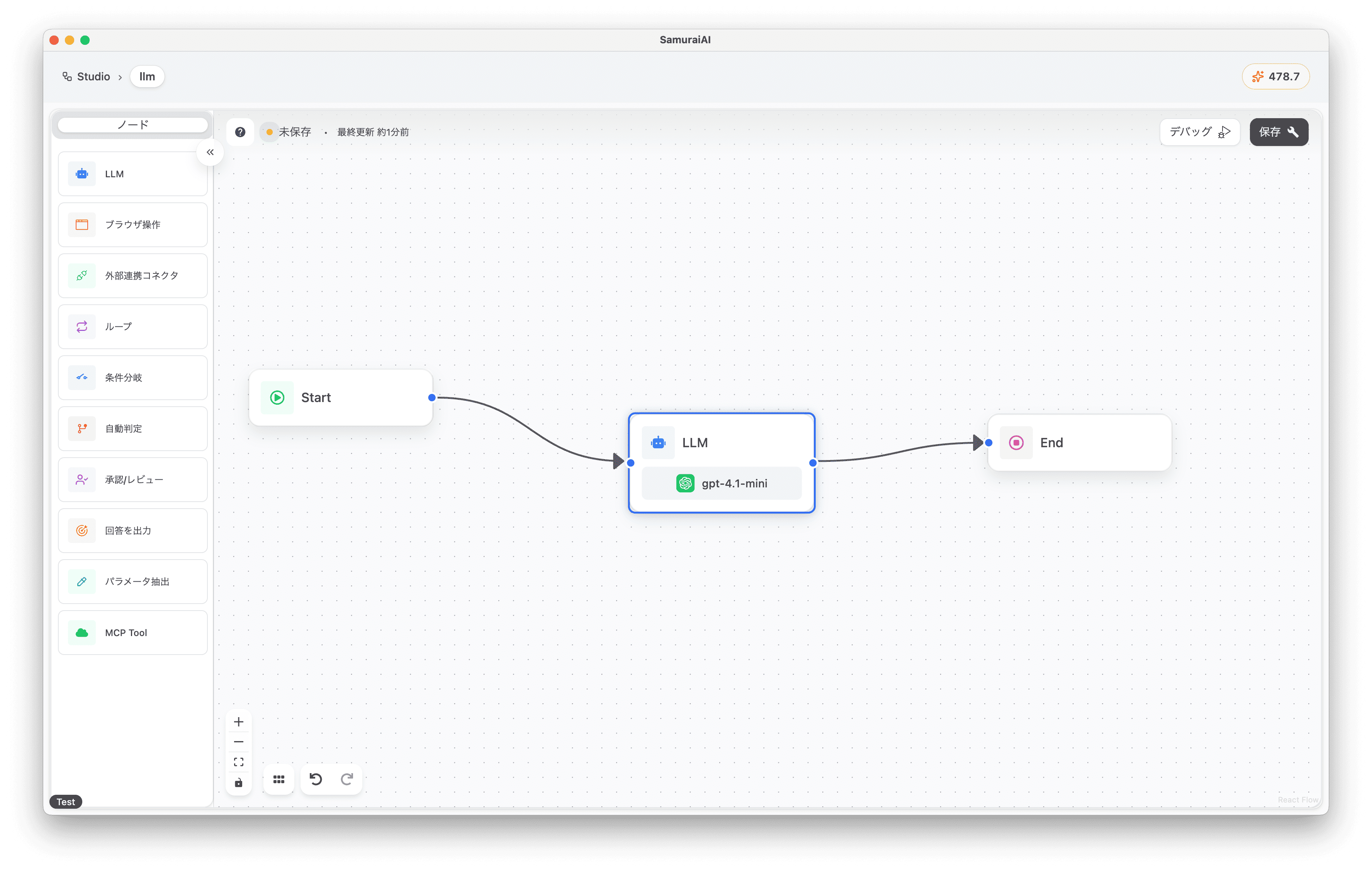
The LLM node is the most versatile tool that can understand user input and generate responses. It can handle various tasks such as translation, OCR, summarization, and text generation.
This tutorial introduces a “workflow that extracts information from a business card image and generates a thank you email text.”
Tutorial
Section titled “Tutorial”Image Recognition
Section titled “Image Recognition”First, create a new workflow in Studio.
If an LLM node is placed by default, copy and paste the following content into that node’s prompt:
Extract business card information from the following image data.
## Image Data{start.meisi_image}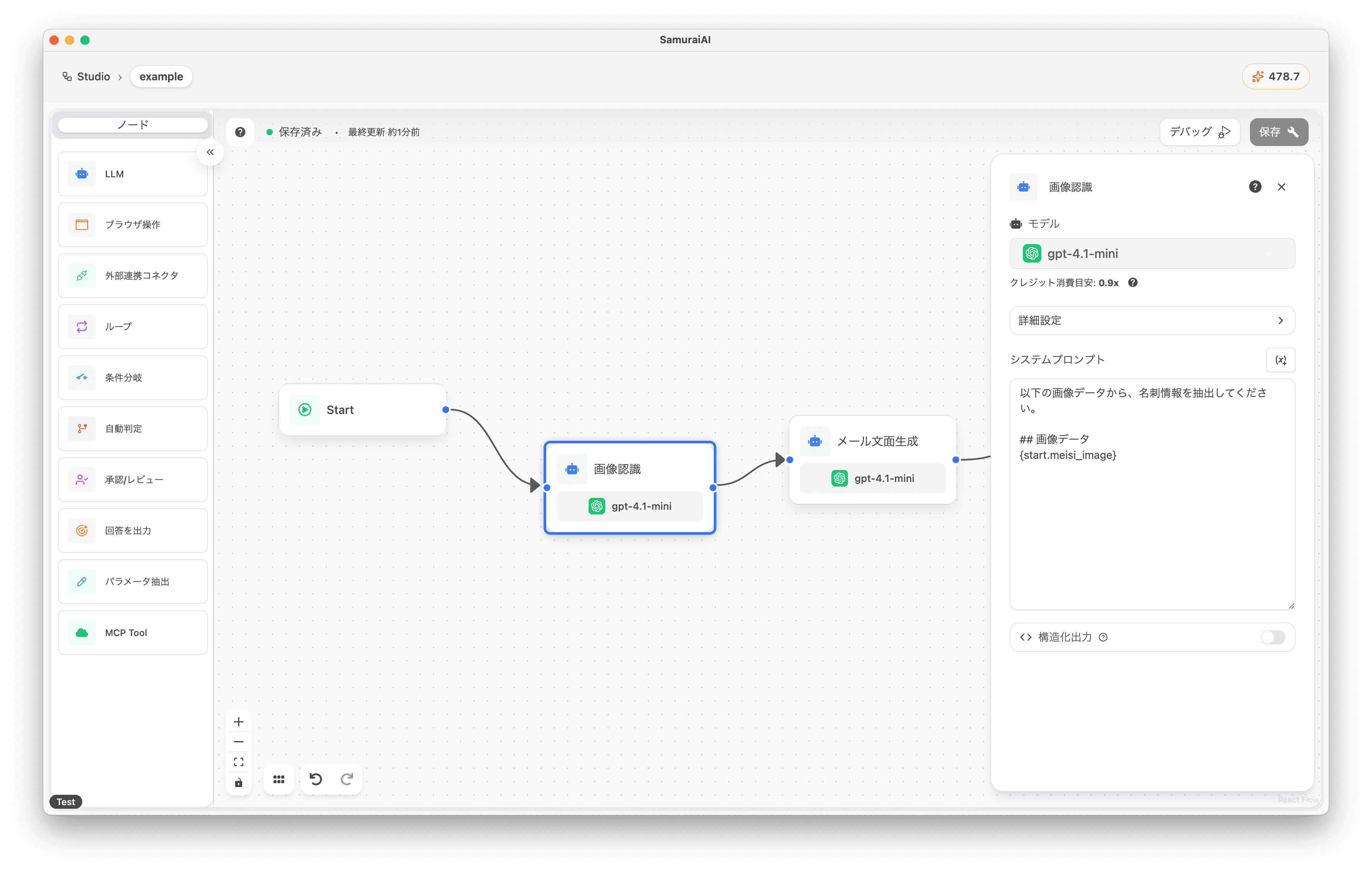
Creating Image Input Form
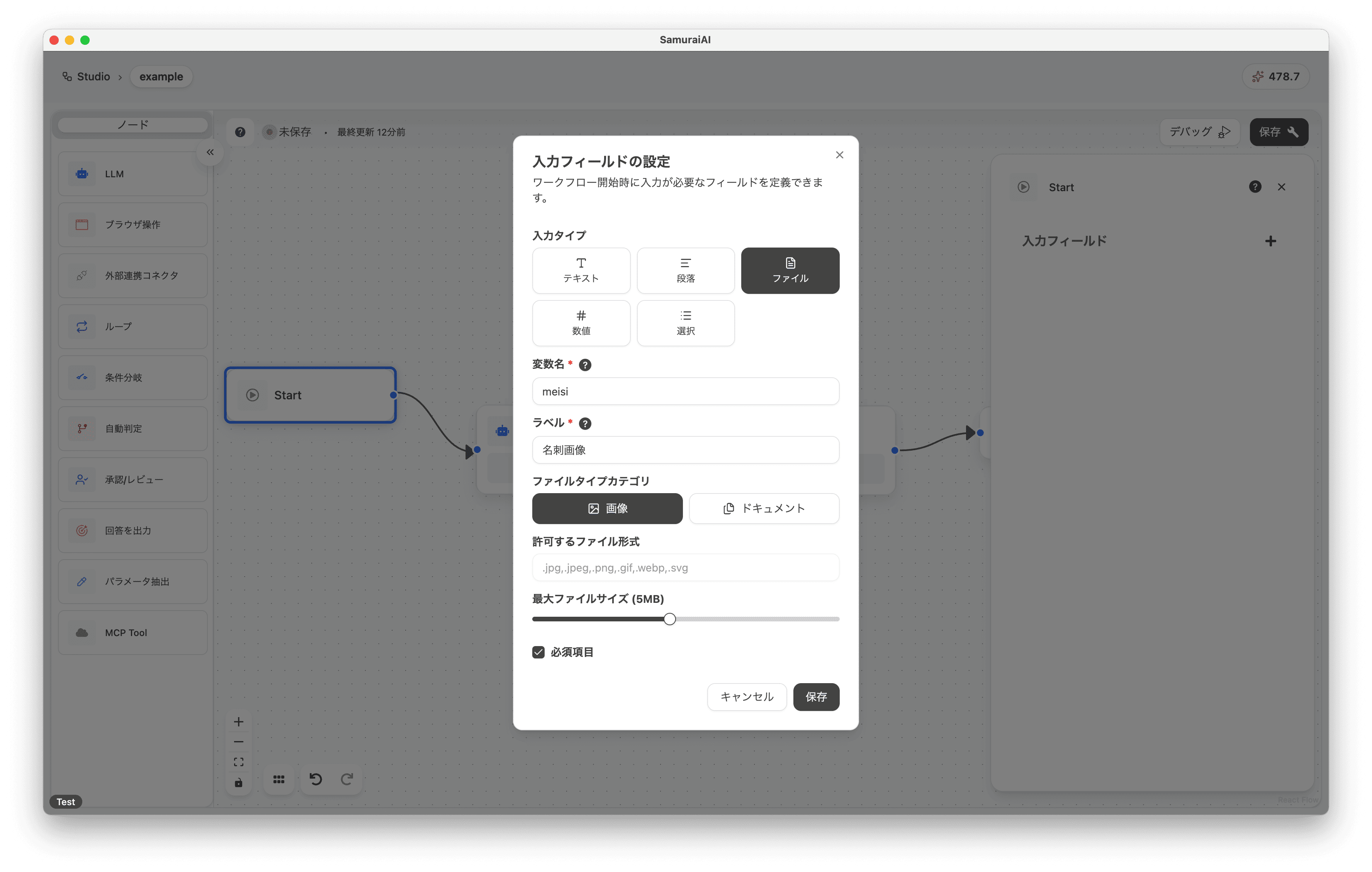
Section titled “Creating Image Input Form”Click the Start node and configure the input field as follows:
- Input File: File
- Variable Name: meisi_image
- Label: Business Card Image
- File Type Category: Image
- Required: On
Generating Receipt Email Text
Section titled “Generating Receipt Email Text”Next, add a new LLM node to the right of the LLM node and copy and paste the following content:
Generate a thank you email text based on the business card data.
## Business Card Data{llm-1.response}
## Email FormatSubject: Thank you for the recent business meetingBody:To: [Company Name][Department] [Name]
Thank you very much for exchanging business cards at our recent meeting.I am Samurai Taro from Demo Corporation.
I look forward to working with you in the future.
Samurai Taro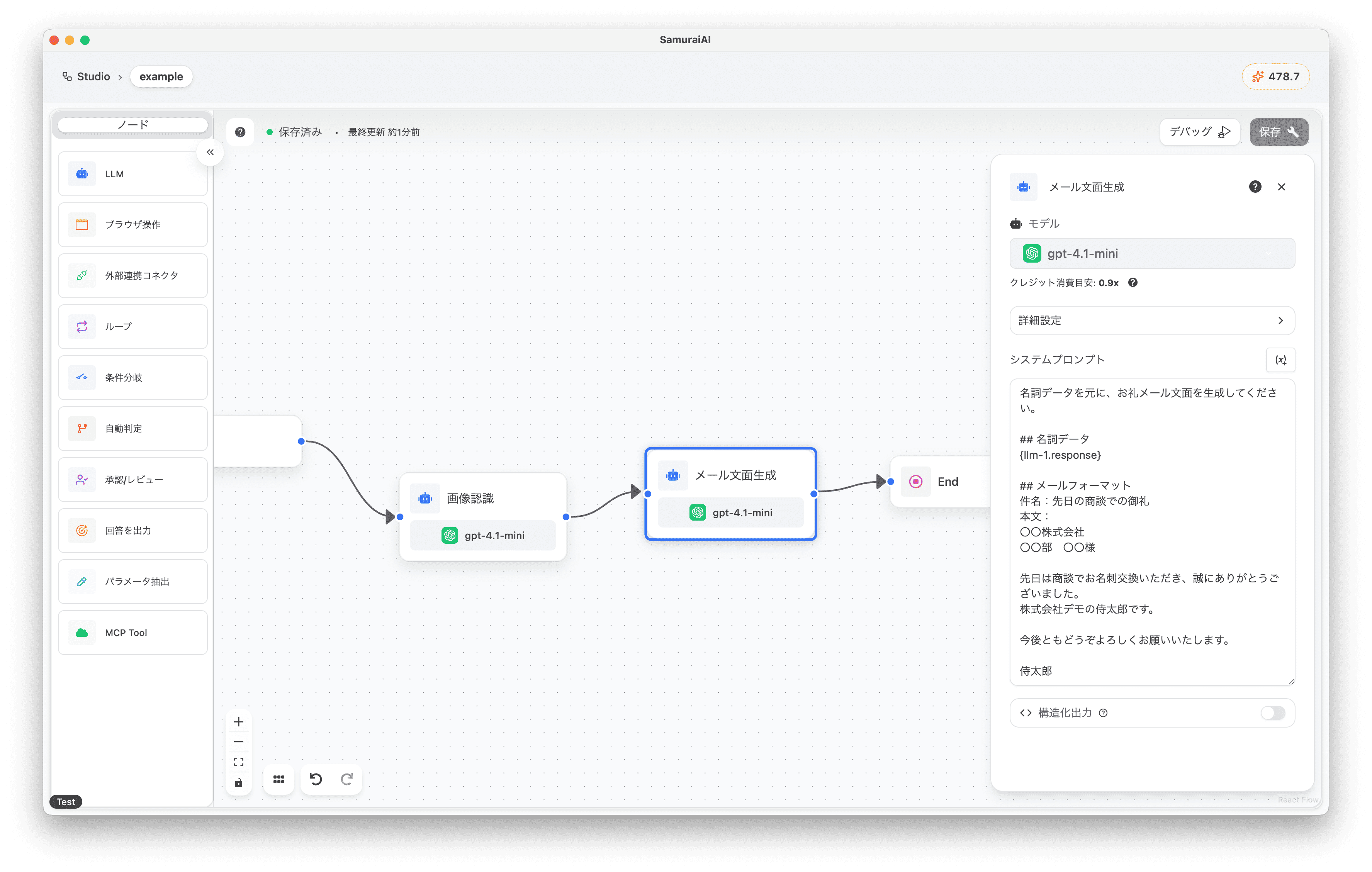
Overall Workflow
Section titled “Overall Workflow”The final workflow looks like this:
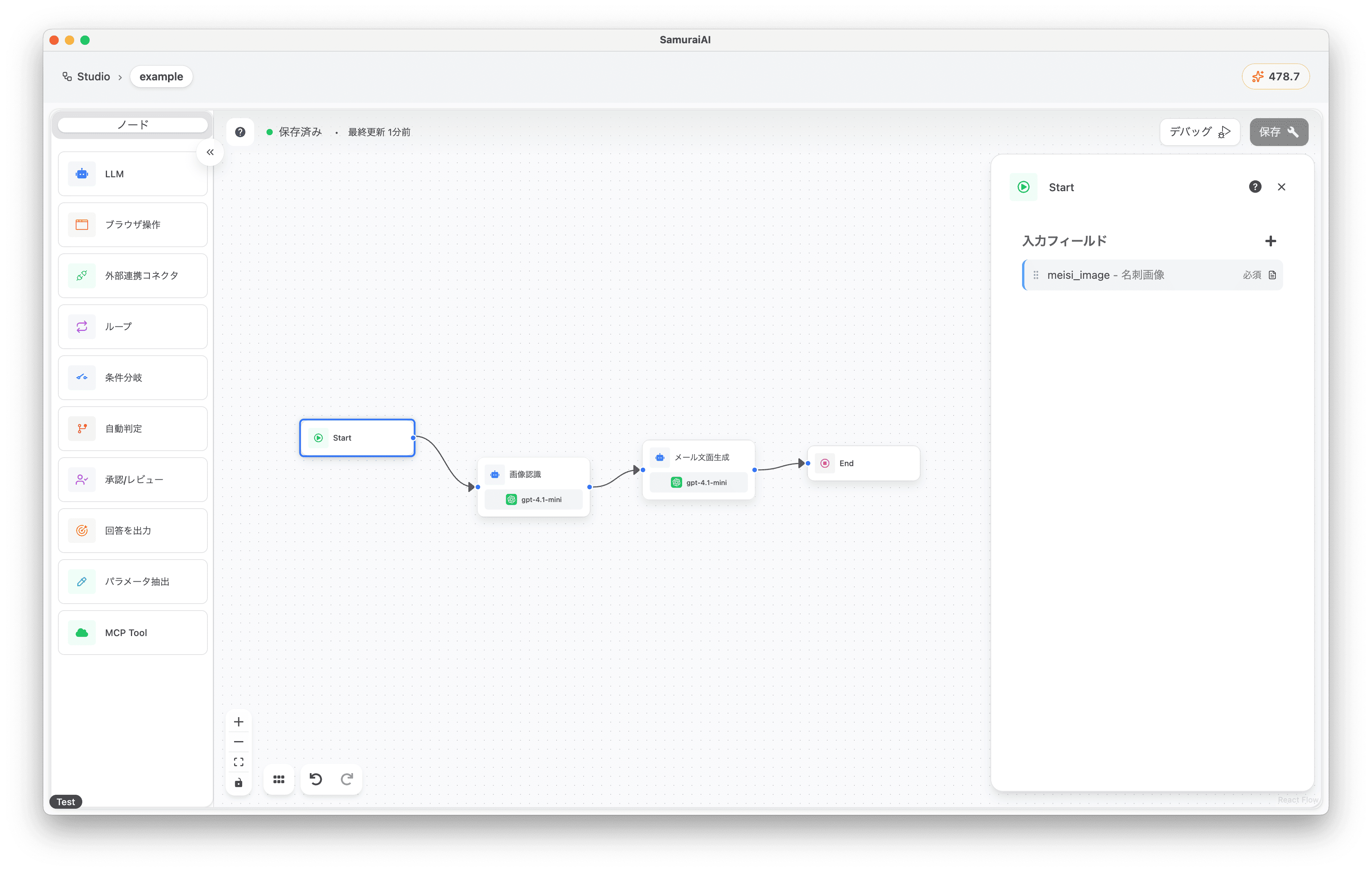
Running the Workflow
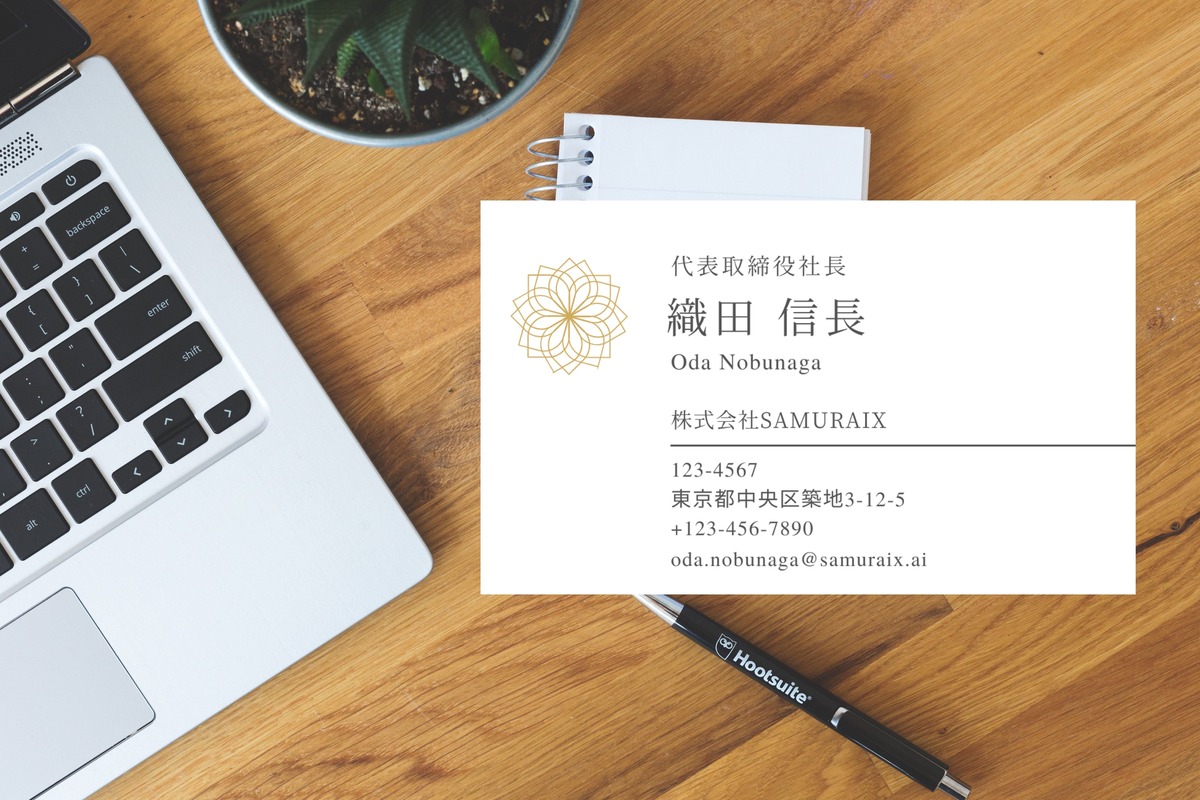
Section titled “Running the Workflow”Now you’re ready! Click the debug button to run the workflow. You can use the following sample image for the business card image.
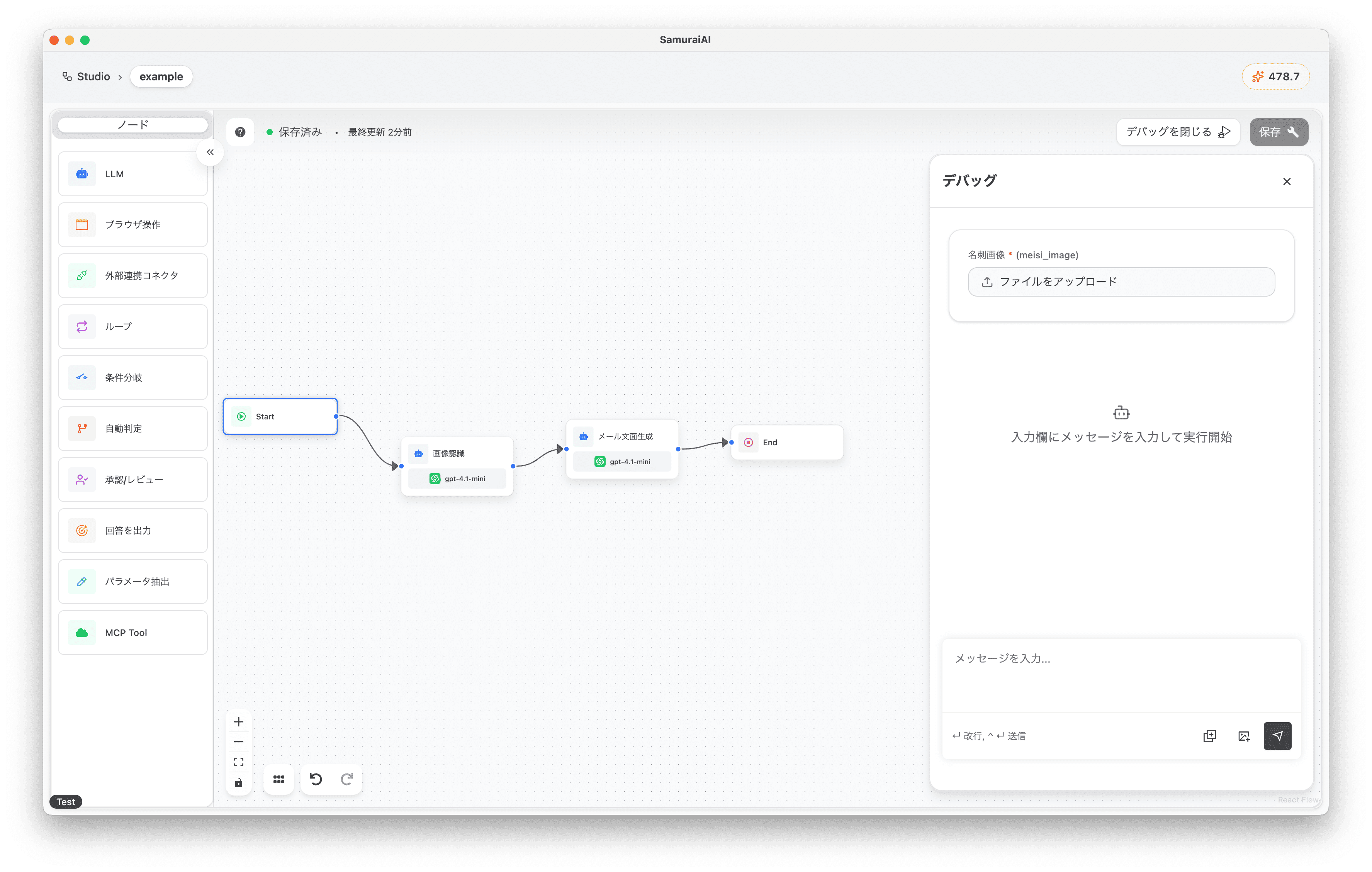
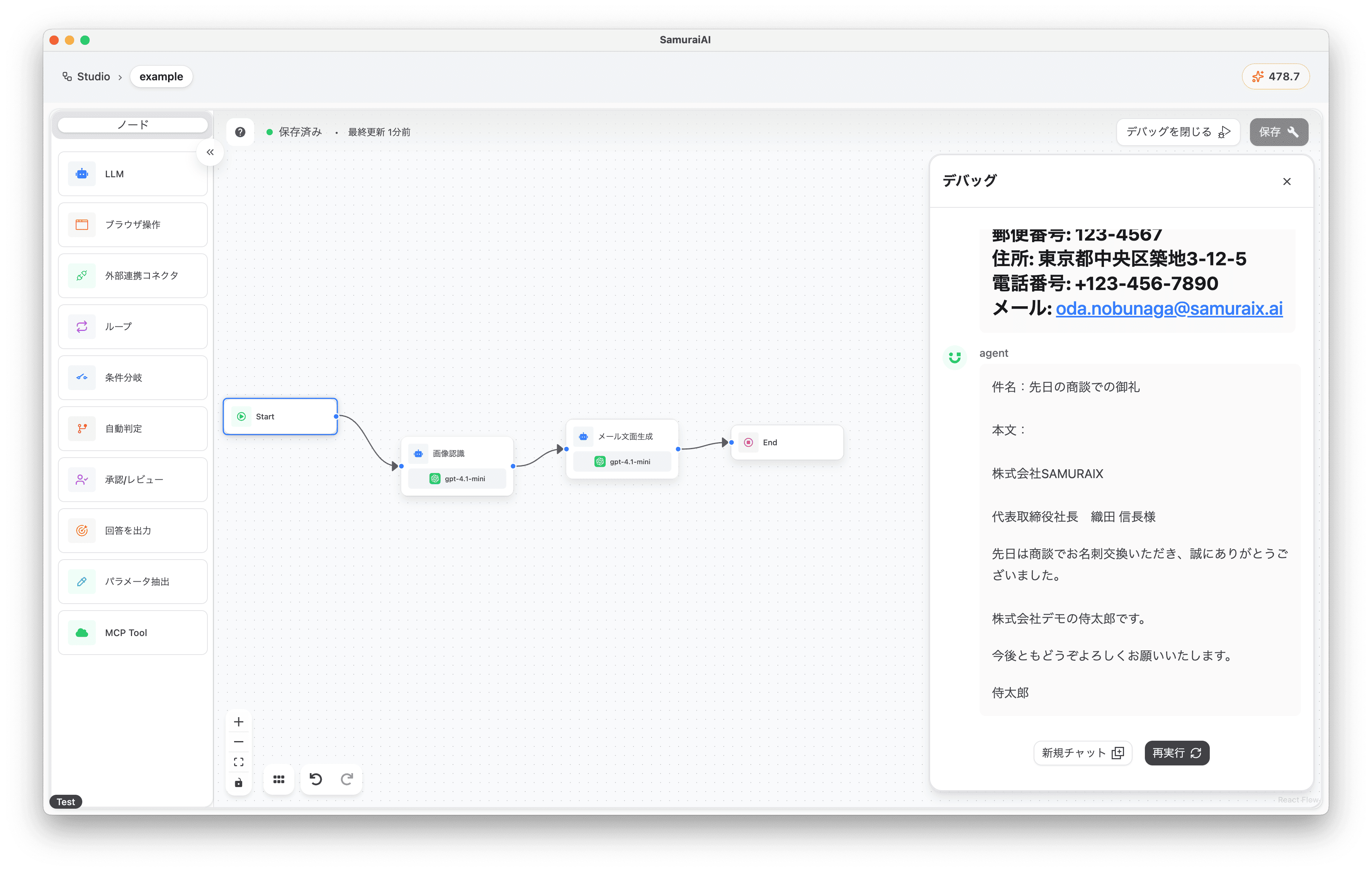
When executed, a thank you email text based on the uploaded business card image data was output 🚀
Last updated: