

Loop Node
Loop Node is used when you want to repeat the same process multiple times or process each element of an array sequentially. For example, it is useful when you want to apply the same AI process to multiple pieces of data.
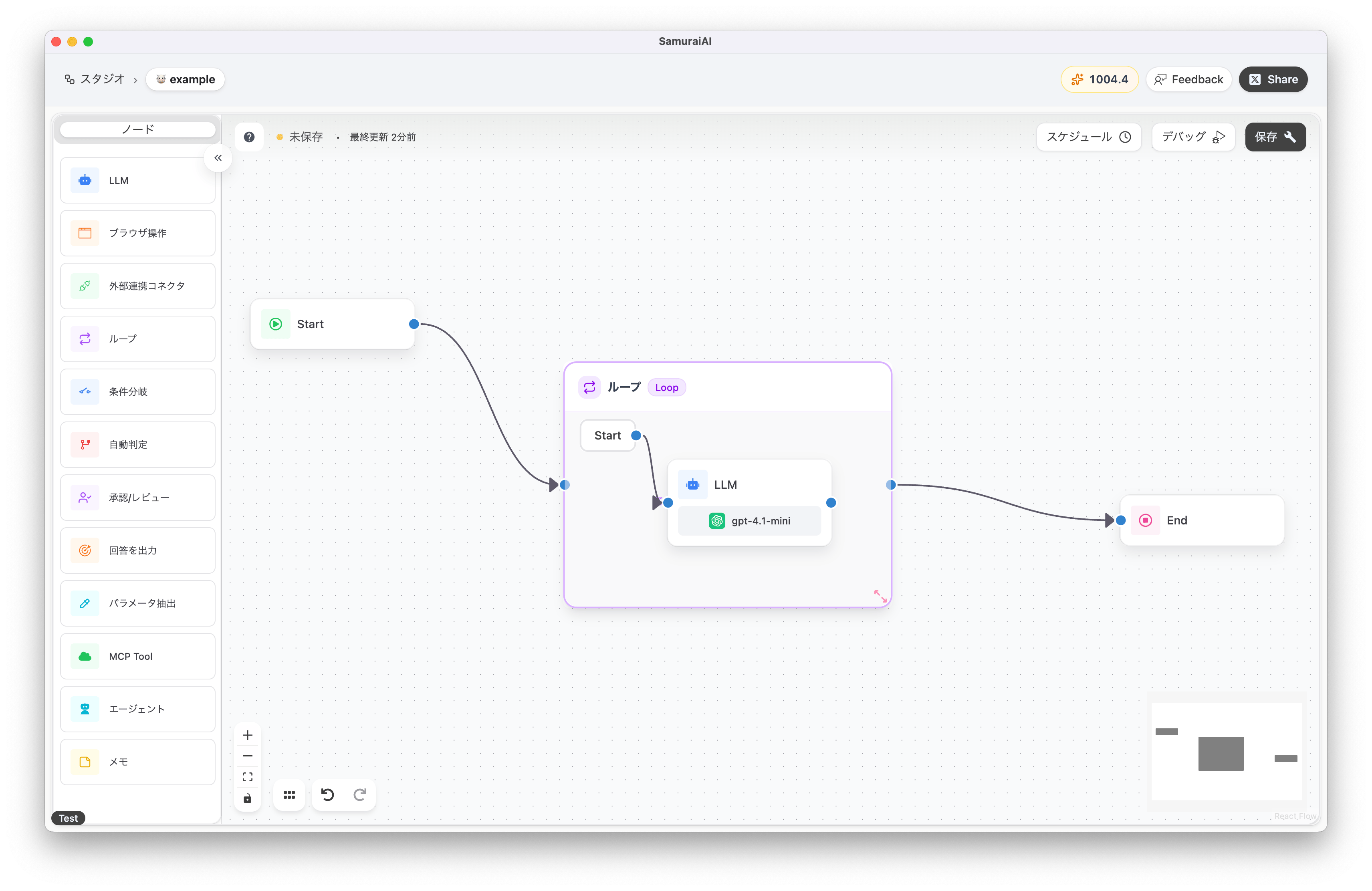
Tutorial
Section titled “Tutorial”Types of Loop Nodes
Section titled “Types of Loop Nodes”There are mainly two ways to use the Loop Node:
1. Fixed Count Loop
Section titled “1. Fixed Count Loop”- Select “Fixed Loop” as the loop type.
- Specify the number of times to repeat in “Max Loop Count” (e.g., 5 times).
- The nodes inside the loop will be executed in order for the specified number of times.
For example, if you set the following prompt in the LLM node inside the loop, you can get different outputs depending on the current loop count.
If {{#loop.index#}} is a multiple of 3: "{{#loop.index#}}: 🚀"Otherwise: "{{#loop.index#}}:🙏"Output as is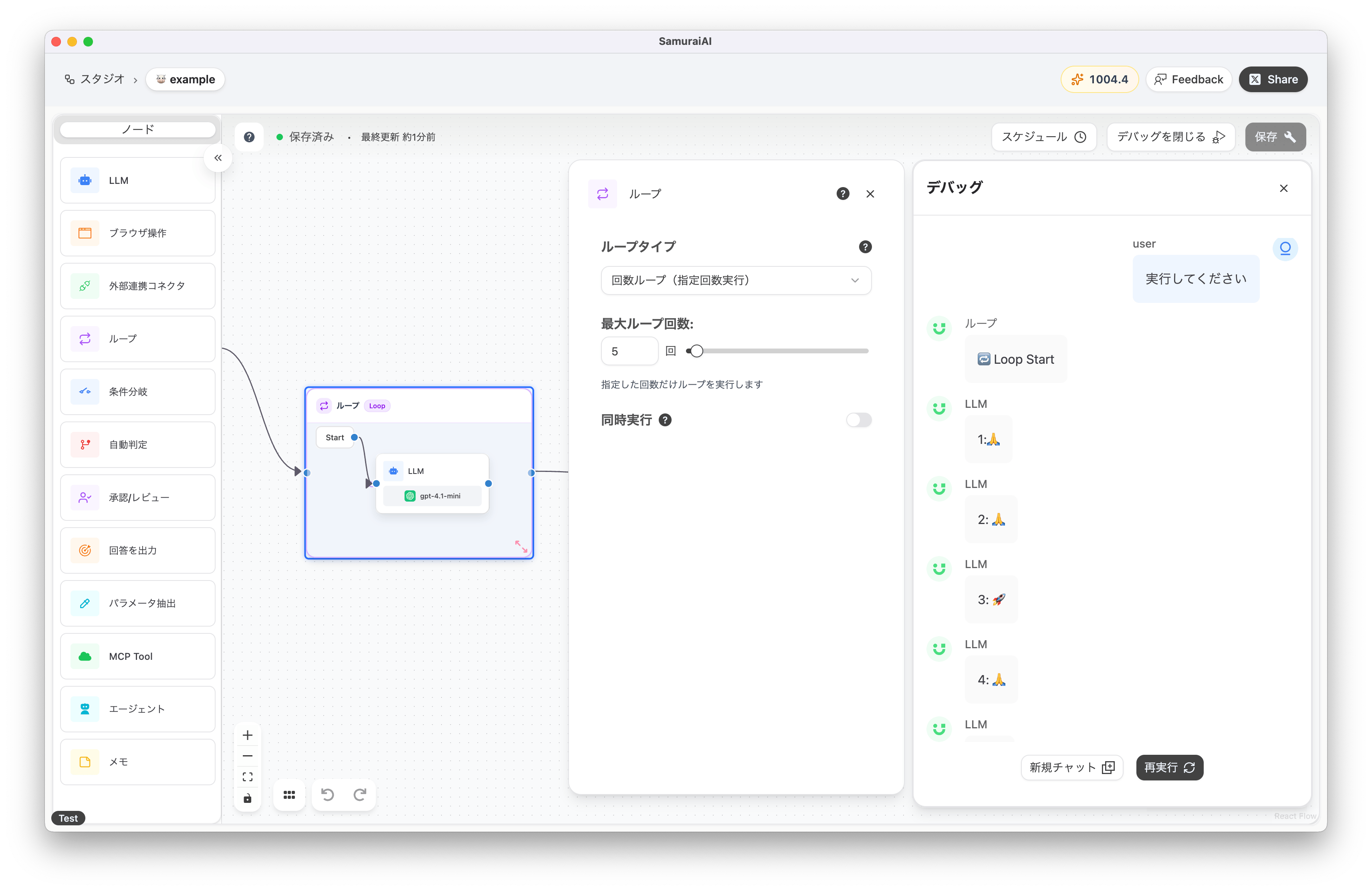
2. Iterative Processing (Process Array Elements Sequentially)
Section titled “2. Iterative Processing (Process Array Elements Sequentially)”- Select “For Each” as the loop type.
- In “Iteration Data”, specify the array variable or JSON array you want to loop through.
- You can select an existing array variable or directly input a JSON array in fixed value mode.
- The nodes inside the loop will be executed sequentially for each element of the array.
This is especially useful when you want to use the output (such as CSV or other structured data) from the previous node as the iteration data for the loop.
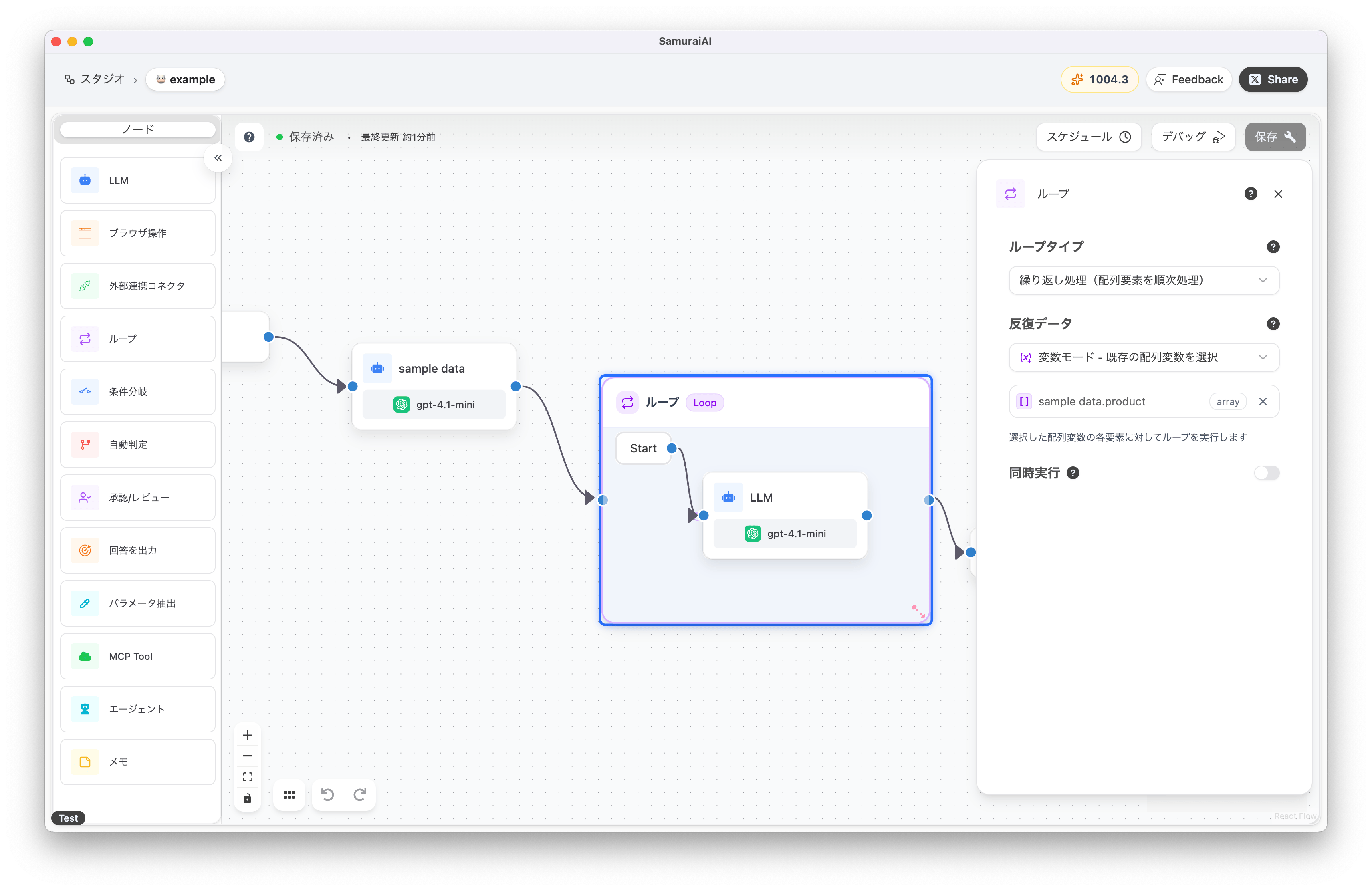
The following example shows how to have the LLM node (sample data) output dummy data as a JSON array and use it as the iteration data for the loop. If you use an existing array variable, you need to enable “Structured Output” and set the schema.
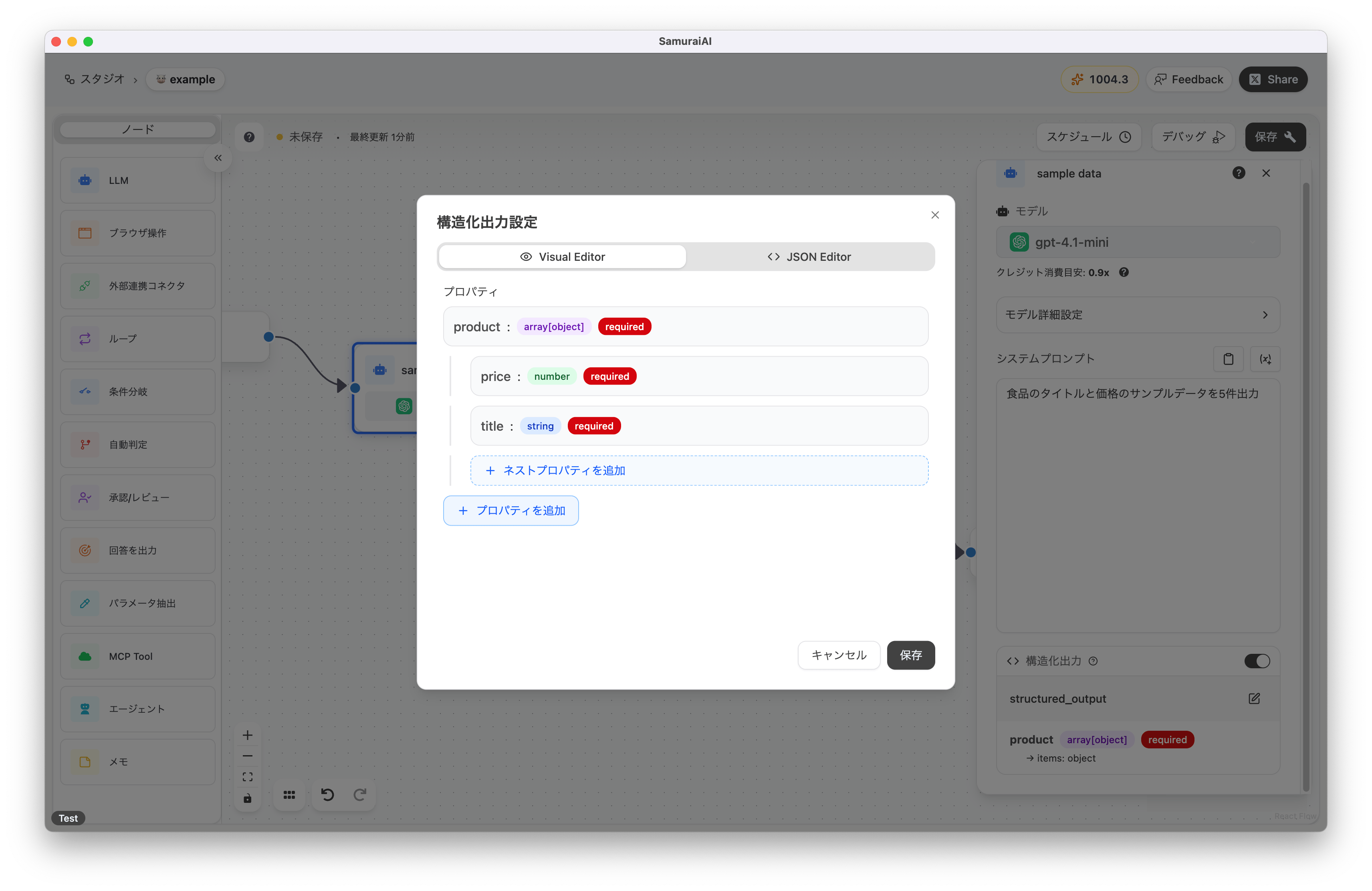
Example LLM prompt:
Output 5 sample data items with food titles and pricesIn the Loop Node, select the previous node’s “sample data.product” as the variable for iteration data. This allows each element in the array to be processed sequentially inside the loop.
Example prompt for the LLM node inside the loop:
Output the following data in table format{{#loop.currentItem#}}With currentItem, you can access the array element currently being processed inside the loop. In the above example, the title and price of each food item will be output in table format.
That’s it! Click the debug button to run the workflow. When you run it, you will see dummy data output as shown below, and you can confirm that different food information is displayed for each loop iteration.
{ "product": [ { "title": "Organic Tomato Juice 500ml", "price": 350 }, { "title": "Hokkaido Potatoes 1kg", "price": 400 }, { "title": "Domestic Chicken Breast 300g", "price": 450 }, { "title": "Additive-free Miso 500g", "price": 600 }, { "title": "Fresh Bananas 1 bunch", "price": 300 } ]}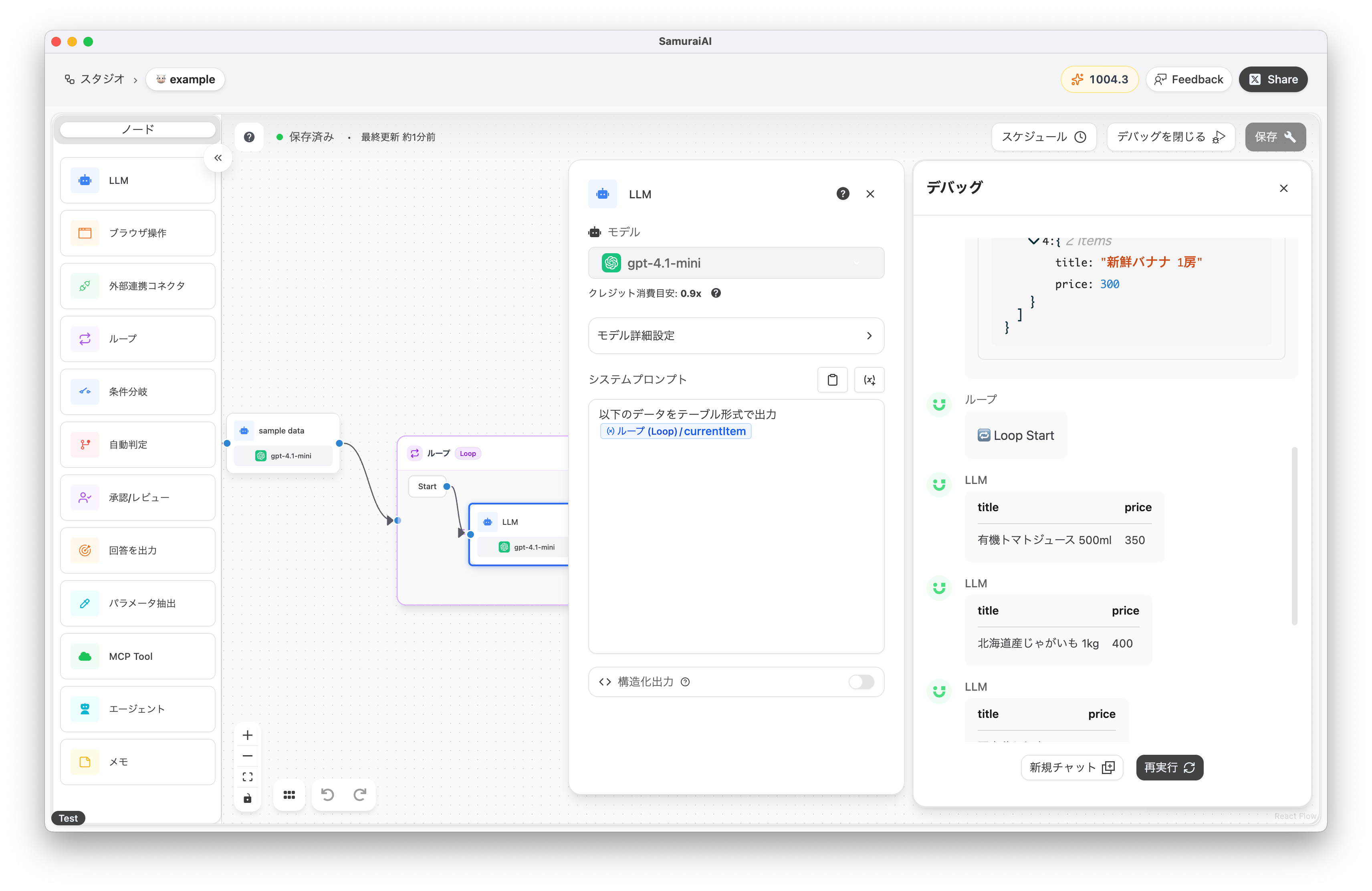
Parallel Execution Option
Section titled “Parallel Execution Option”- If you turn on “Parallel Execution”, each loop process can be executed in parallel (by default, it is off and runs sequentially).
Last updated: