

MCP Tool Node
The MCP Tool node is a node for incorporating custom tools into workflows by utilizing external MCP Servers. This enables AI integration with other applications and services via MCP.
This tutorial introduces a “workflow that adds a product catalog to Stripe via Zapier MCP.”
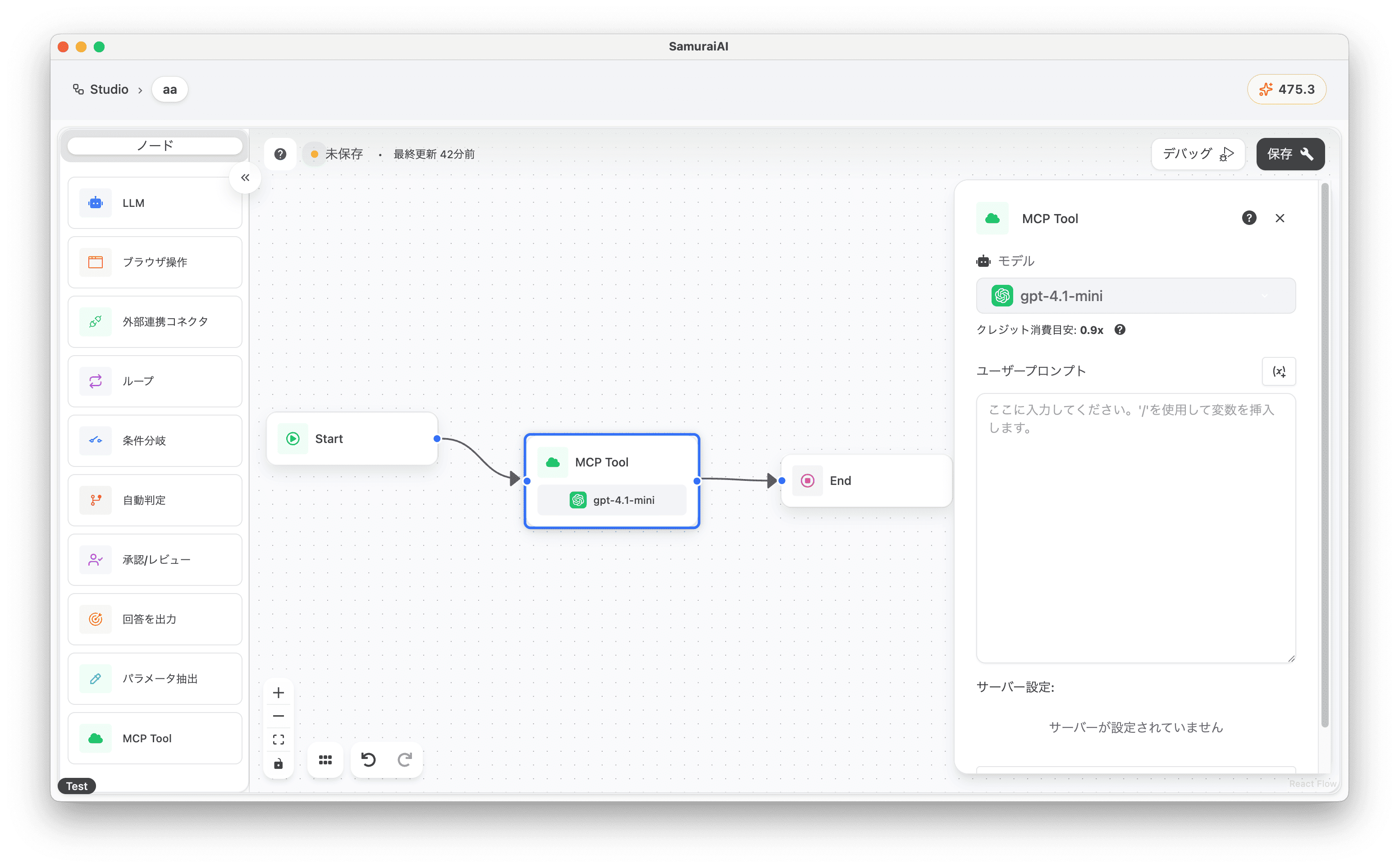
Tutorial
Section titled “Tutorial”Zapier MCP Setup
Section titled “Zapier MCP Setup”By using Zapier MCP, you can easily build an MCP server that connects Claude, ChatGPT, and other AI tools to over 8,000 apps. Integration with SamuraiAI is also possible, allowing you to integrate with SaaS that don’t exist in SamuraiAI connectors.
This time, we’ll verify integration with the payment service Stripe. The creation steps are as follows:
- Access Zapier MCP and create an account.
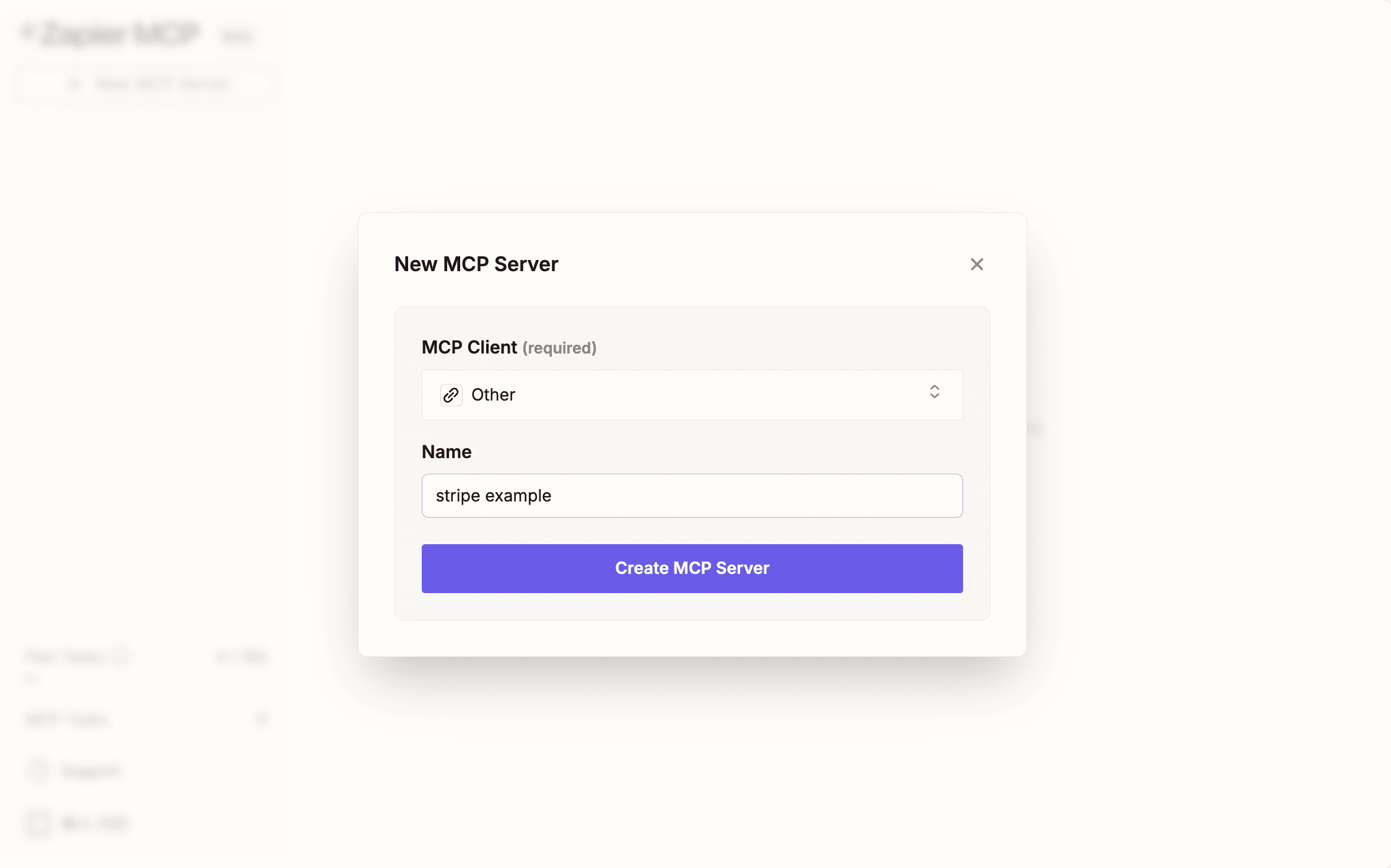
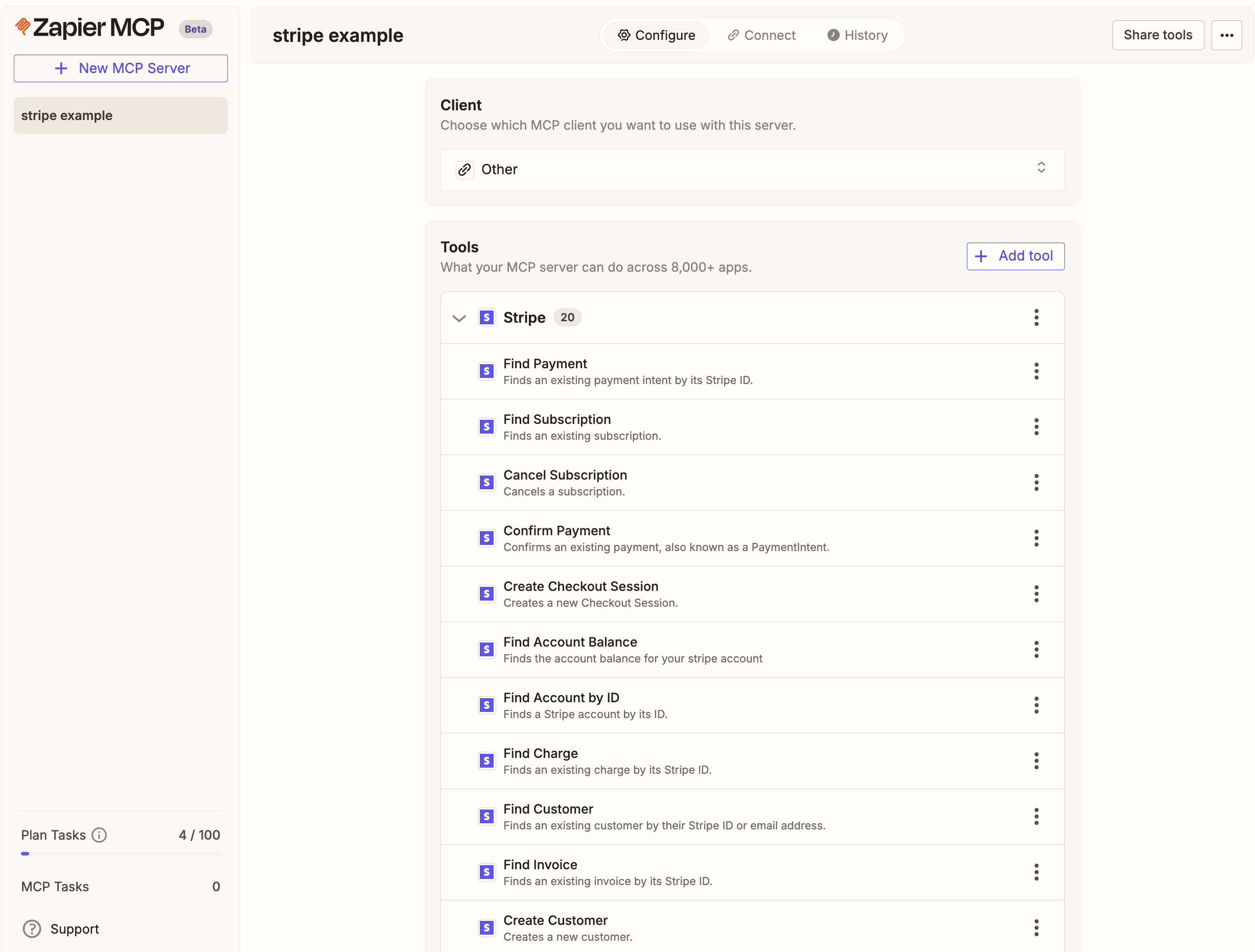
- Create a new MCP Server from “New MCP Server”. Set the MCP Client as Other.
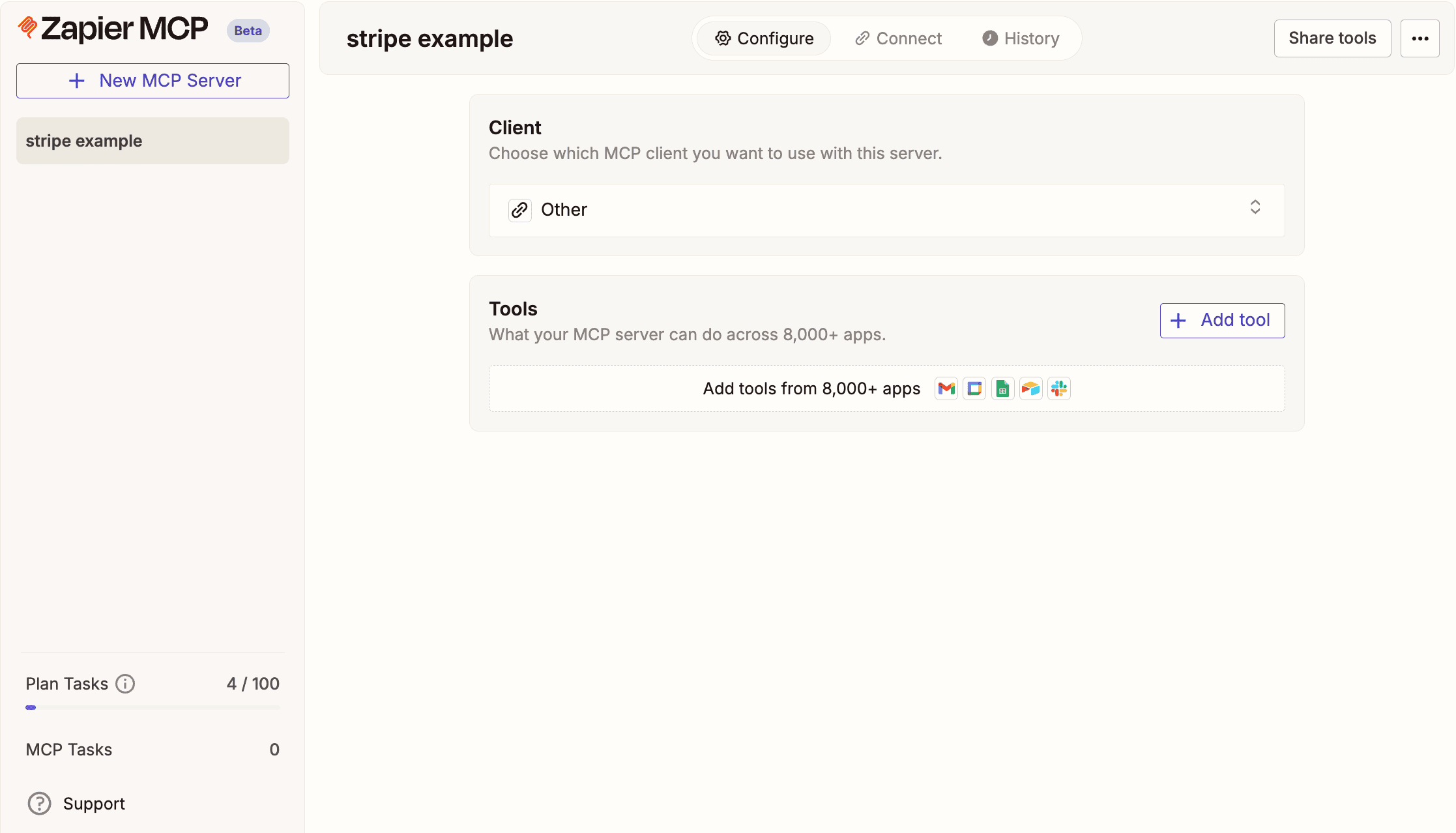
- Click “Add Tool” to integrate with SaaS. Select the “Stripe” app and connect with your Stripe account.
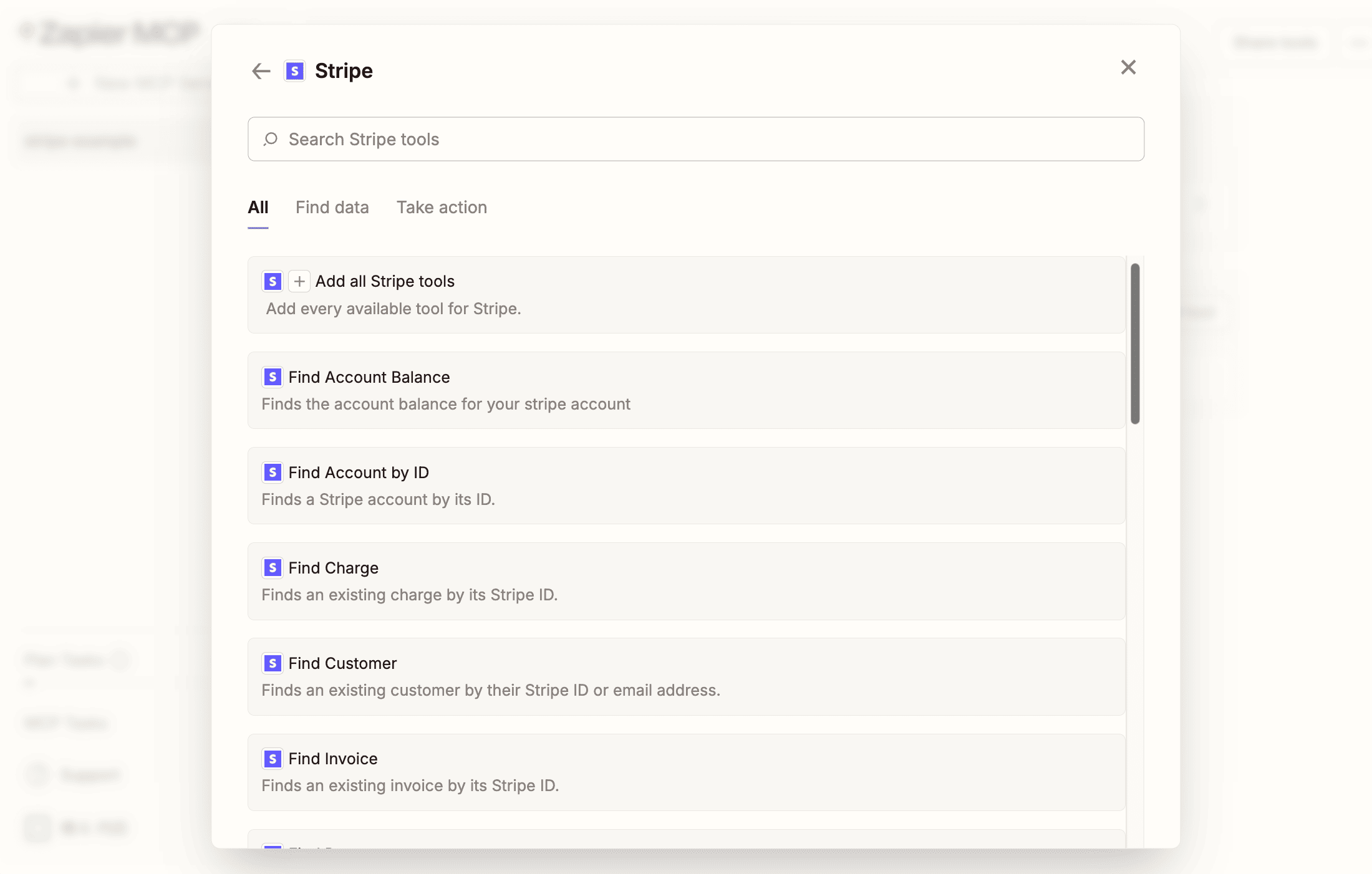
- In the Tool selection, add all tools.
- Upon success, the tools will be displayed in the MCP Server.
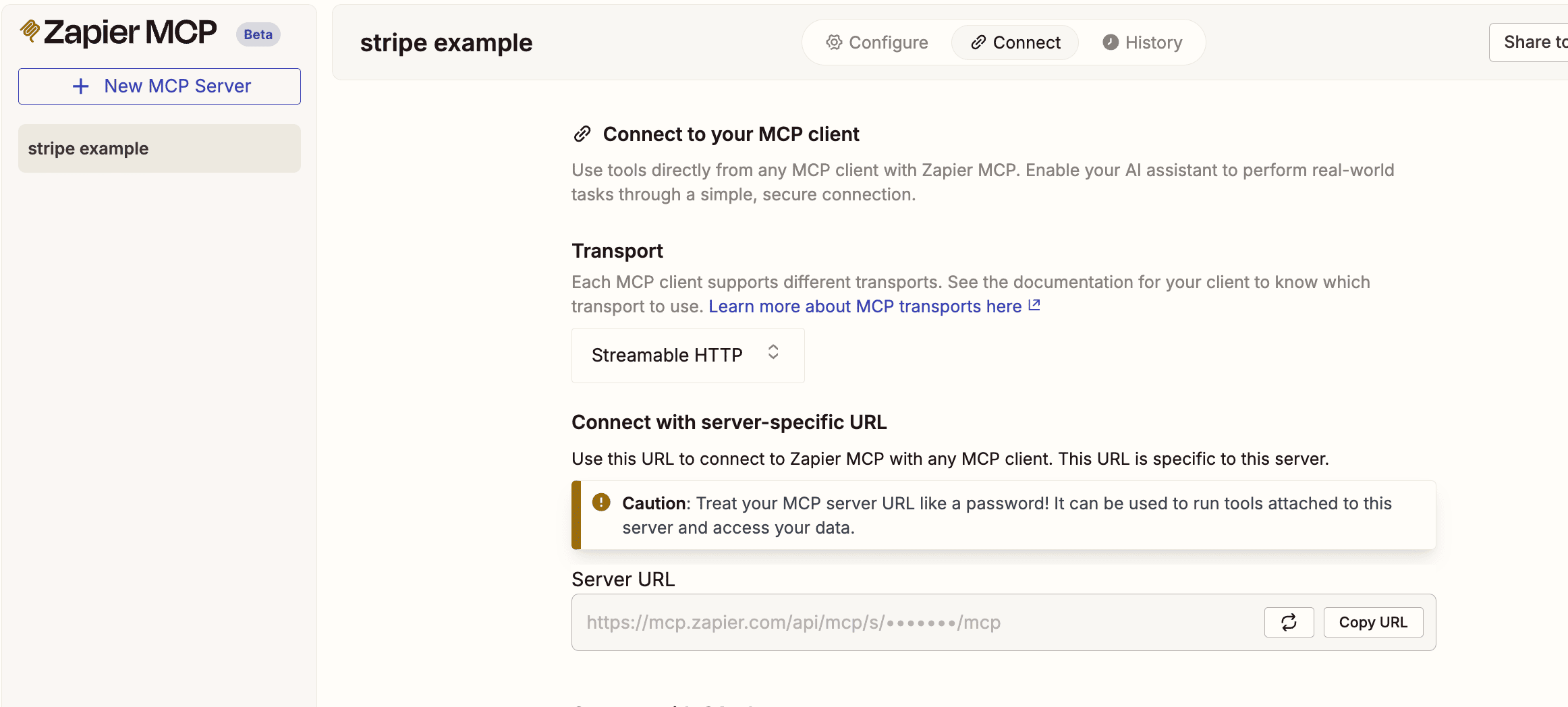
- Click Connect at the top and copy the MCP Server URL.
Creating the App
Section titled “Creating the App”From SamuraiAI, create a new workflow in Studio.
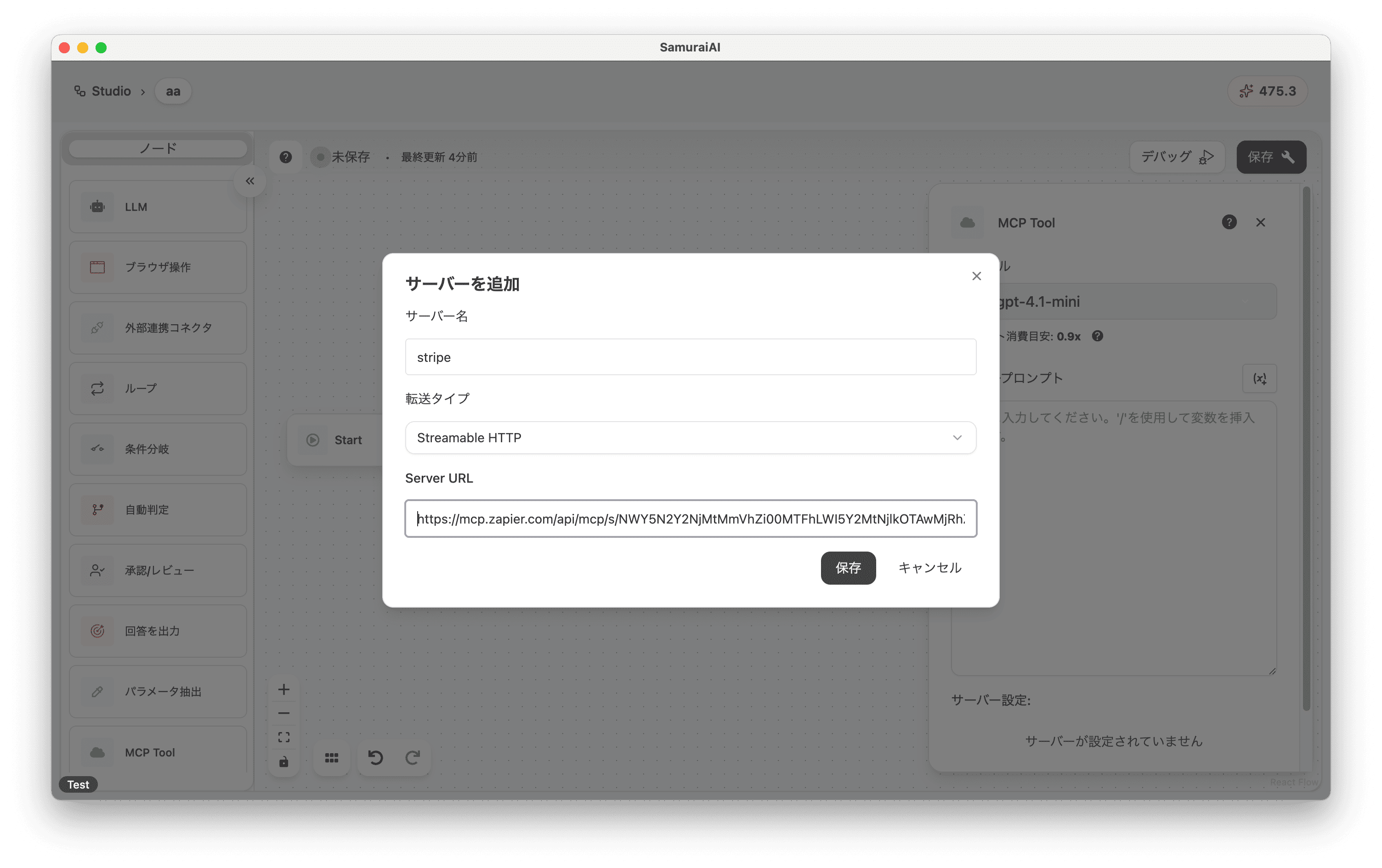
Add an MCP Tool node and add the created MCP Server:
- Server Name: stripe
- Transfer Type: Streamable HTTP
- Server URL: Zapier MCP’s MCP Server URL
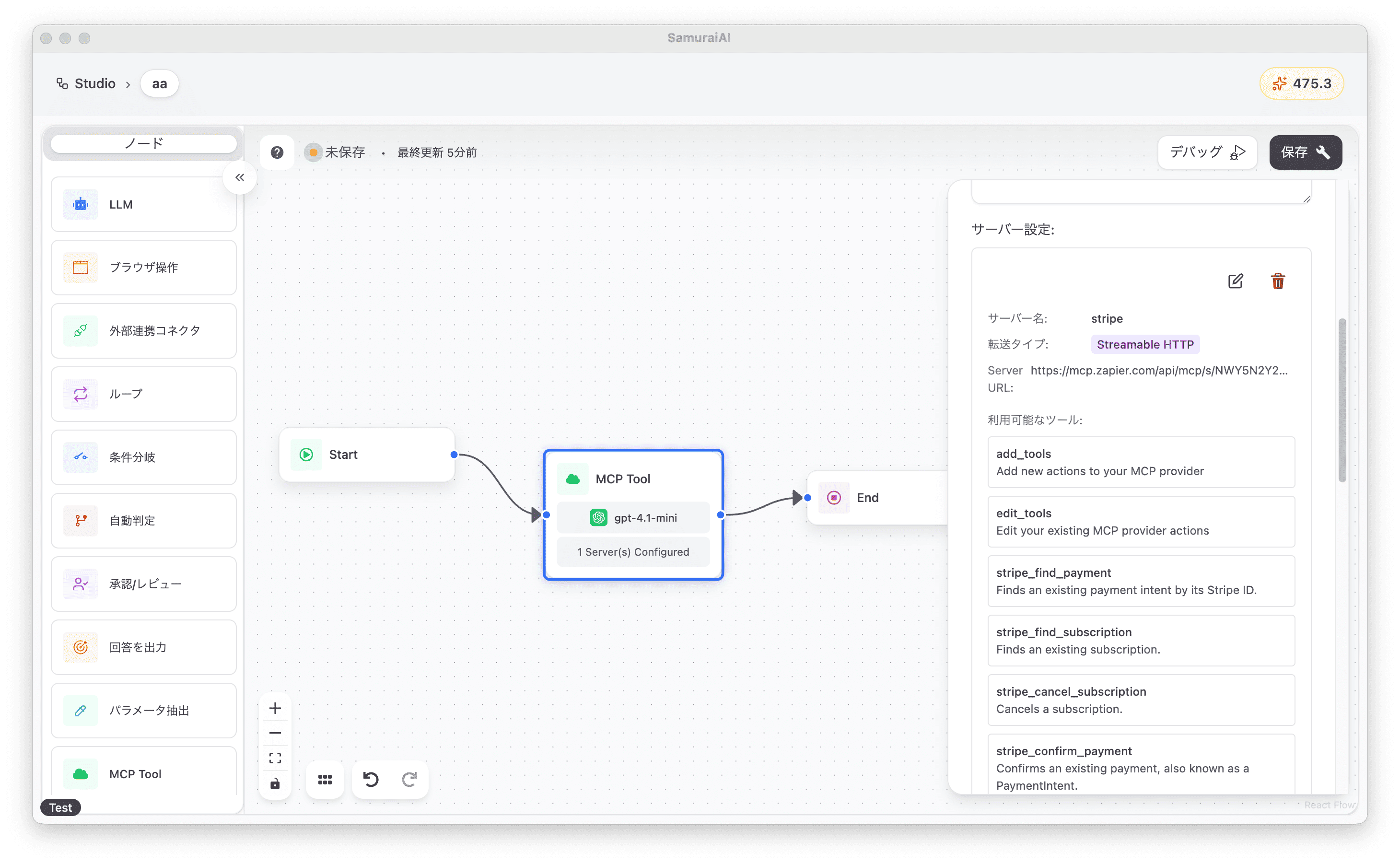
Upon success, the tools from Zapier MCP will be displayed in the MCP Tool node.
Next, enter the following content in the prompt:
Add a dummy product "Computer" to Stripe.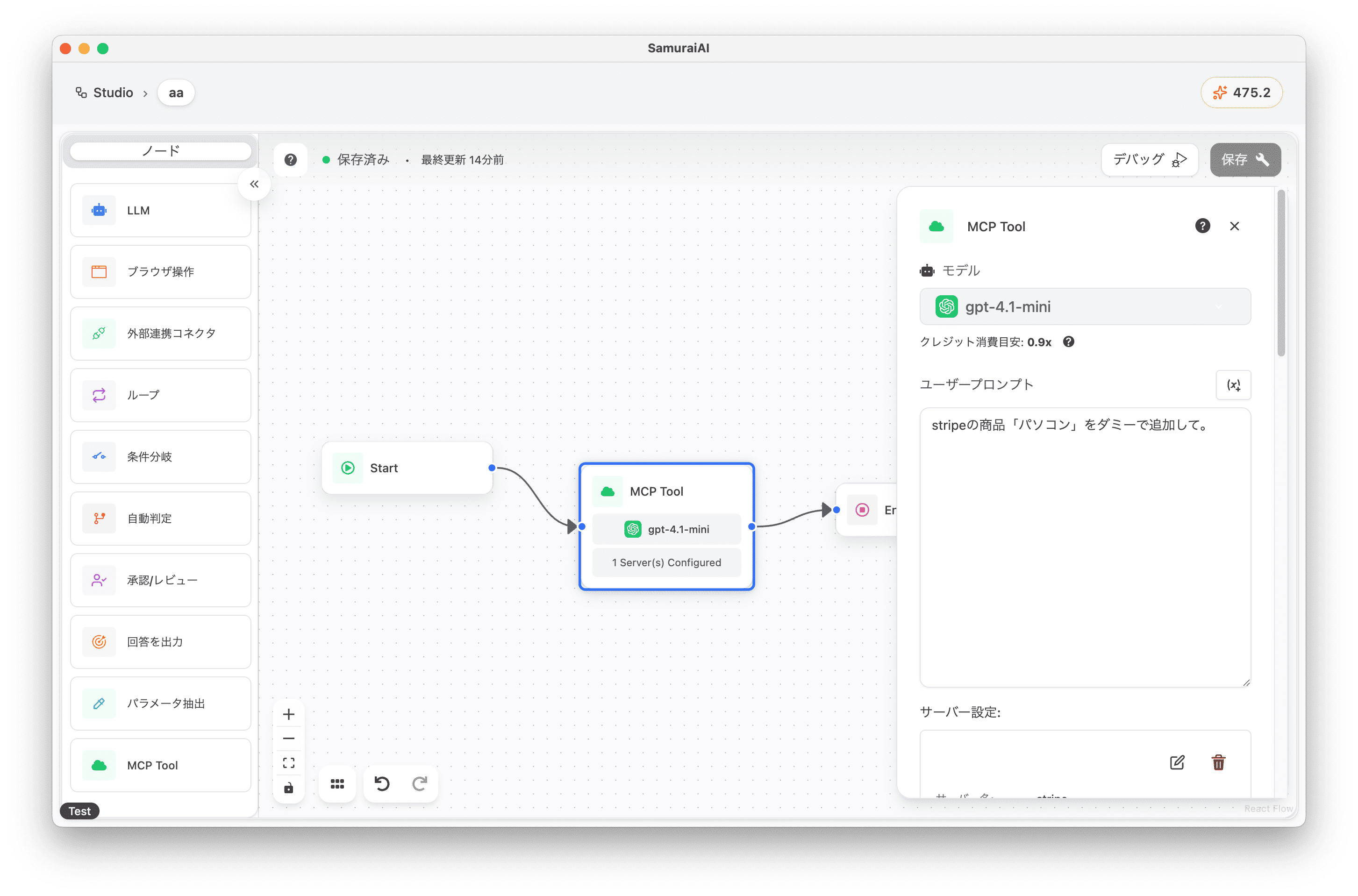
Running the Workflow
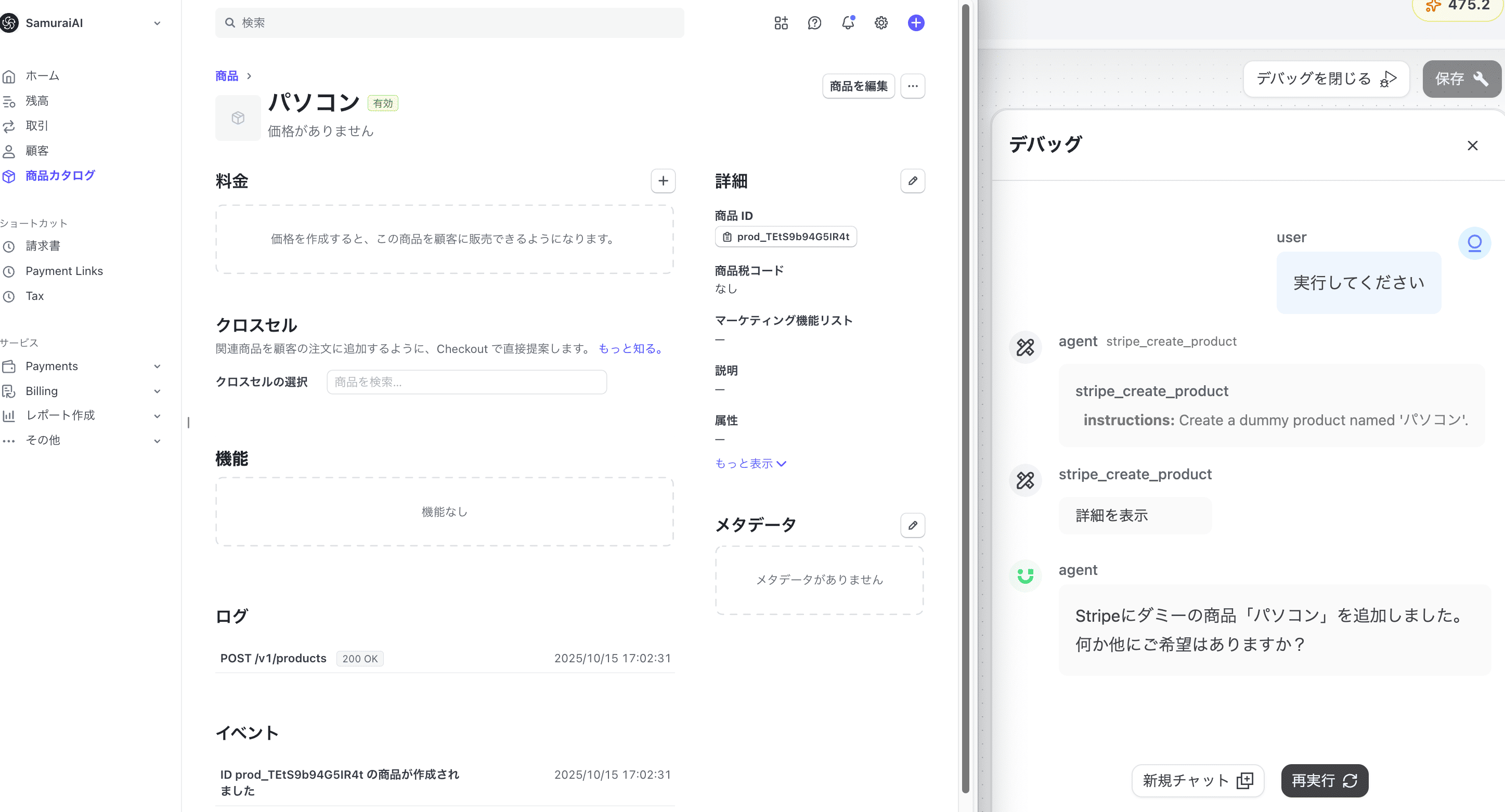
Section titled “Running the Workflow”Now you’re ready! Click the debug button to run the workflow. When executed, we successfully added a computer product catalog to Stripe 🚀
Last updated: